


Completing Consultation, Treatment, or Review locks that phase so the record stays accurate. If you need to correct something (a missed product, map point, or form) reopen the phase, edit, then complete it again.
When a phase is locked
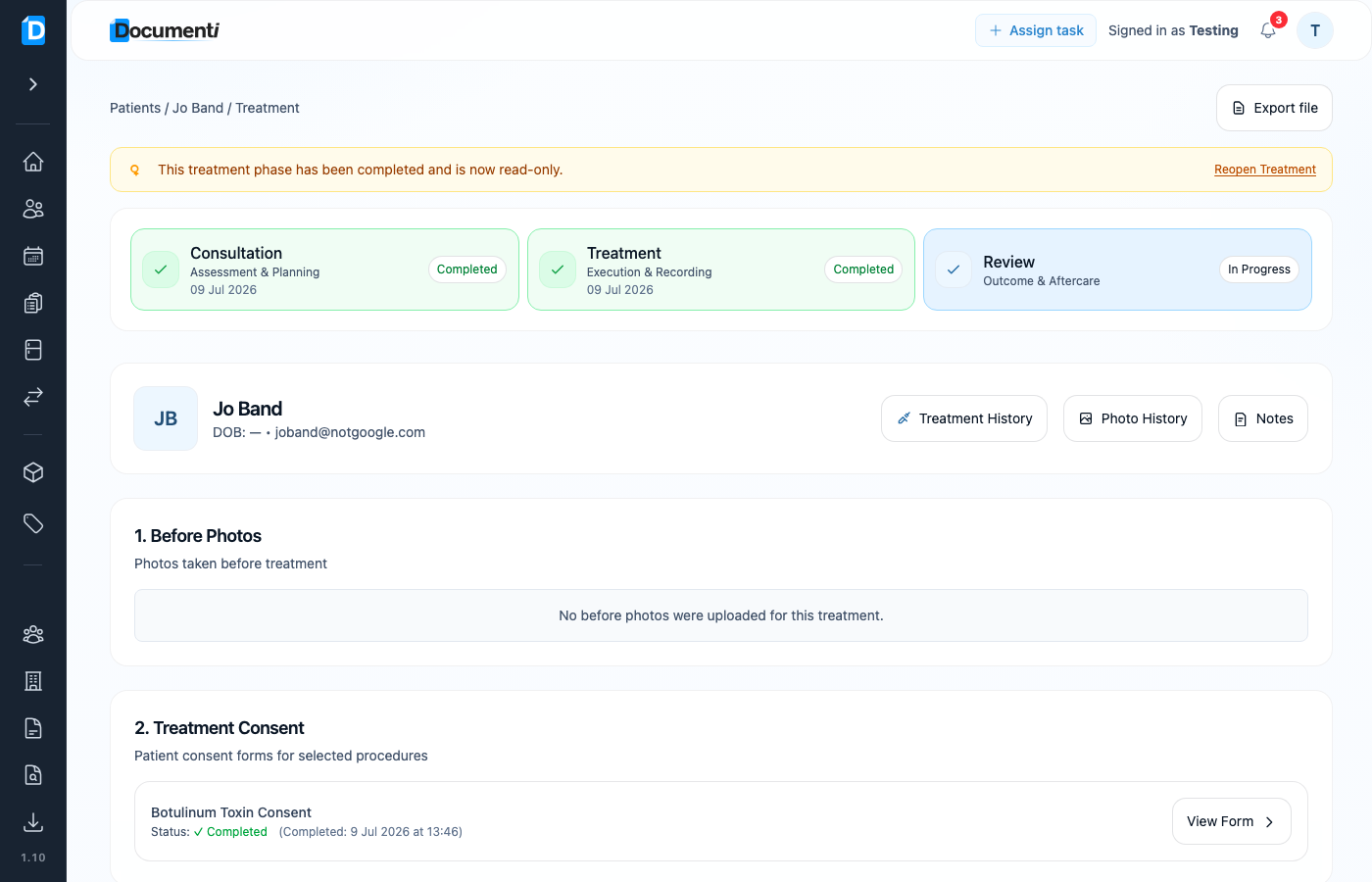
A completed phase shows a yellow banner: the phase “has been completed and is now read-only.” Forms and fields stay viewable, but you cannot edit until you reopen.
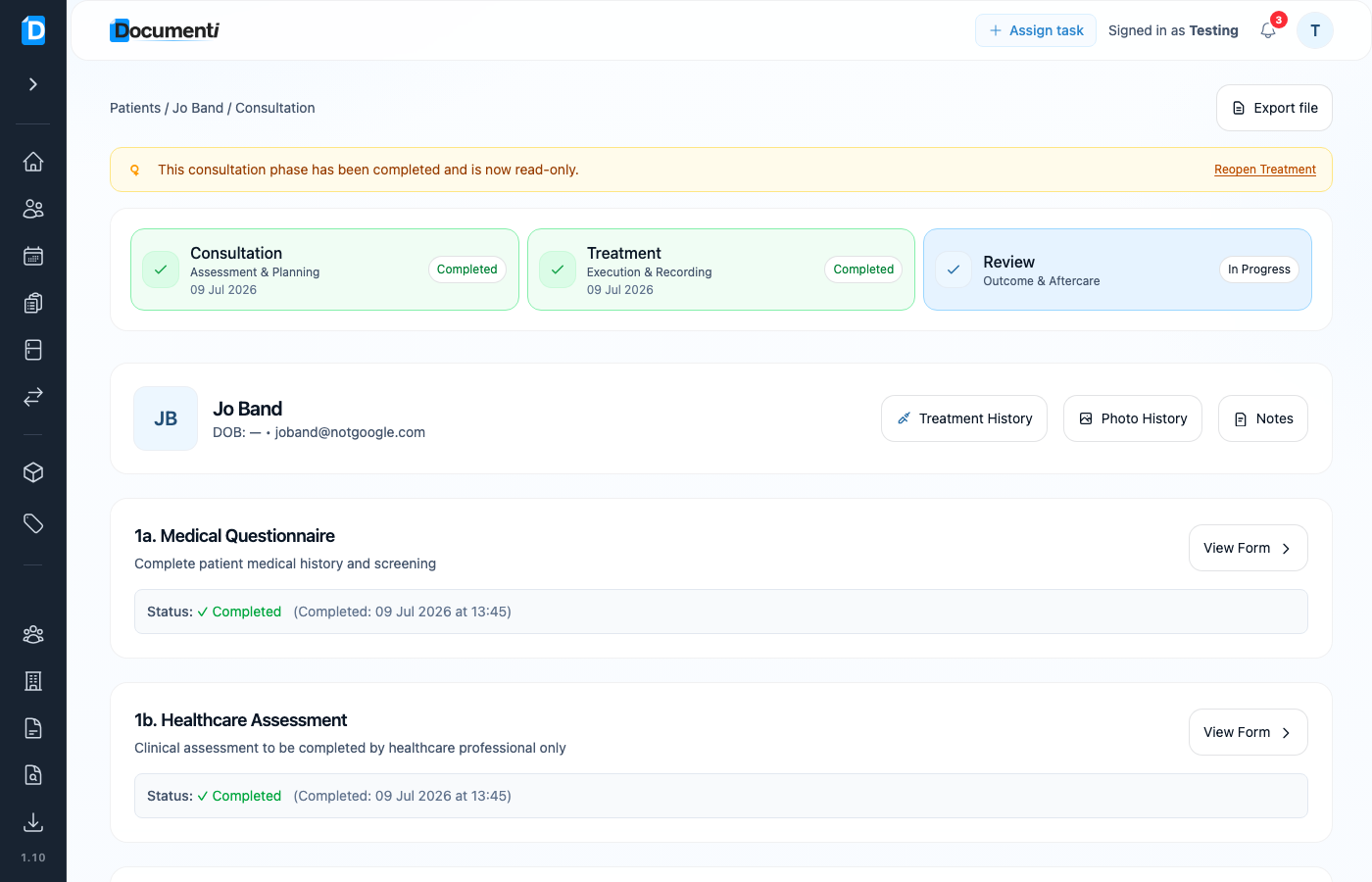
Reopen Consultation or Treatment
- Open the visit from the patient Overview, Treatments list, or Daily List.
- Select the completed Consultation or Treatment phase card.
- On the yellow banner, choose Reopen Treatment.
- Make your changes, then complete the phase again when finished.
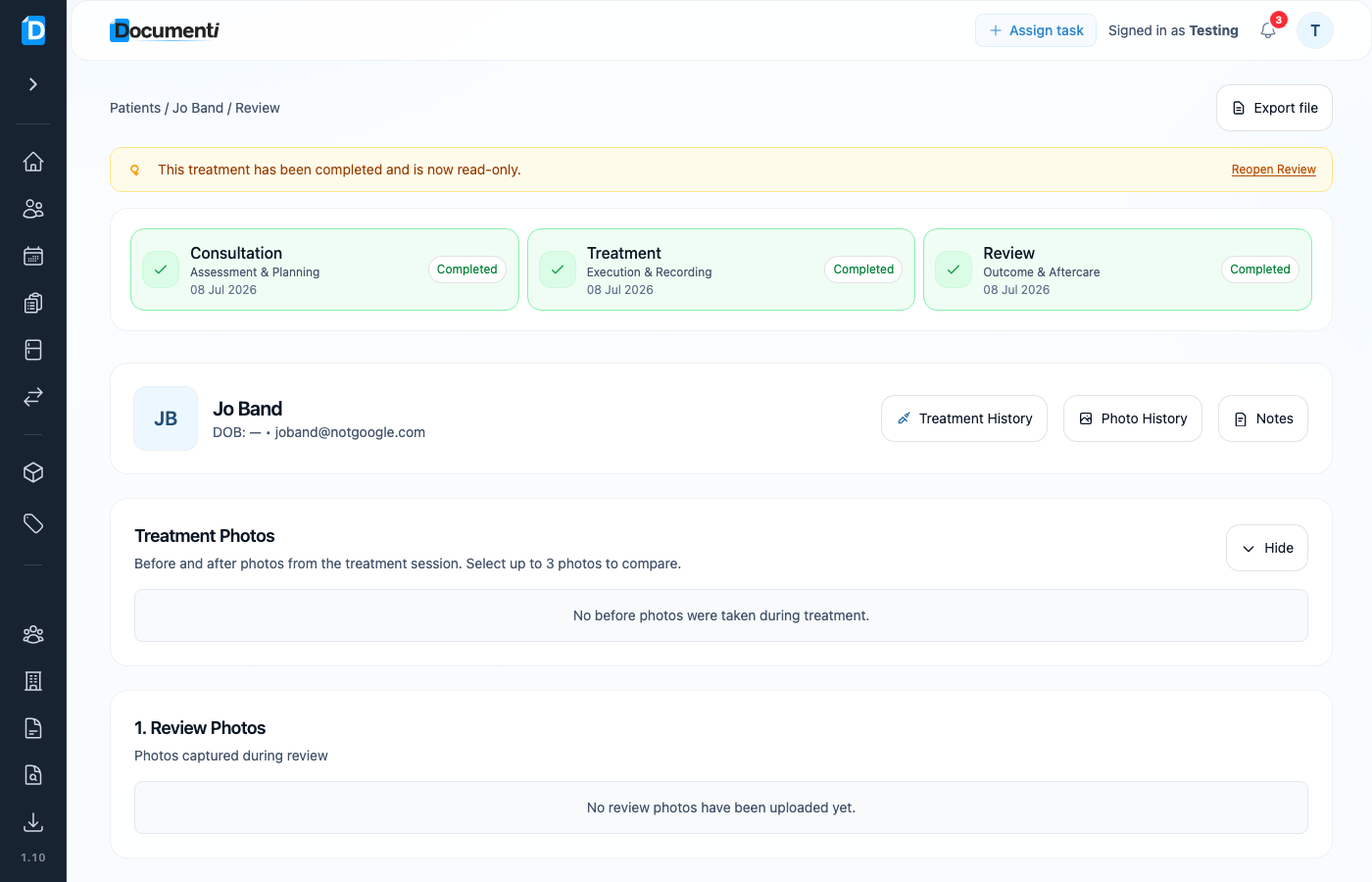
Reopen Review
- Open a visit where Review is completed (status Review Complete on Treatments).
- Open the Review phase.
- Choose Reopen Review on the read-only banner.
- Amend photos, map points, products, or notes, then complete the review again.
Note
Reopening is for corrections. After you finish, complete the phase again so it returns to read-only and the visit status stays clear for the rest of the team.
