


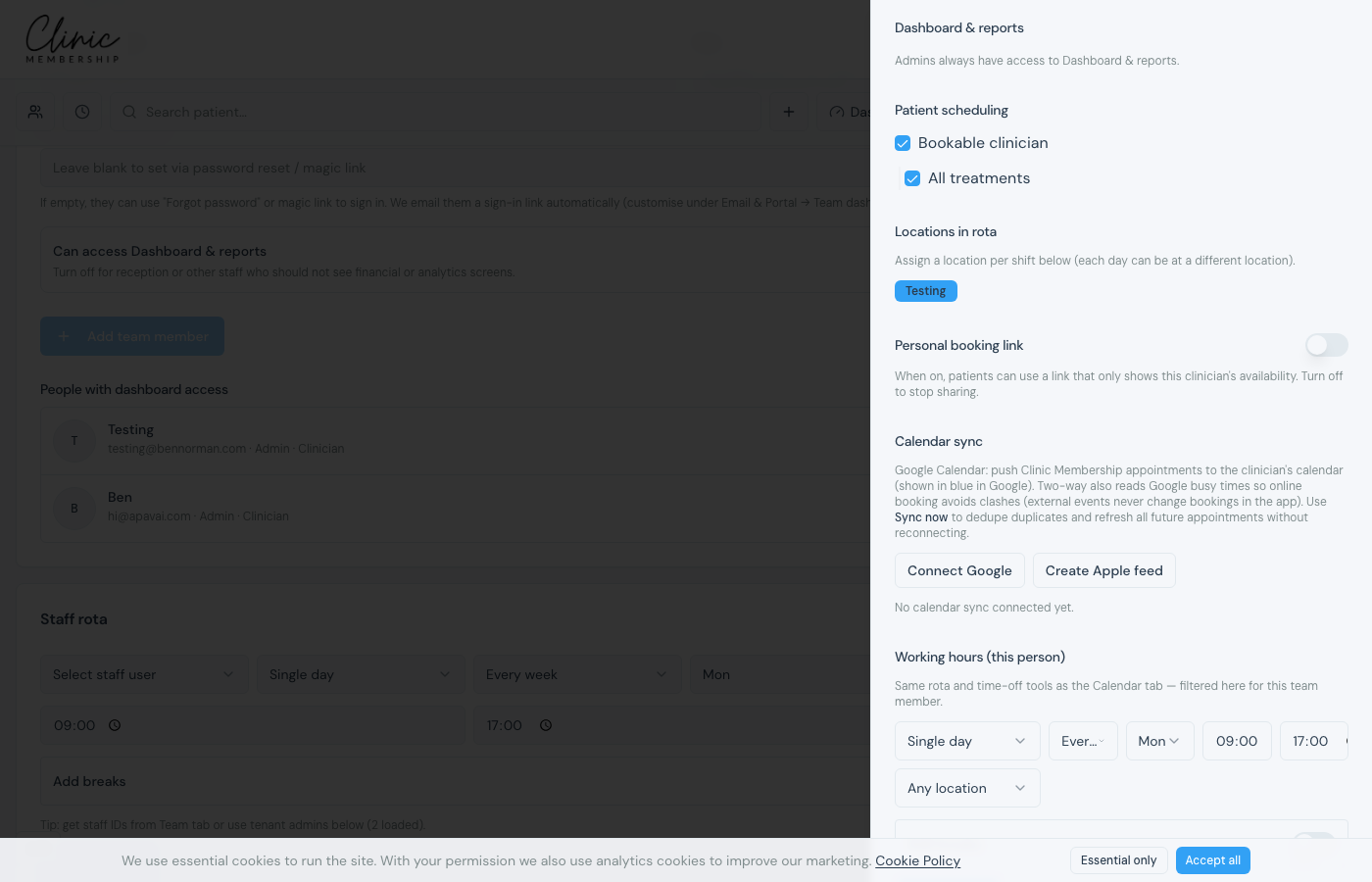
Each clinician connects their own calendar from their team member panel. Google can push appointments and optionally read busy times. Apple uses a read-only feed you subscribe to in Calendar app.
Connect a clinician’s calendar
- Go to Settings → Team.
- Under Team logins, click a clinician’s name to open their panel.
- Scroll to Calendar sync.
- For Google: click Connect Google and sign in: choose which Google calendar appointments go to, and whether to sync one-way or two-way. In two-way, you can also tick extra calendars (such as a personal calendar shared to that account) so those busy times block online booking. We only store times, not event names.
- For Apple: click Create Apple feed and subscribe to the URL in iPhone/Mac Calendar.
- Use Sync now after reconnecting to refresh future appointments.
Note
External Google events block online booking slots in two-way mode, including extra calendars you tick as busy. Staff can still book over external busy blocks on the admin calendar if needed. Only tick calendars that mean this clinician is not free.
