


Rotas control which appointment slots patients can book. If a clinician has no working hours set, they will not appear as available online.
Add a rota block
- Go to Settings → Team.
- Scroll to Staff rota.
- Choose the staff member, pattern (single day, weekdays, or every day), day, start and end times, and location if you use more than one.
- Optional: turn on Add breaks to split the day around lunch or other gaps. See below.
- Click Add rota row.
- Click Save settings at the bottom of the page.
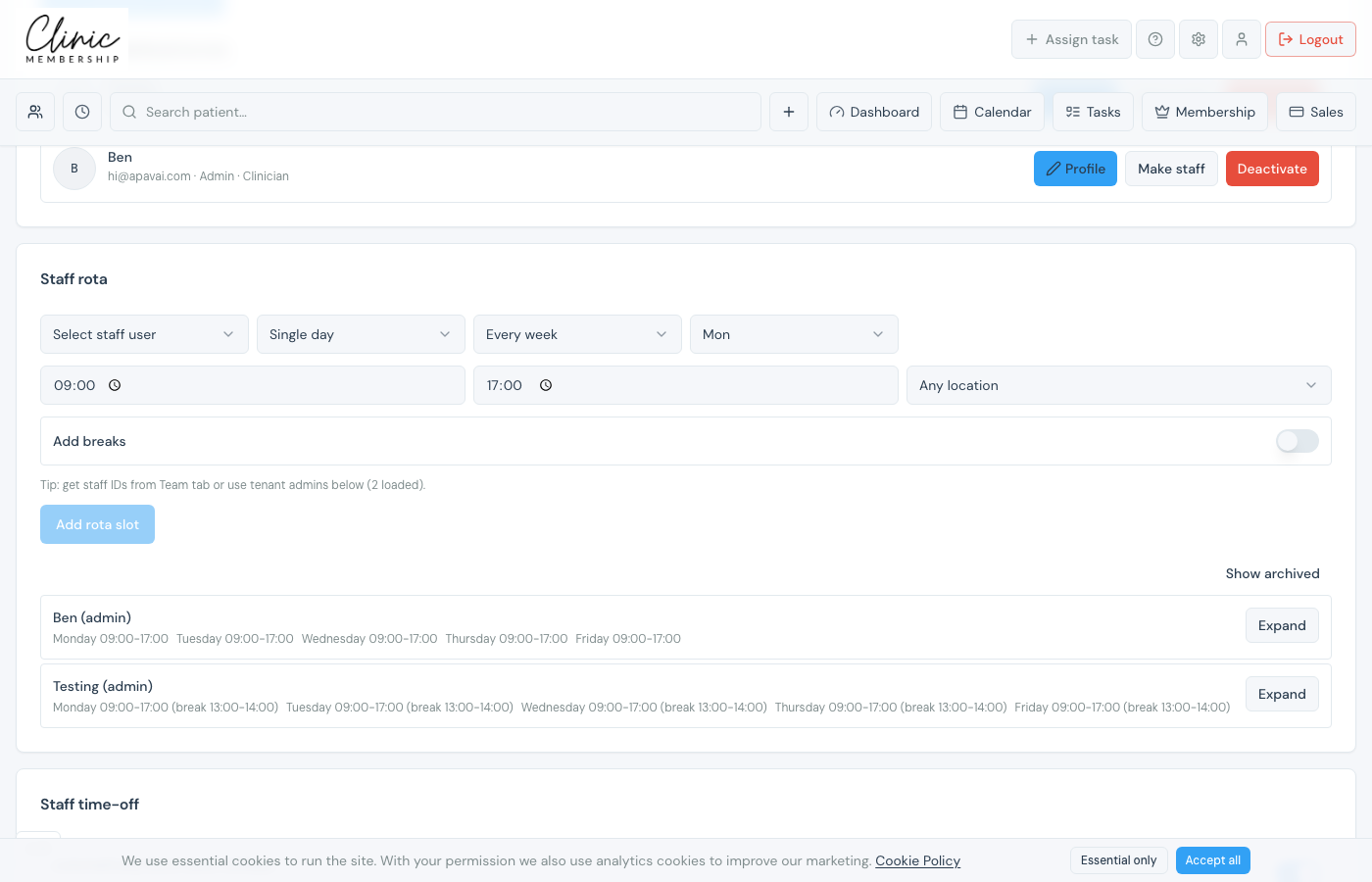
Add lunch breaks and breaks
Use breaks when someone works a long shift but should not take bookings over lunch or a short mid-morning or mid-afternoon gap. The system saves the day as separate working blocks, so online booking only offers slots outside those times.
- In the Staff rota form, set the overall shift start and end times first (for example 09:00–17:00).
- Turn on Add breaks.
- Tap morning, lunch, and/or afternoon to include each break you need, most clinics enable lunch.
- For each selected break, set a start and end time. Defaults are filled in (for example lunch 12:30–13:30); adjust them to match your clinic.
- Click Add rota row, then Save settings at the bottom of the page.
Note
Break times must sit inside the shift hours and must not overlap each other. If you change the shift start or end, check the breaks still fit.
On Admin → Calendar, gaps between rota blocks show as hatched Lunch or Break bands (longer gaps are labelled Lunch). Patients cannot book into those times online. For one-off meetings or leave on a specific date, use Mark busy on the calendar or Book staff time off instead.
Tip
Use Staff time-off on the same tab to block holidays. See Book staff time off for the full walkthrough.
What happens next
Mark busy and block time off
Block one-off busy time on the diary when it is not part of the weekly rota.
Book staff time off
Block holidays and leave on top of working hours.
Set up clinic locations
Add clinic sites before assigning rotas per location.
Sync Google or Apple Calendar
Let clinicians sync appointments to Google or Apple Calendar.
