


Your online booking page lets patients book appointments 24/7. You can copy a direct link, embed the booking flow on your website, or use a simple Book now button. All three use the same booking page. You choose how it appears on your site.
Turn on the calendar first
- Go to Settings → Calendar.
- Switch on Turn on calendar & scheduling.
- Click Save settings at the bottom of the page.
- Make sure you have at least one bookable service under Settings → Services.
Note
Patients only see times when your team has working hours set. Set rotas under Settings → Team if slots look empty.
Copy your booking link or embed code
- In Settings → Calendar, scroll to Booking widgets, links, and buttons.
- Optional: filter by location, clinician, or service, useful for a Book with Sarah page or a single-treatment landing link.
- Choose how you want to share: Widget (embed), Link, Button, or Waitlist embed if you use the new-patient waitlist.
- Copy the link or HTML code shown.
- Paste the embed code into your website (for WordPress, use a Custom HTML block on a full-width row).
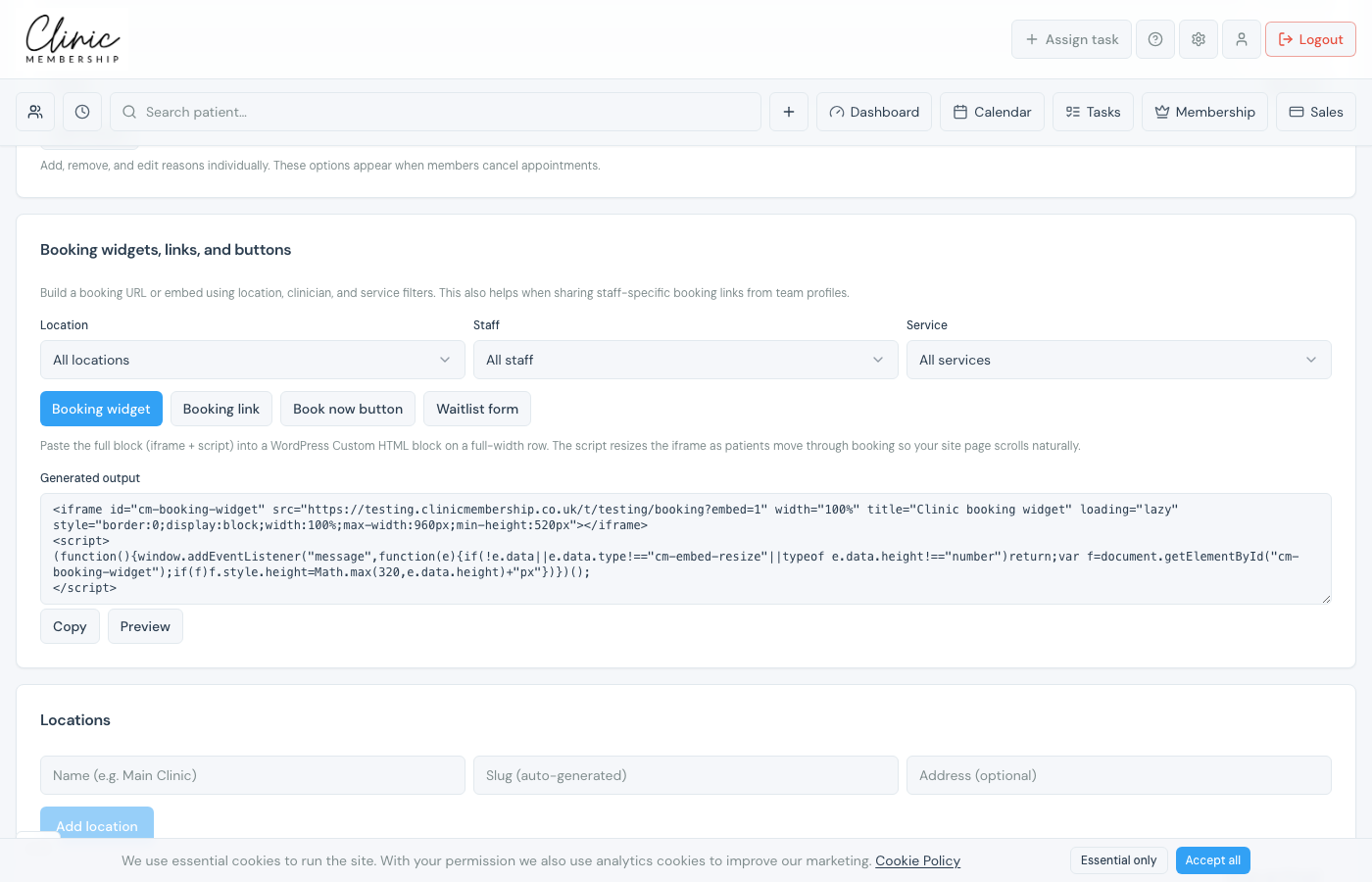
Every clinic also has a default booking page at your clinic subdomain, for example https://yourclinic.clinicmembership.co.uk/booking. You can share that URL in emails, Instagram bio, or Google Business Profile without any embed code.
Existing or New patient
On open booking (when the patient is not already signed in), the page asks them to continue as Existing patient or New patient. Existing patient is selected by default so returning guests log in and use saved details. First-time guests switch to New patient and enter name, email, and phone.
Tip
If someone tries to book as Existing without logging in, they are prompted to sign in, or they can switch to New patient. This keeps returning patients from creating duplicate records with a mistyped email.
Test before you share
- Open the booking link in a private browser window.
- Pick a service and check that available times match your rota.
- Try Existing patient (log in) and New patient (guest details) once each if you can.
- Complete a test booking if you want to see the confirmation email.
Tip
Use the service filter when you want a dedicated link for one treatment, great for Instagram ads or treatment-specific landing pages.
