


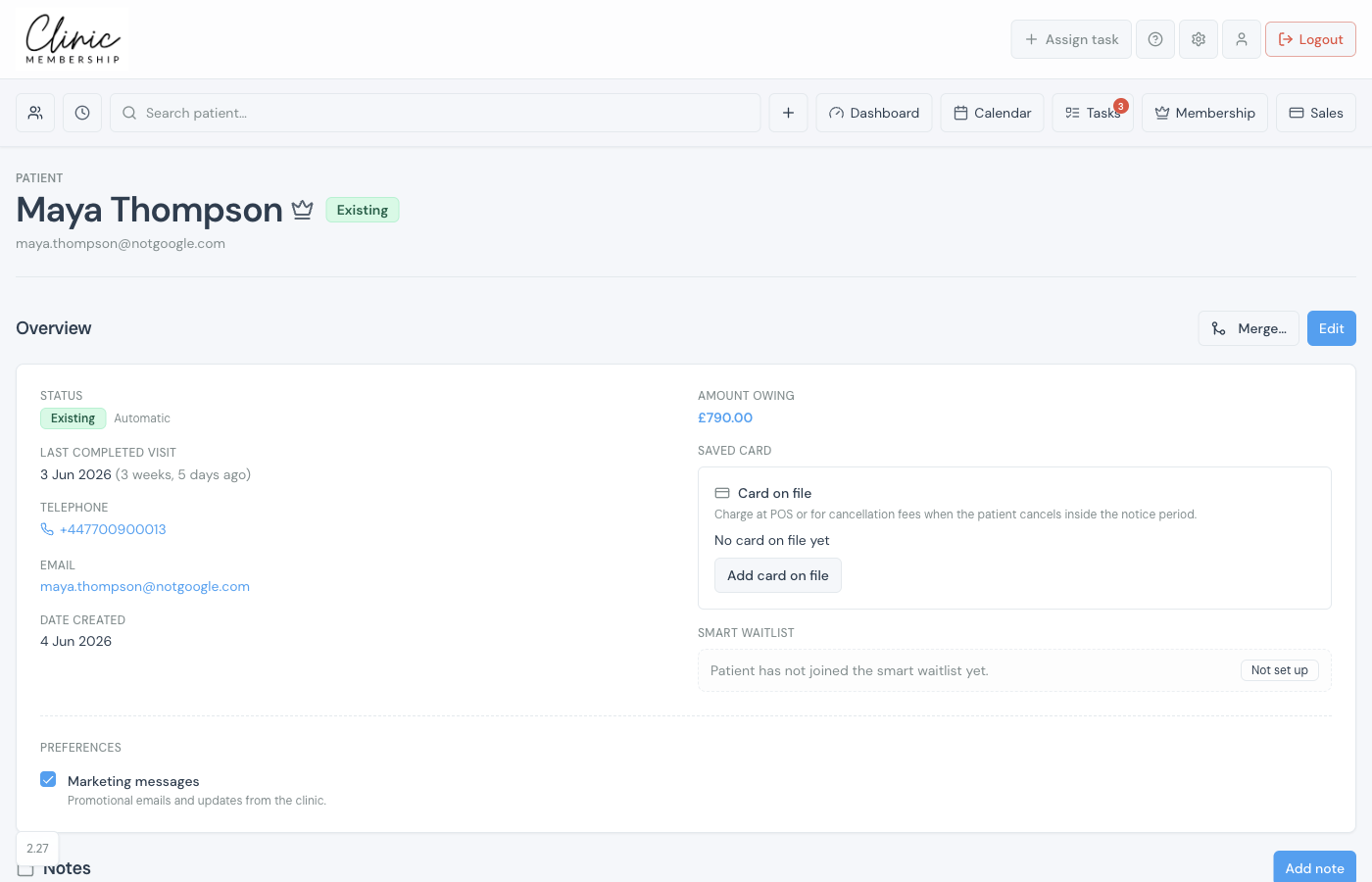
You do not need to create patients twice. When Documenti is connected, Clinic Membership sends patient details to Documenti whenever you add someone or edit their card.
What copies across
- First and last name (from the name on the patient card).
- Email and phone, used to match existing Documenti records.
- Date of birth, when you have it on file.
- VIP flag, on when the patient has an active membership (see VIP members in Documenti).
When sync runs
- You add a patient in Clinic Membership, import a list, or someone books online for the first time.
- Clinic Membership sends the patient to Documenti.
- Documenti matches them to an existing record or creates one. See How patient matching works.
In Documenti
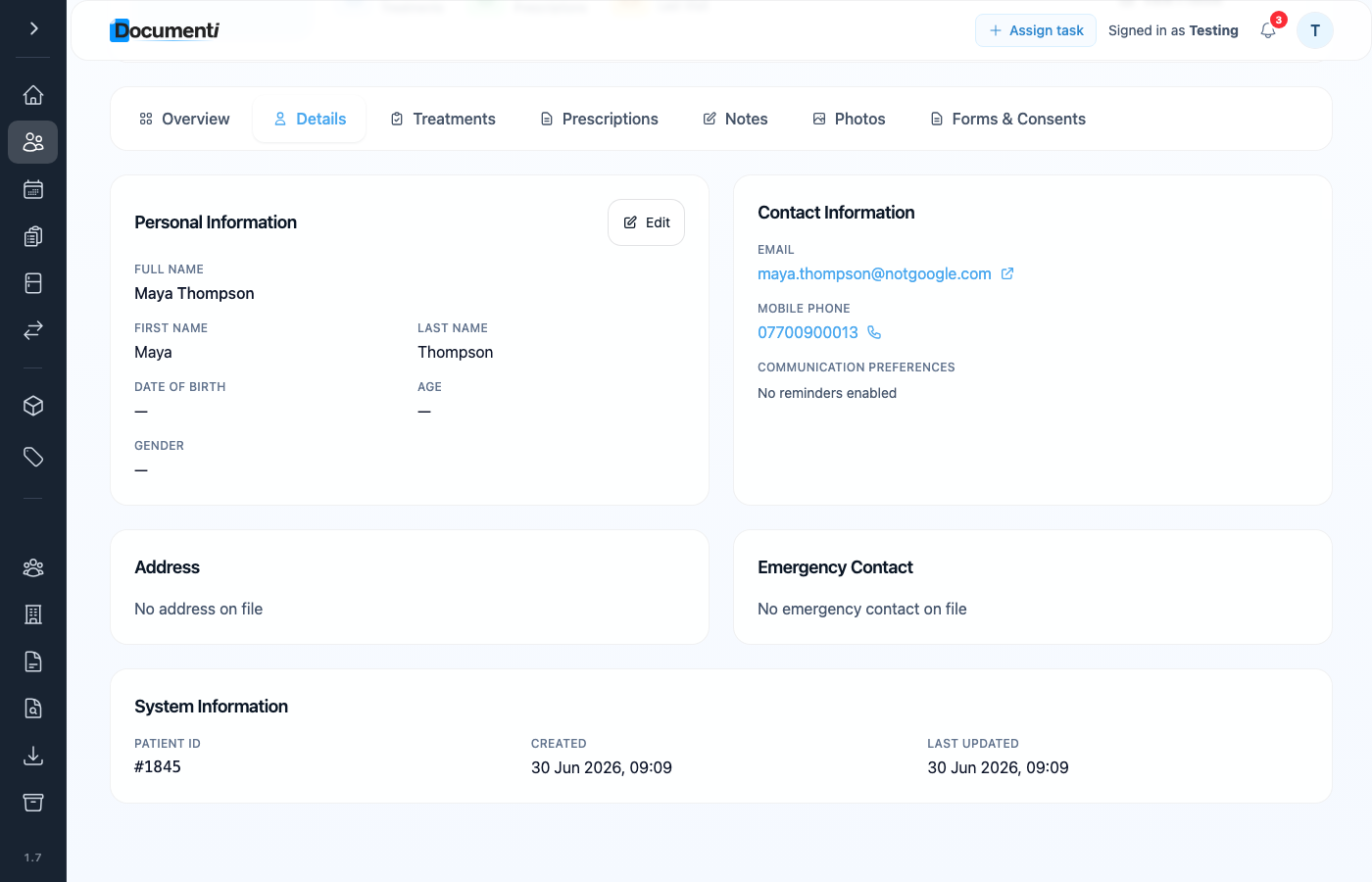
After sync, the same name, email, and phone appear on the patient record in Documenti, on the Details tab under Personal and Contact information.
Note
Full clinical history in Documenti does not copy back into Clinic Membership. Use internal admin notes on the patient card for short reception notes that should appear in Documenti.
