


Every patient has a card with contact details, appointments, membership, invoices, notes, and Documents (staff-uploaded files). Overview shows date of birth and preferences. Use this guide to find someone, edit details (including address lookup), set status, block online booking, or merge duplicates after an import.
Find a patient
- Go to Admin → Patients, or use Search patient in the top bar.
- Type at least two characters of name, email, or phone.
- Click the patient to open their card.
Patient status
The card shows a status badge: New, Existing, Lapsed, or Blocked. Automatic uses completed visits and your clinic’s lapsed-patient rules. You can override it manually.
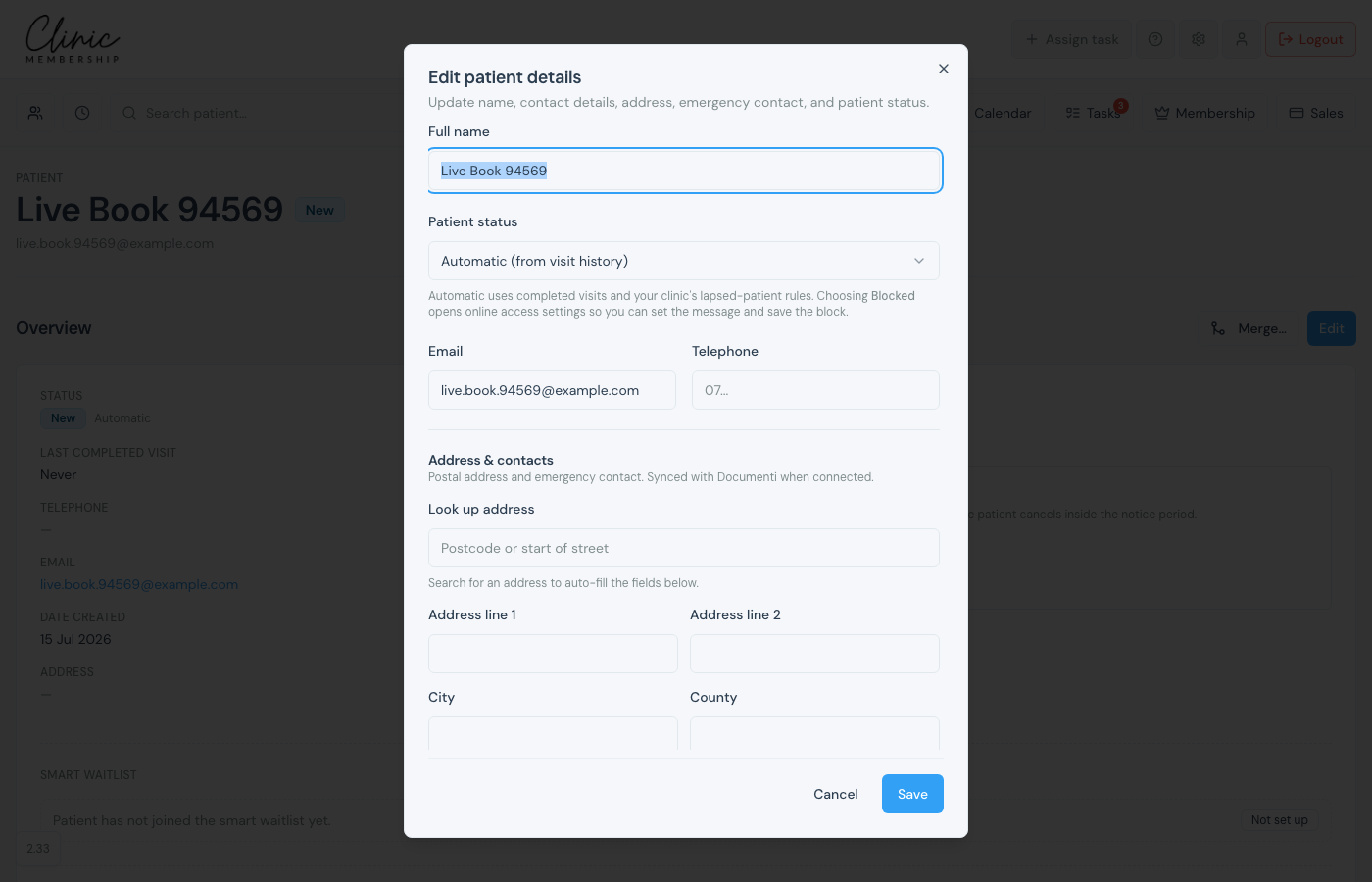
- On the patient card, click Edit.
- Under Patient status, leave Automatic (from visit history), or choose New, Existing, Lapsed, or Blocked.
- Choosing Blocked opens online access settings so you can set the message and save the block.
- Click Save.
Block a patient
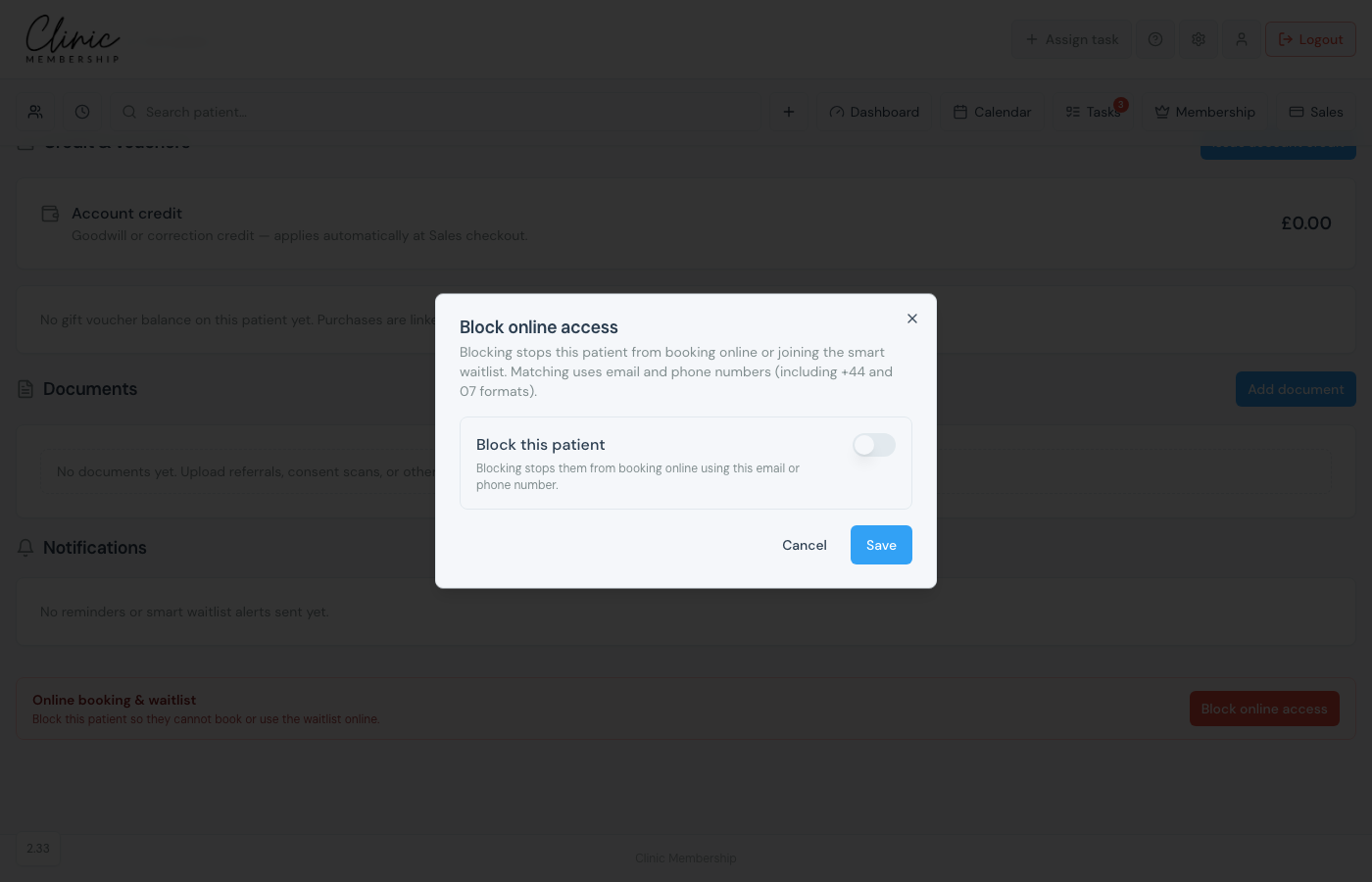
Blocking stops the patient from booking online, joining the smart waitlist, or signing in. It also cancels their upcoming appointments and stops emails, texts, and WhatsApps, including ones already scheduled. Matching uses email or phone, including +44 and 07 formats.
- On the patient card, scroll to Block patient.
- Click Block patient (or Manage block if already blocked).
- Turn on Block this patient.
- Choose Standard message or Custom message for what they see online.
- Optional: add an Internal note for staff only.
- Click Save. If they have upcoming appointments, choose whether to send the appointment cancelled emails.
Edit details
- On the patient card, click Edit.
- Update name, email, phone, or date of birth on Overview / Edit.
- Under Address & contacts, use Look up address (postcode or start of street) to pick a suggestion and auto-fill the address fields, or type the lines manually.
- Add or update emergency contact if needed.
- Save in the dialog.
Tip
Date of birth and address sync with Documenti when Documenti is connected. Keeping a mobile number up to date matters for SMS and WhatsApp reminders.
Merge duplicates
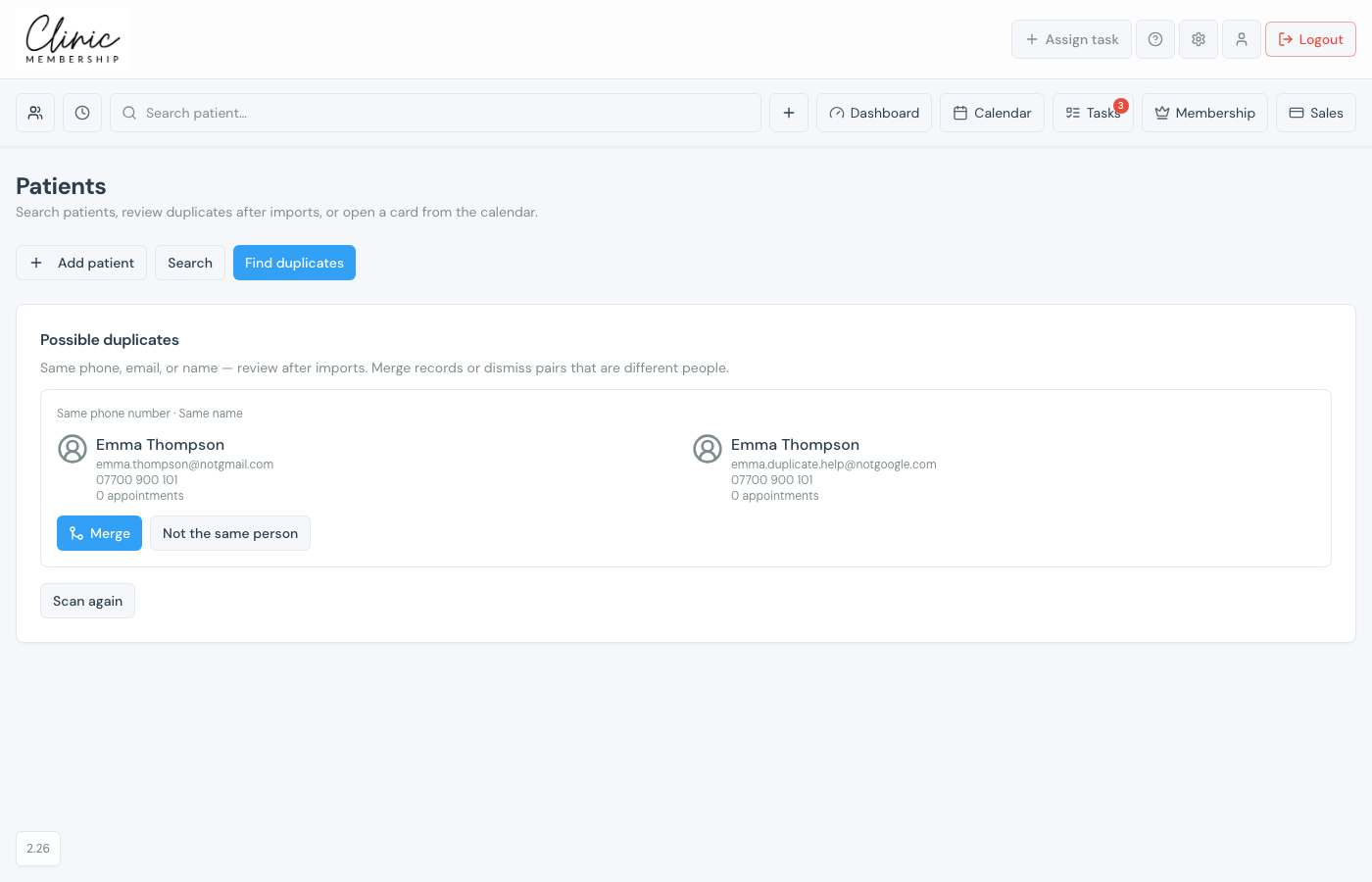
- On Patients, click Find duplicates.
- Review suggested groups, often after a data import.
- Open both cards and click Merge on the record to keep.
- Choose which record survives and confirm Merge patients.
What happens next
Onboard from another system
Import patients from your previous system first.
Upload documents on the patient card
Upload referral letters, scans, and other files on the patient card.
Issue account credit
Add goodwill or correction credit on the patient card.
Add patients to a membership
Invite a patient to membership from their card or dashboard.
