


Smart Data Importer brings existing records into Documenti from a spreadsheet. A guided wizard covers upload, column mapping, preview, and import, with templates for each data type so you know which columns are expected.
Open the importer
- Open Import from the main menu (under settings / integrations).
- Choose what you are importing (patients, treatments, notes, products, procedures, users, tasks, fridge temperatures, and more).
- Optionally download an example CSV template first.
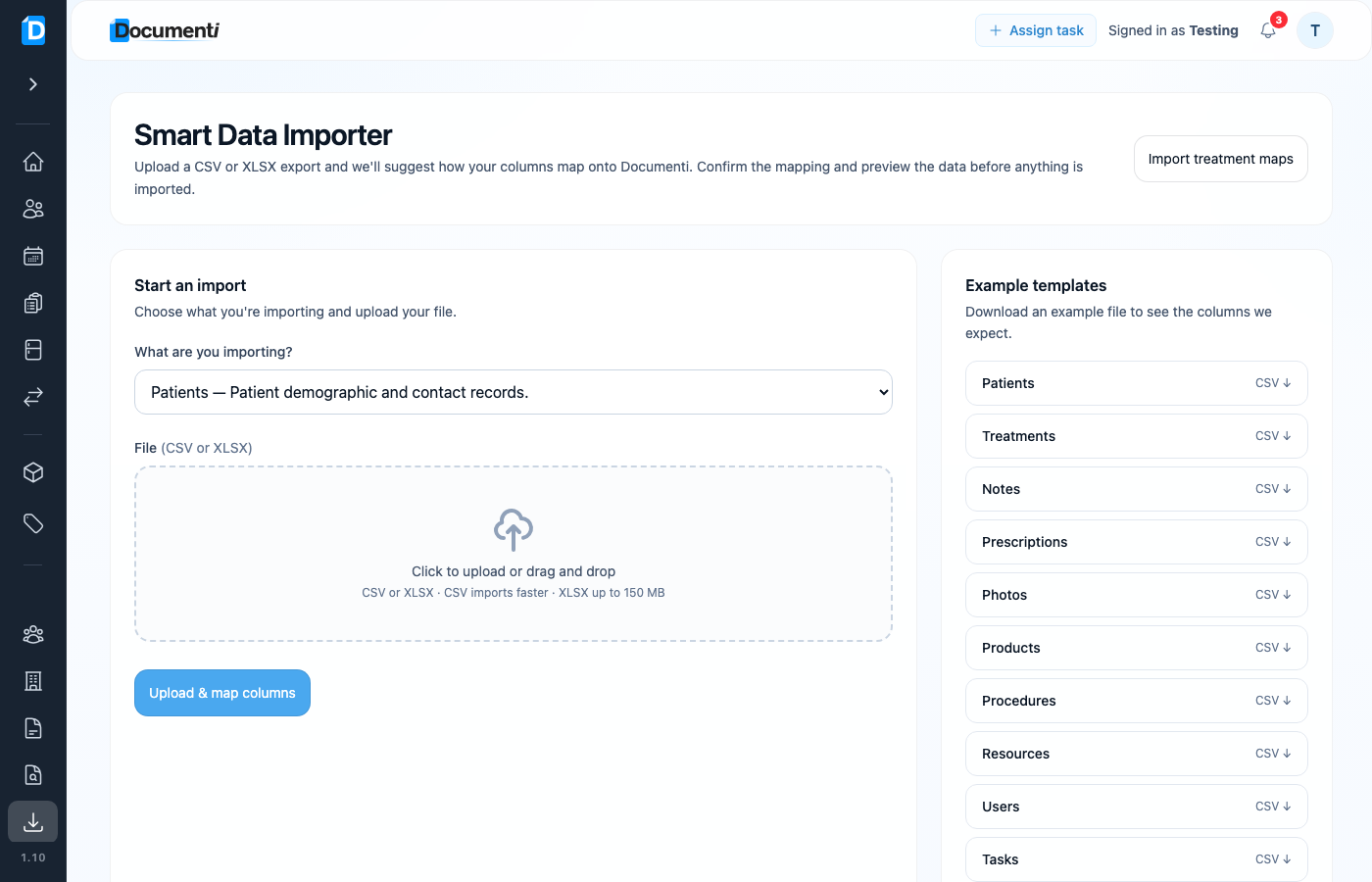
Upload, map, and preview
- Upload your CSV or XLSX file (CSV is usually faster; XLSX up to 150 MB).
- Confirm the suggested column mapping, override any field that looks wrong.
- Preview the rows and fix warnings before you import.
- Run the import, progress continues in the background.
Tip
Need treatment-map overlays from a marker spreadsheet? Use Import treatment maps on the same Import page for that specialised flow.
Note
Imports are organisation-scoped and admin-only, with audit logging. Linked records (for example treatments) need matching patients already in Documenti or included in the same import plan. For Clinic Membership patient imports and paper-notes onboarding, use the Getting started guides instead. This importer is for Documenti’s clinical data.
