


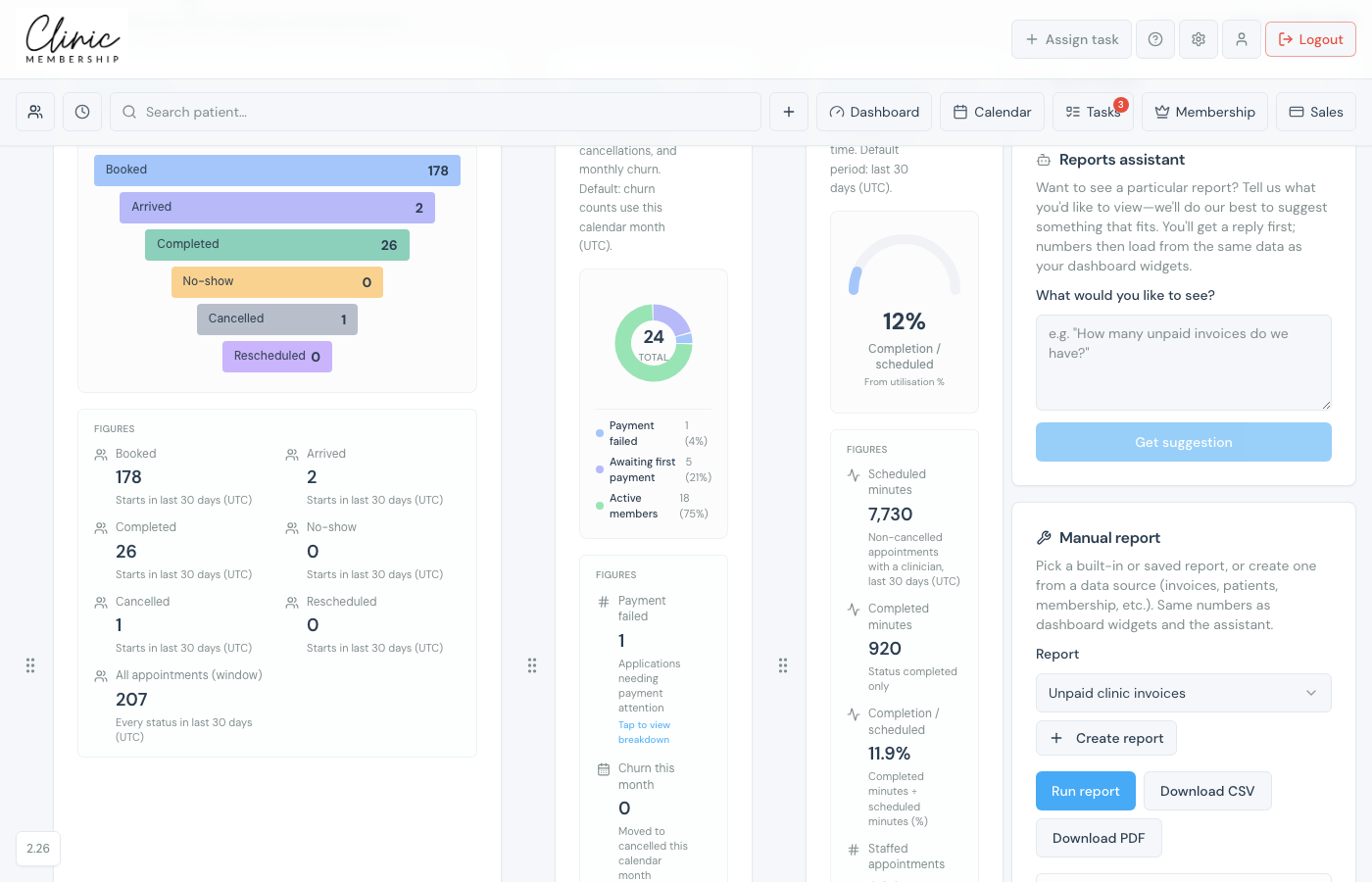
Dashboard & reports includes a Manual report builder in the right-hand panel. It uses the same data as your dashboard widgets and the reports assistant, so numbers stay consistent everywhere.
Run a built-in report
- Go to Admin → Dashboard & reports.
- Open the right panel (Report builder) if it is collapsed.
- Under Manual report, pick a report from the dropdown, for example unpaid invoices or POS sales.
- Click Run report.
- Review the preview table or chart.
- Use Download CSV or Download PDF if you need to share the figures.
Create a report from a data source
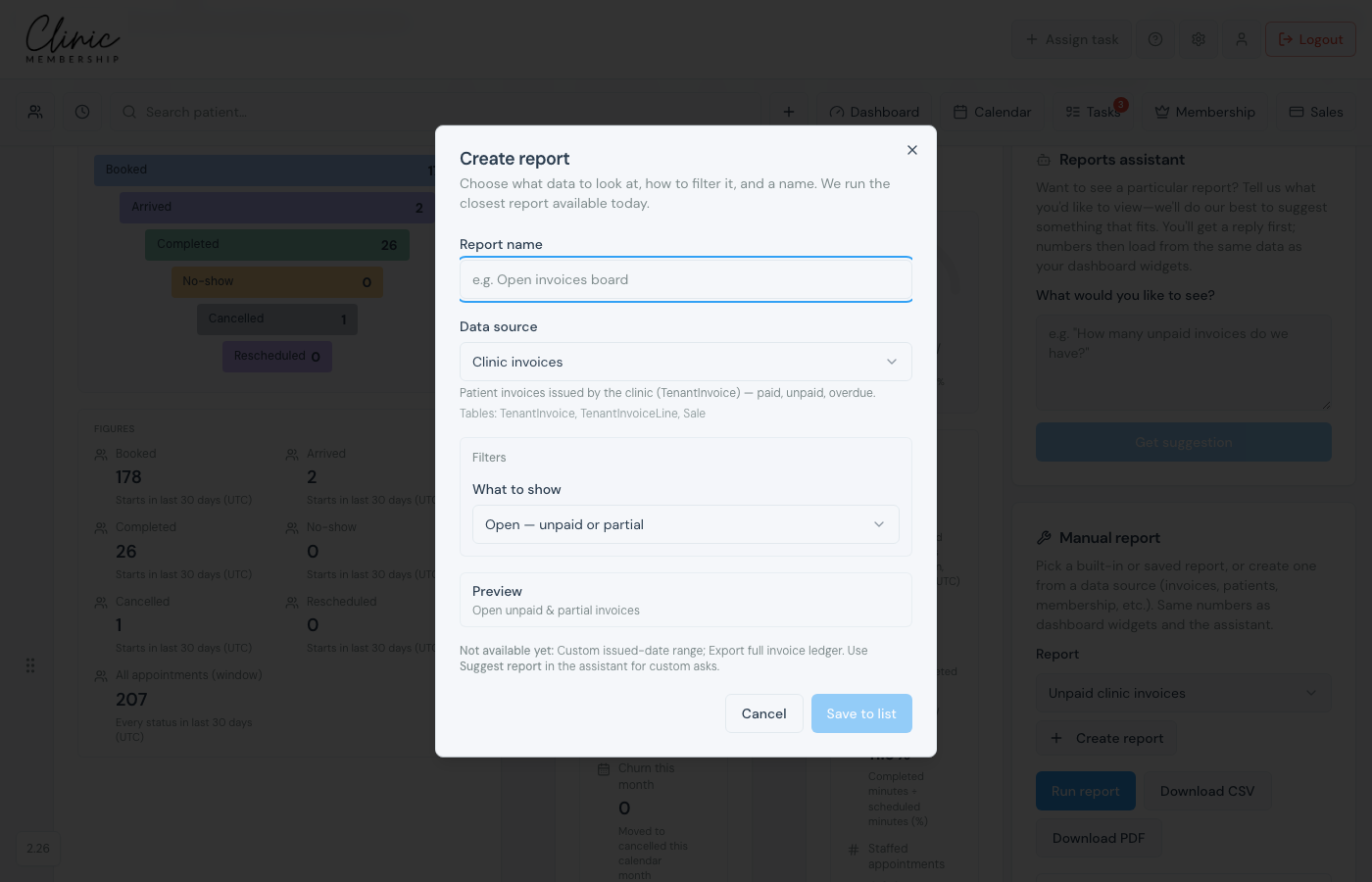
- In Manual report, click Create report.
- Name your report and choose a data source (invoices, patients, membership, appointments, and more).
- Set filters, for example unpaid only, or a date range.
- Save. It appears in your Saved reports list and in the Manual report dropdown.
Tip
After saving, you can add some reports to the main dashboard row from the preview panel.
