


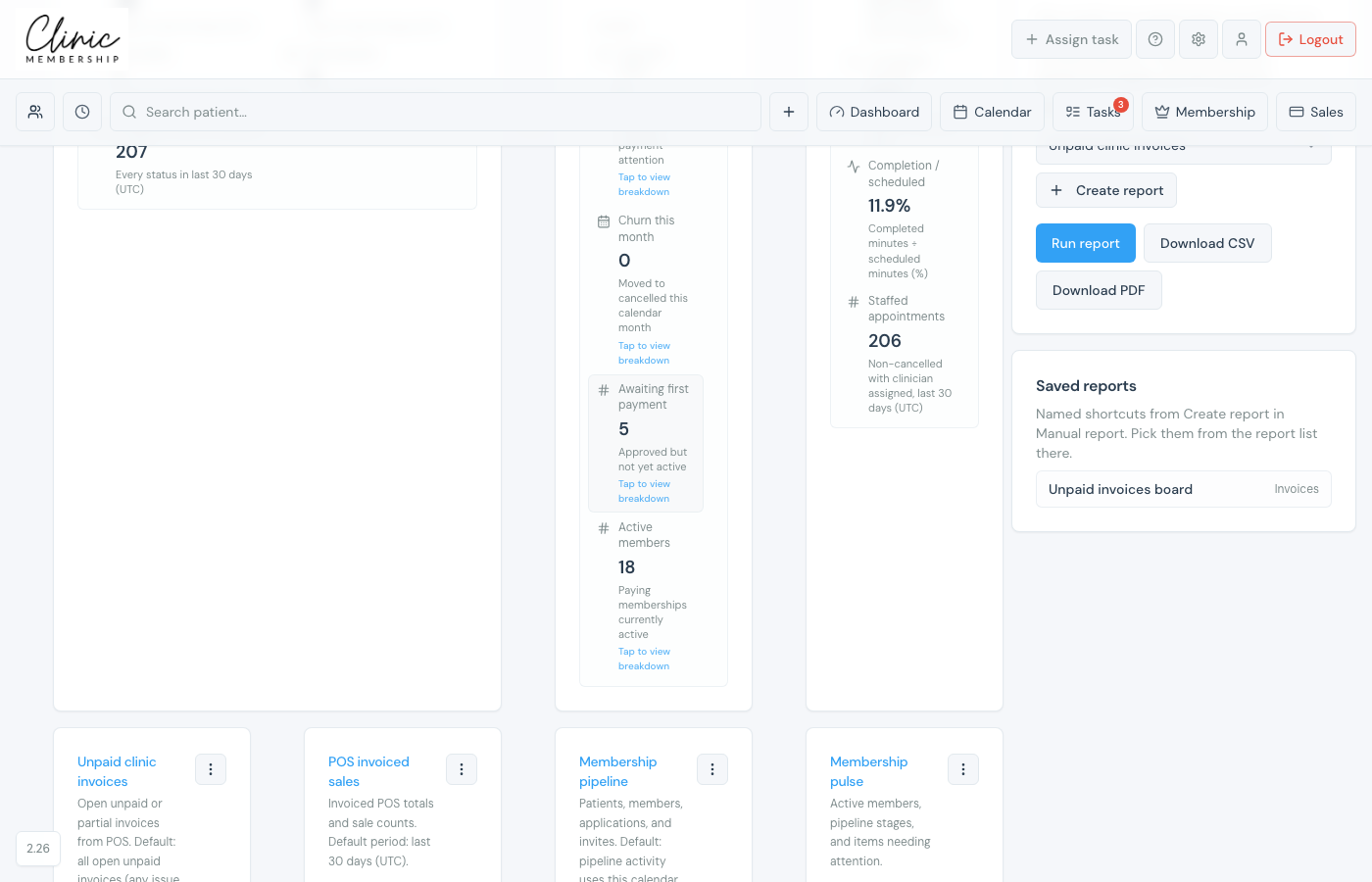
When you Create report in Manual report, Clinic Membership saves a named shortcut. Saved reports also appear in the Saved reports card, and you can pick any of them from the Manual report dropdown to run again.
View saved reports
- Go to Admin → Dashboard & reports.
- Open the Report builder panel on the right.
- Scroll to Saved reports: each row shows the name and report type.
- To run one, open the Manual report dropdown above and choose your saved report under Saved shortcuts.
- Click Run report to refresh the numbers.
Built-in report shortcuts
The Manual report dropdown also lists built-in reports grouped by area: membership, sales, patients, appointments, and more. These do not need to be saved first; pick one and click Run report.
