


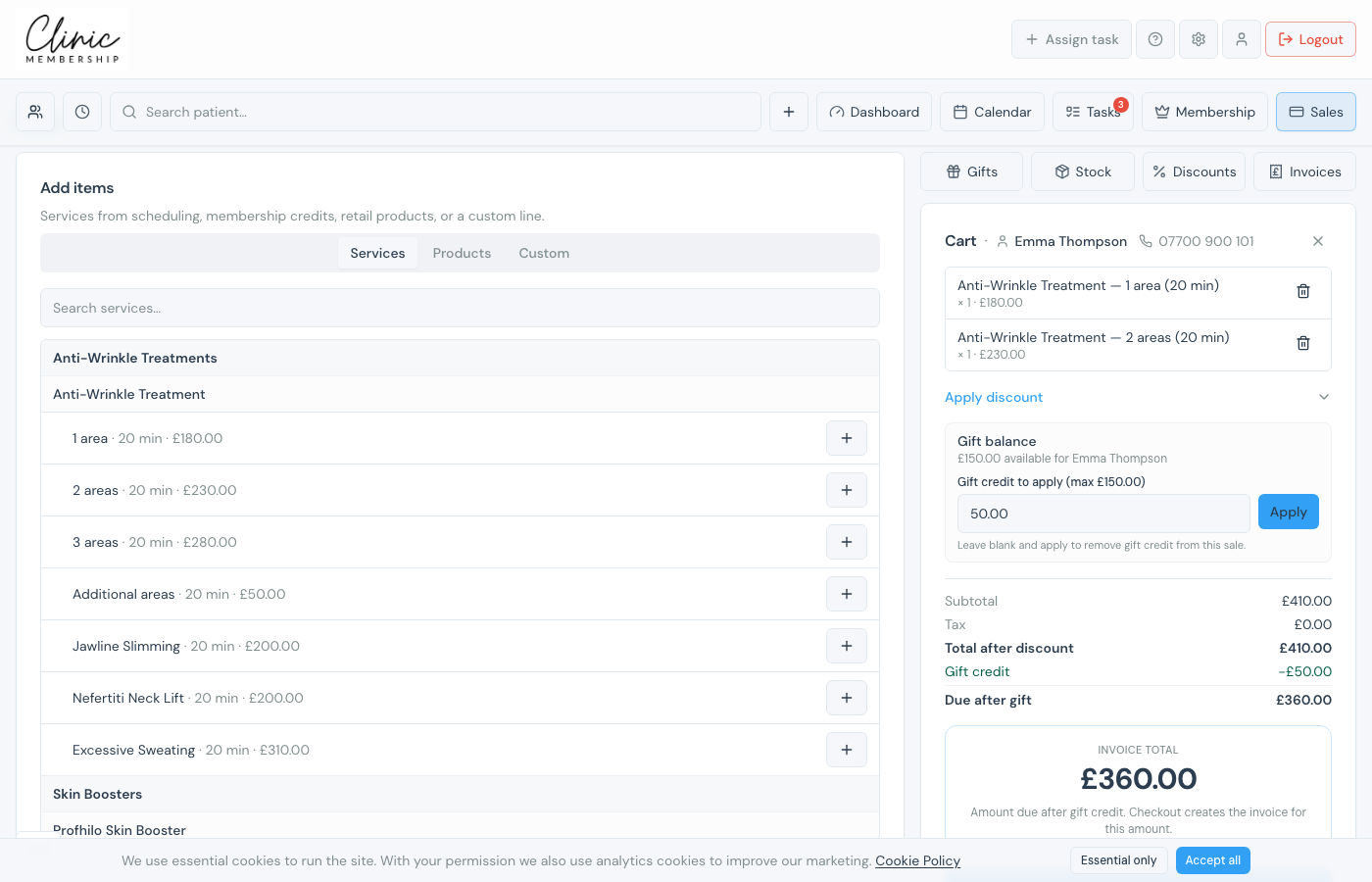
When a voucher is linked to a patient, their available gift balance appears at Sales checkout. Reception can apply some or all of it before creating the invoice: any remainder is due by card, cash, or payment link.
How vouchers link to a patient
You rarely need to link vouchers by hand. When someone buys a gift voucher on your website, the system uses the recipient email from the purchase form.
- A visitor buys a gift voucher on your site and enters the recipient's name and email: the person the gift is for.
- When payment succeeds, Clinic Membership matches that email to a patient on your list (same email address).
- If a match is found, the voucher is linked to that patient automatically: the balance is ready for checkout straight away.
- The recipient (and purchaser) still receive the voucher code by email, as confirmation.
When the recipient is not on your list yet
If no patient record uses that email yet, the voucher stays unallocated under Admin → Gift vouchers until you link it. Use Active only on that page to hide used, expired, or void codes.
- Go to Admin → Gift vouchers and open the Unallocated list.
- Find the voucher (by code or recipient email).
- Click Assign and choose the patient once they are on your list.
- Their gift balance then appears at Sales checkout.
Tip
Use the same email on the gift purchase form and on the patient record, future vouchers will link automatically without an admin step.
Apply gift credit in Sales
- Open Sales and start a sale for the patient.
- Add treatments or products to the cart.
- In the Gift balance section, enter how much credit to apply and click Apply.
- Review Due after gift, then Checkout: create invoice.
- Collect any remaining balance as usual.
Tip
Gift credit is capped at the cart total, unused balance stays on the voucher for a future visit.
