


Gift vouchers use the same Stripe Connect account as other patient payments. Turn them on in Payments settings, then copy the embed code or link to your website.
Before you start
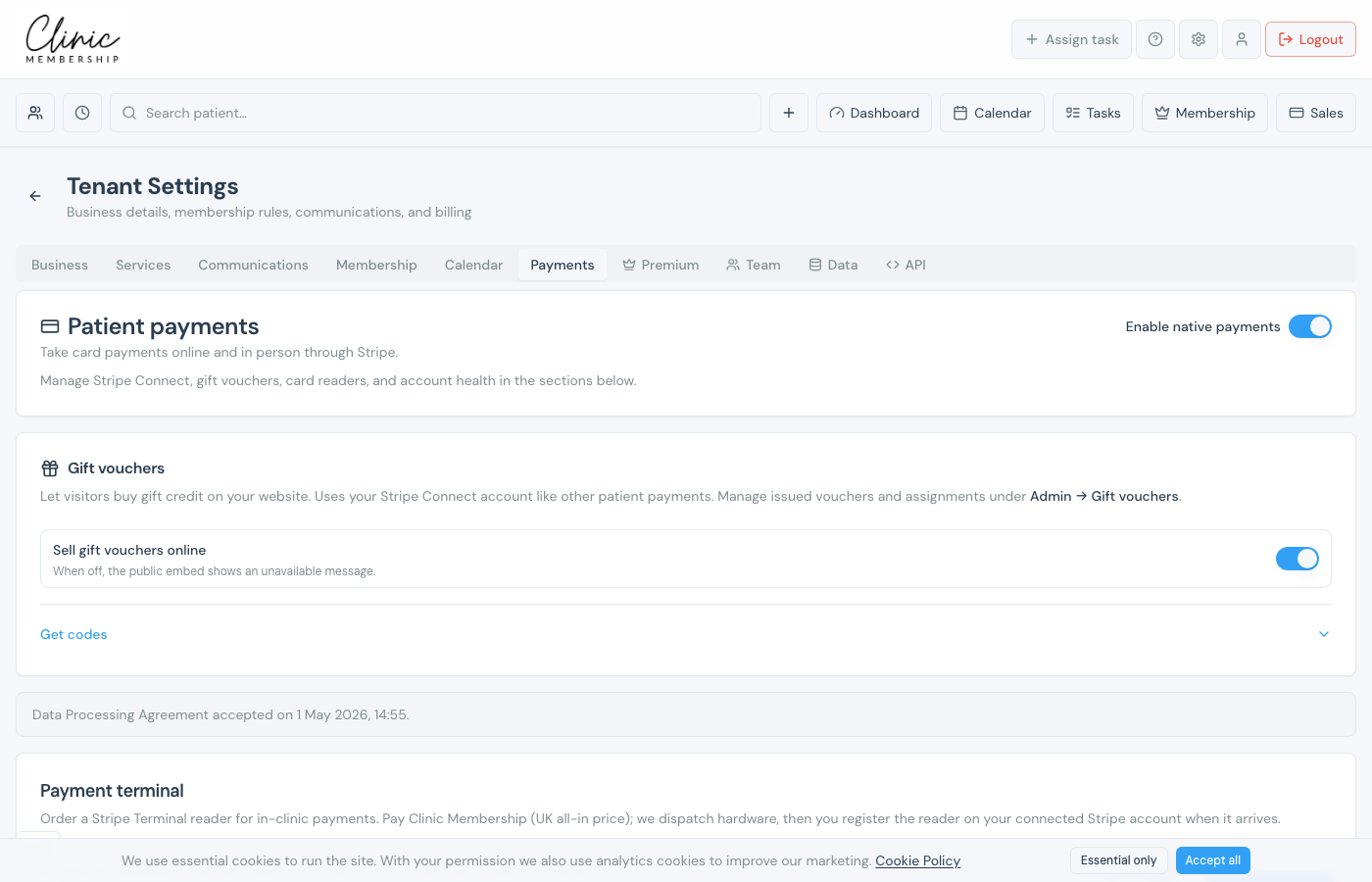
Connect Stripe under Settings → Payments first. The Gift vouchers section appears below Patient payments once native payments are enabled and Stripe is linked.
Turn on gift vouchers
- Go to Settings → Payments (with Stripe connected).
- Scroll to Gift vouchers.
- Switch on Sell gift vouchers online.
- Expand Get codes to copy the embed HTML or direct link.
- Paste the embed on your website or share the link in emails and social posts.
- Manage issued vouchers under Admin → Gift vouchers.
Find issued vouchers
- Go to Admin → Gift vouchers.
- Switch on Active only to hide used, expired, or void codes.
- Switch it off when you need the full history.
What visitors see on your site
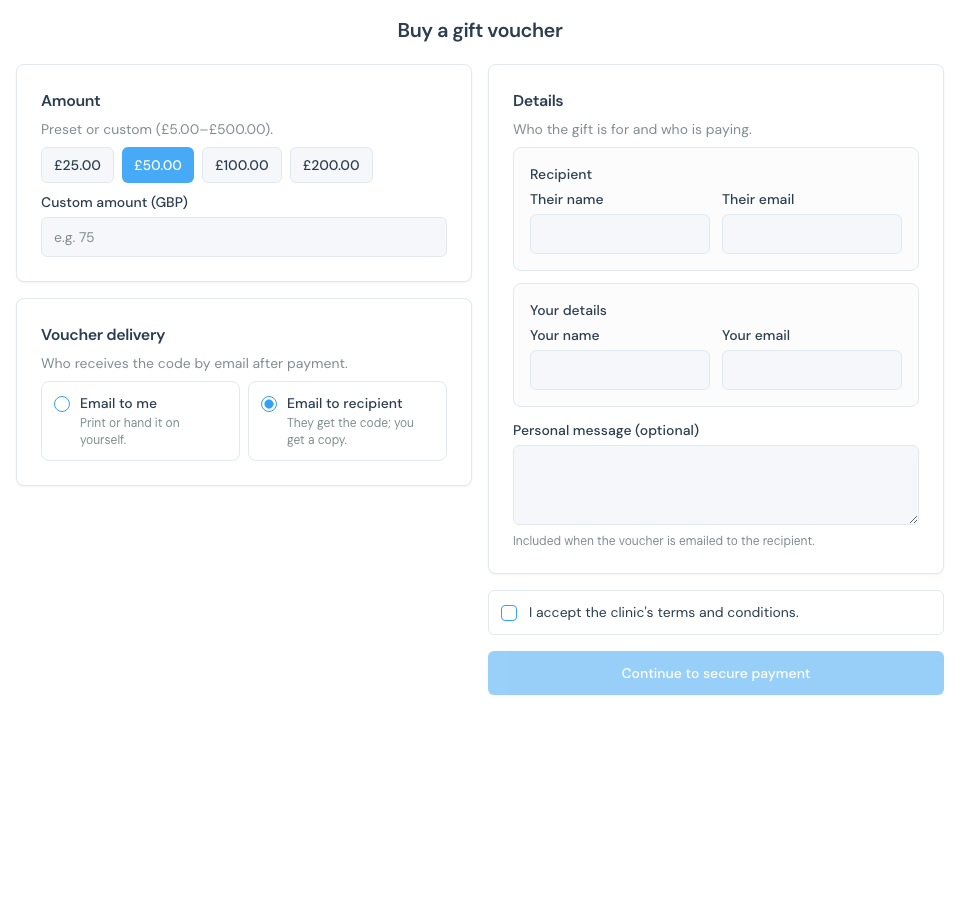
The direct link or embed shows a simple purchase form, preset amounts, recipient name and email, and secure Stripe checkout. After payment, the recipient (or purchaser) receives the voucher code by email. If the recipient email matches a patient on your list, the voucher links to their account automatically so reception can apply the balance in Sales.
Tip
After Stripe is connected, expand Get codes to copy the embed or direct link for your website.
What happens next
Connect Stripe for patient payments
Connect Stripe if the gift voucher section is not visible yet.
Redeem gift vouchers at checkout
Redeem gift credit in Sales, usually linked automatically when the voucher is bought.
Get your online booking link
Share your main booking page alongside gift voucher sales.
