


If a patient has bought retail products before, Sales (POS) surfaces them at the top of the Products tab. Reception can reorder skincare and home-care items in one tap instead of searching the full catalogue.
See previously purchased products
- Open Sales and start a sale for the patient (or open an existing open sale).
- Open the Products tab.
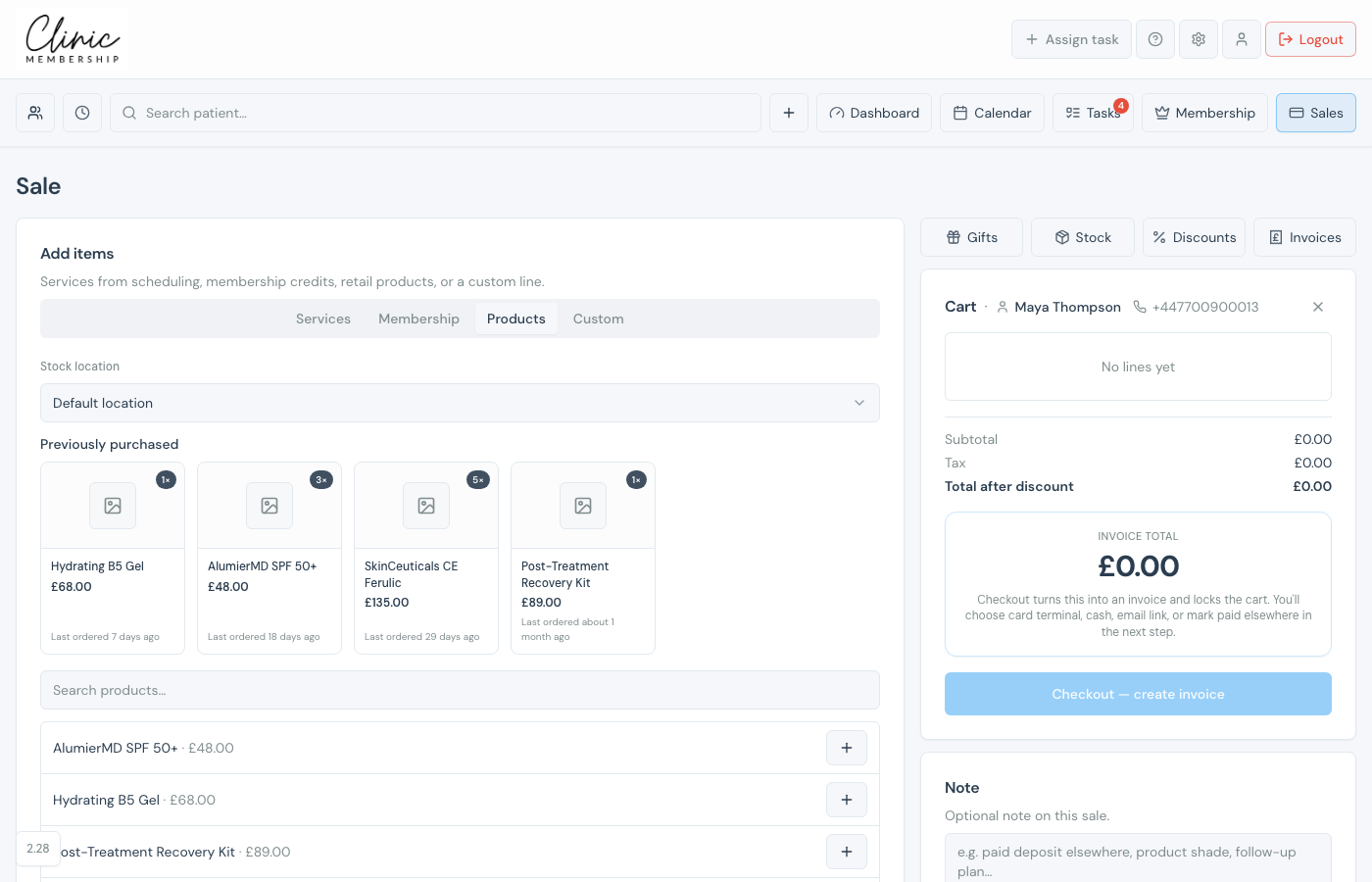
- With the product search box empty, a Previously purchased row appears above the catalogue.
- Each card shows the product name, current price, how many units they have bought in total, and when they last ordered it.
Add to the basket
- Click a product card to add one unit to the cart (same as choosing it from the list below).
- Adjust quantity on the cart line if they need more than one.
- Continue checkout as usual: Create invoice, then collect payment.
What the cards tell you
- The badge in the corner (for example 2×) is the total quantity bought across past paid invoices.
- If the price has changed since their last order, the card shows the previous price as Was £…
- Out of stock or archived products appear greyed out and cannot be added.
Previously purchased only includes retail products from invoiced sales. It does not list bookable treatments from the Services tab.
