


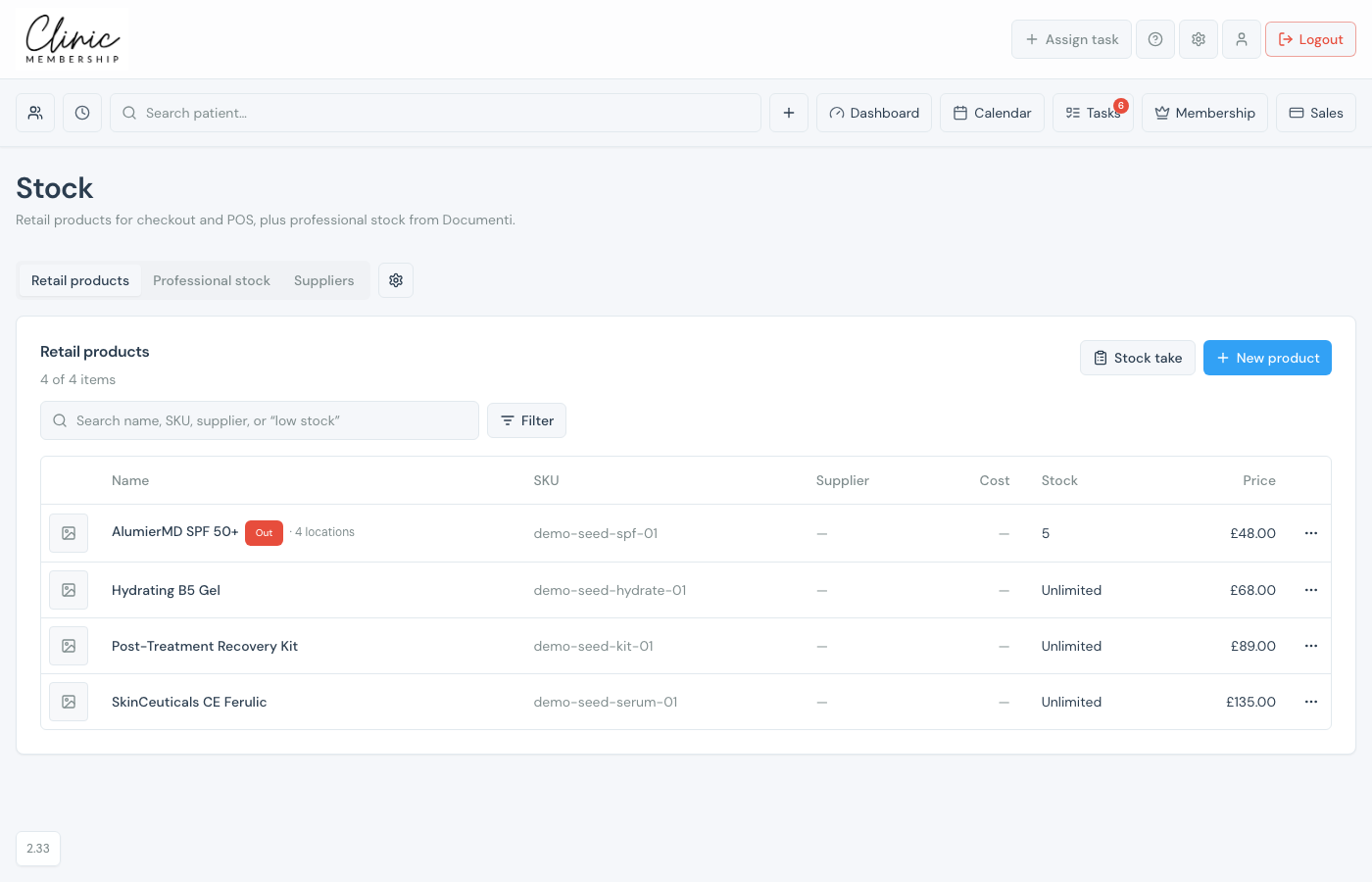
Retail stock is what you sell at the till, skincare, kits, and other shop items. Open Stock from Sales (or Admin → Stock), then use the Retail products tab. Professional injectables live on a separate tab when Documenti is connected.
Add or find a product
- Go to Sales → Stock (or Admin → Stock).
- Stay on Retail products. If you have more than one location, pick a site, or All locations to see stock at each site.
- Click New product: enter name, price, and SKU, choose a supplier (or add a new one), and whether to track stock.
- For multi-site clinics, set quantity and reorder alert for each location.
- Save: the product appears in Sales (POS) under Stock.
Tip
Search accepts name, SKU, supplier, or phrases like low stock. Use Filter for All / Low / Out / No supplier.
Do a stock take
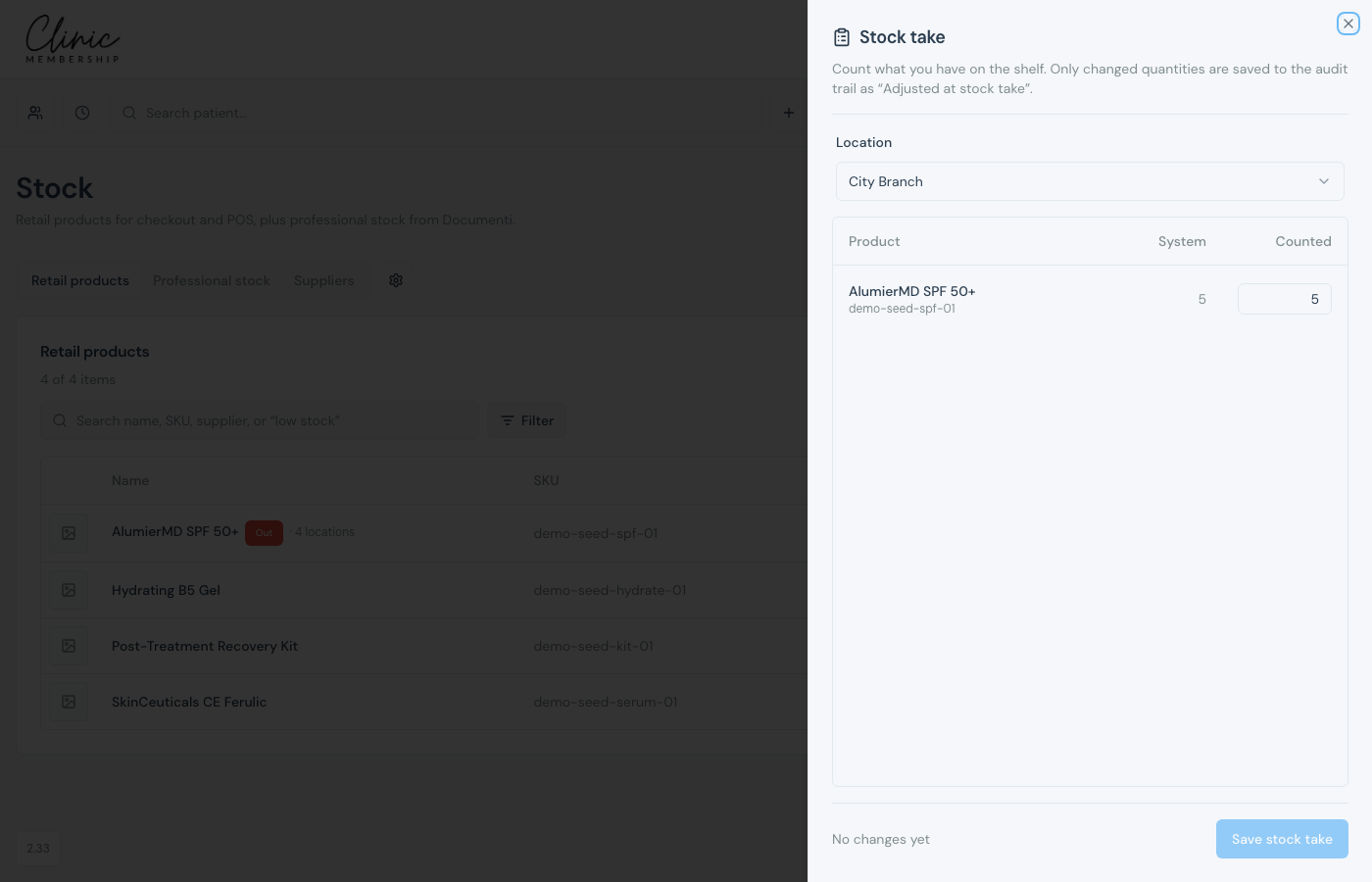
- On Retail products, click Stock take.
- Choose the Location you are counting.
- Enter Counted quantities for each product: System shows what Clinic Membership thinks you have.
- Click Save stock take, only changed rows are written to the audit trail as Adjusted at stock take.
Adjust stock or sell at the till
- Open a product to adjust quantity (±) for a location and see movement history.
- In Sales (POS), open the Stock tab on a sale, quantities reduce when the invoice is paid.
