


Time off sits alongside staff rotas in Settings → Team. Rotas define when someone normally works; time off blocks specific dates so online booking and the diary respect leave, training days, and clinic closures. Upcoming leave is listed first (next date nearest the top); past leave lives under Past time off so you can scan what’s coming without scrolling through history.
UK bank holidays, blocked automatically
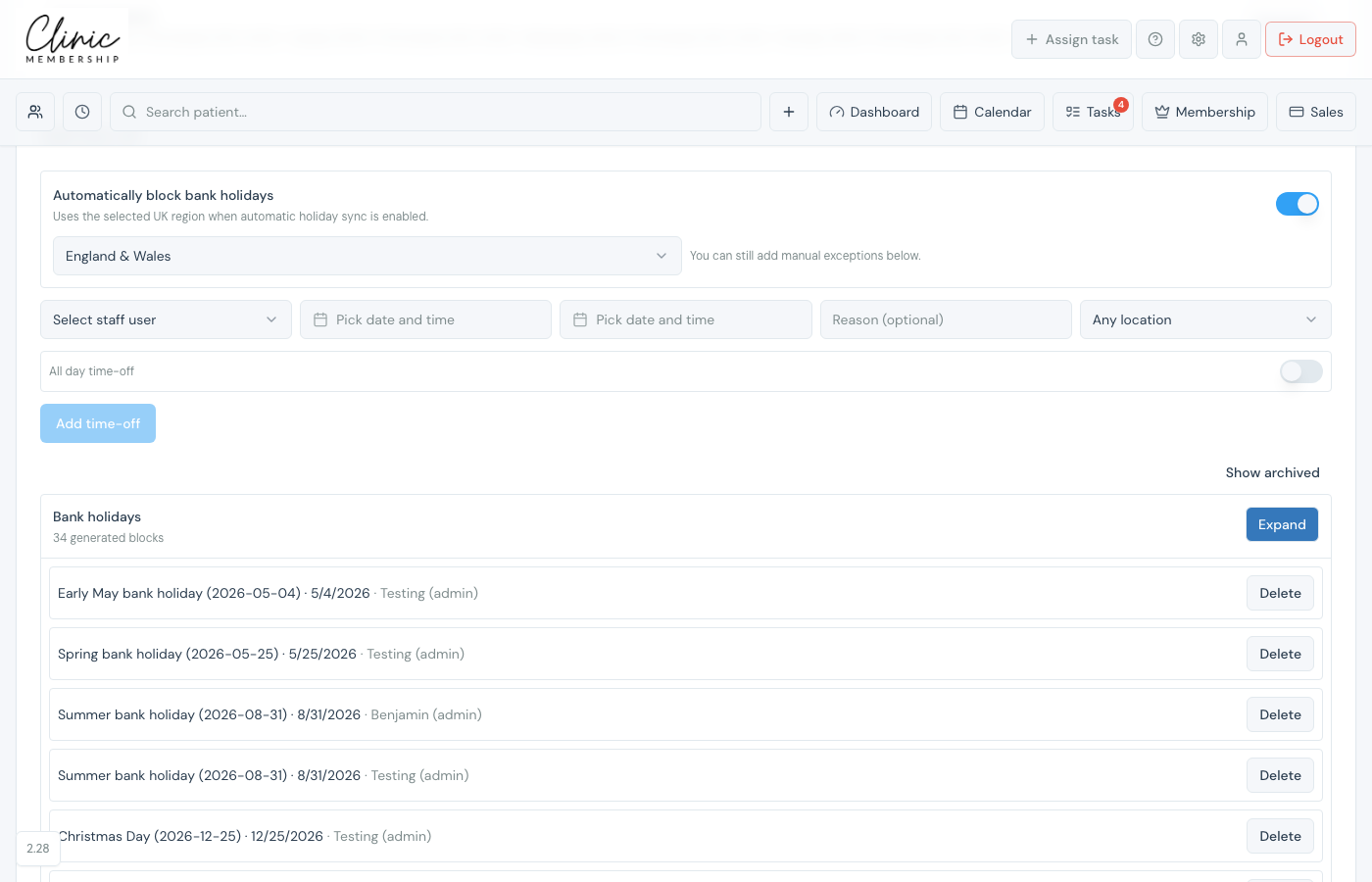
You do not need to enter Easter Monday, Christmas Day, or other public holidays by hand. Clinic Membership syncs the official GOV.UK bank holiday list for your region and blocks the diary for every bookable clinician, usually two years ahead, refreshed automatically each week.
- Go to Settings → Team and scroll to Staff time-off.
- Turn on Automatically block bank holidays.
- Choose your UK region: England & Wales, Scotland, or Northern Ireland (dates differ, for example in Scotland).
- Click Save settings at the bottom of the page.
- Expand Bank holidays to review the generated blocks for each clinician.
Tip
Bank holiday blocks are generated per clinician. If someone should work on a public holiday, delete that one generated block: your other staff still stay blocked.
Manual time off (leave and training)
Use manual time off for anything bank holidays do not cover, annual leave, training courses, sick days, or a one-off clinic closure on a normal working day.
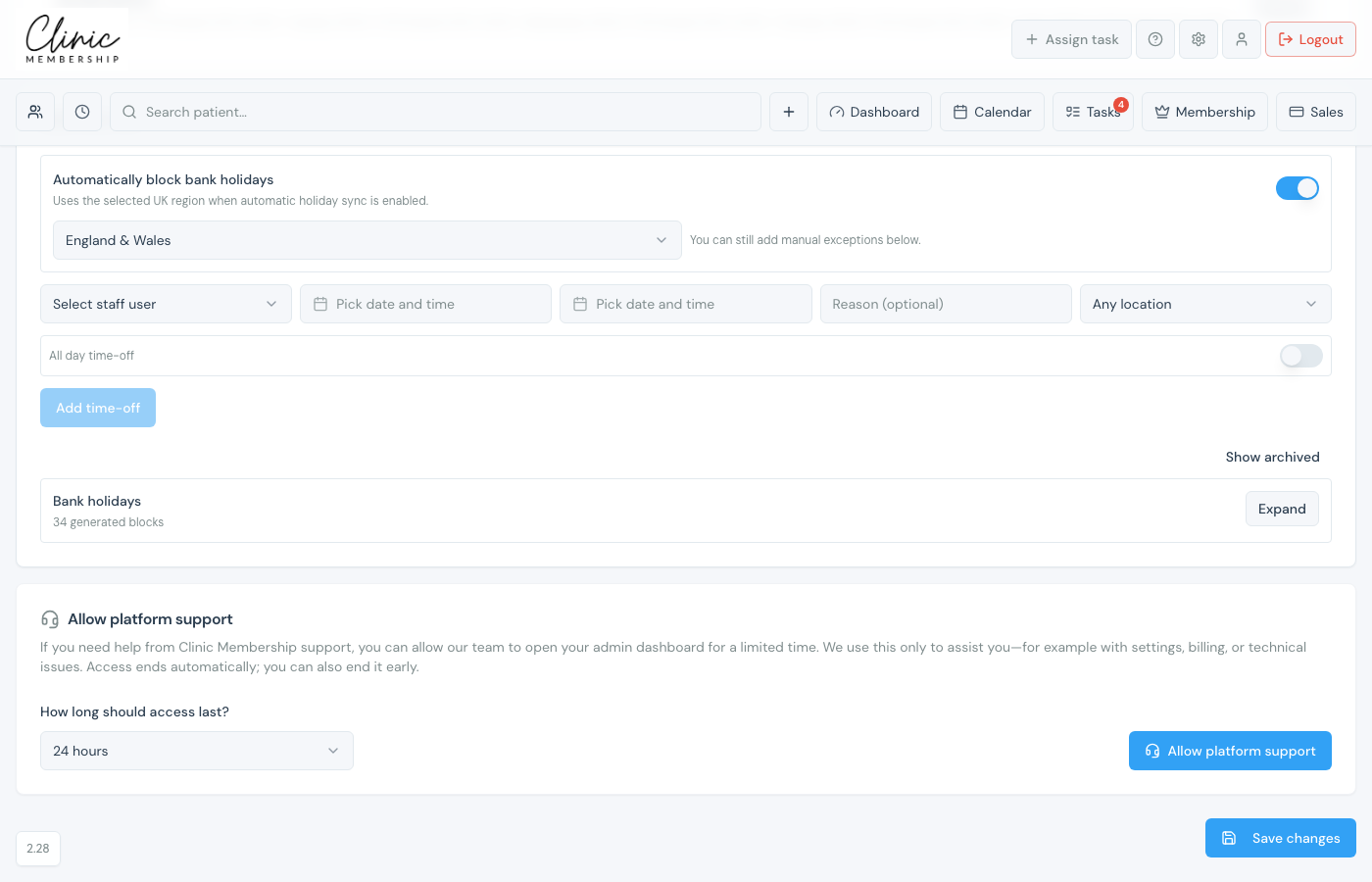
- In the same Staff time-off section, choose the staff member. For all-day leave, pick the first and last day. Turn All day off if you only need part of a day.
- Optional: pick a Location: Any location blocks them at every site; choose one site if they are only away there.
- Optional: add a Reason (for example Annual leave).
- Click Add time-off, then Save settings at the bottom of the page.
Tip
You can also manage time off from a team member’s panel (Settings → Team → click their name). For quick blocks from the diary, use Mark busy on the calendar. See Mark busy and block time off.
