


Blocked time stops patients booking those slots online and shows as busy on the diary. Click an empty slot on Admin → Calendar to book a patient or mark someone busy. Click an existing busy block to edit it, or switch to Book appointment to save a patient visit at that time, staff can book over Mark busy; online booking still cannot. For longer leave or bank holidays, use Settings → Team. See Book staff time off.
Book an appointment from the calendar
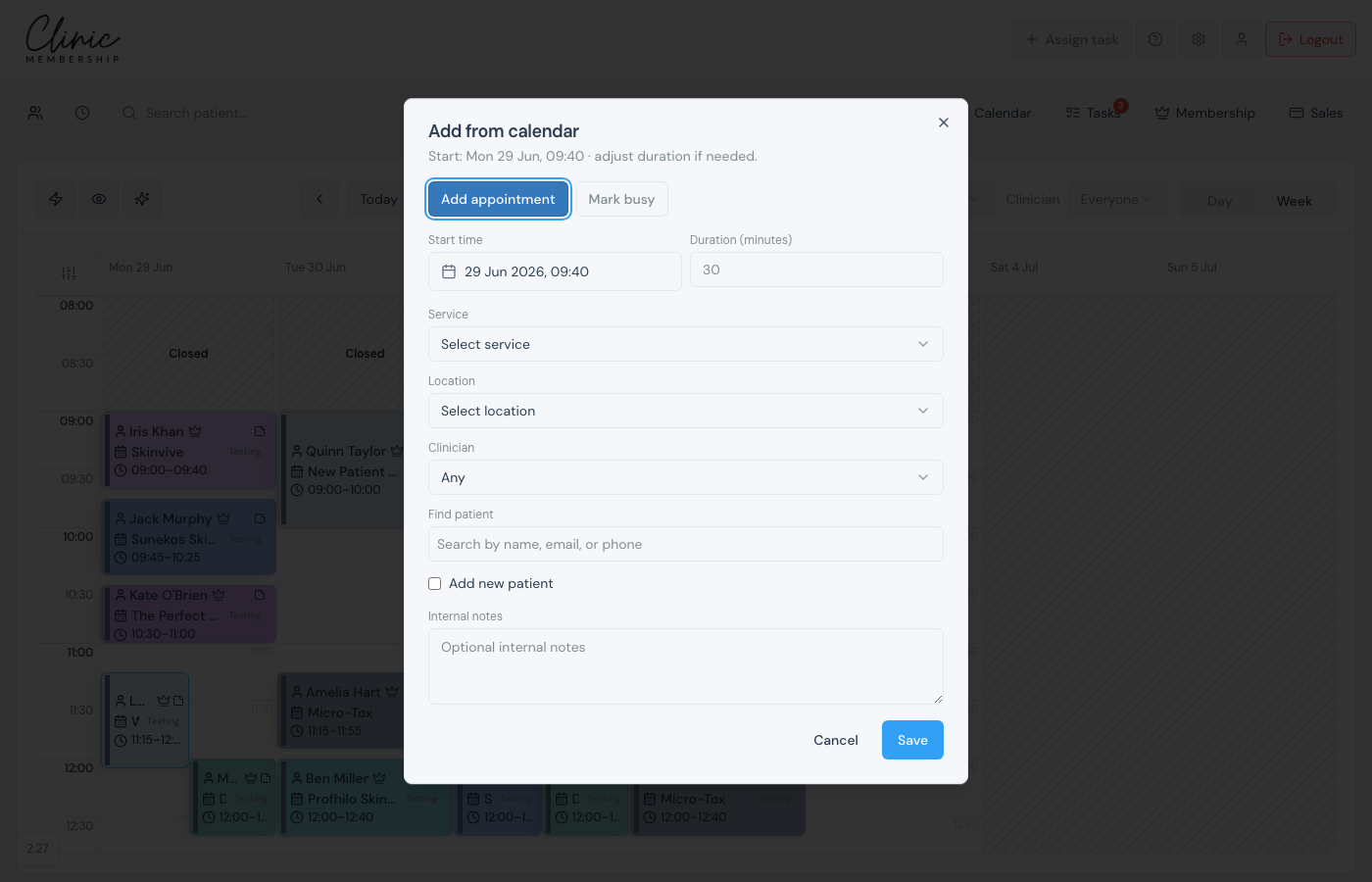
- Open Admin → Calendar.
- Click or drag on an empty slot to open the booking panel.
- Choose Add appointment.
- Select the service, then Location and Clinician when you have multiple sites or bookable people.
- Find or add the patient, then save.
Mark busy on the calendar
- Click or drag on an empty slot on Admin → Calendar.
- Choose Mark busy.
- Select Staff to block.
- Location: All locations blocks them everywhere for that time; pick a site to block only there.
- Add an optional reason and save.
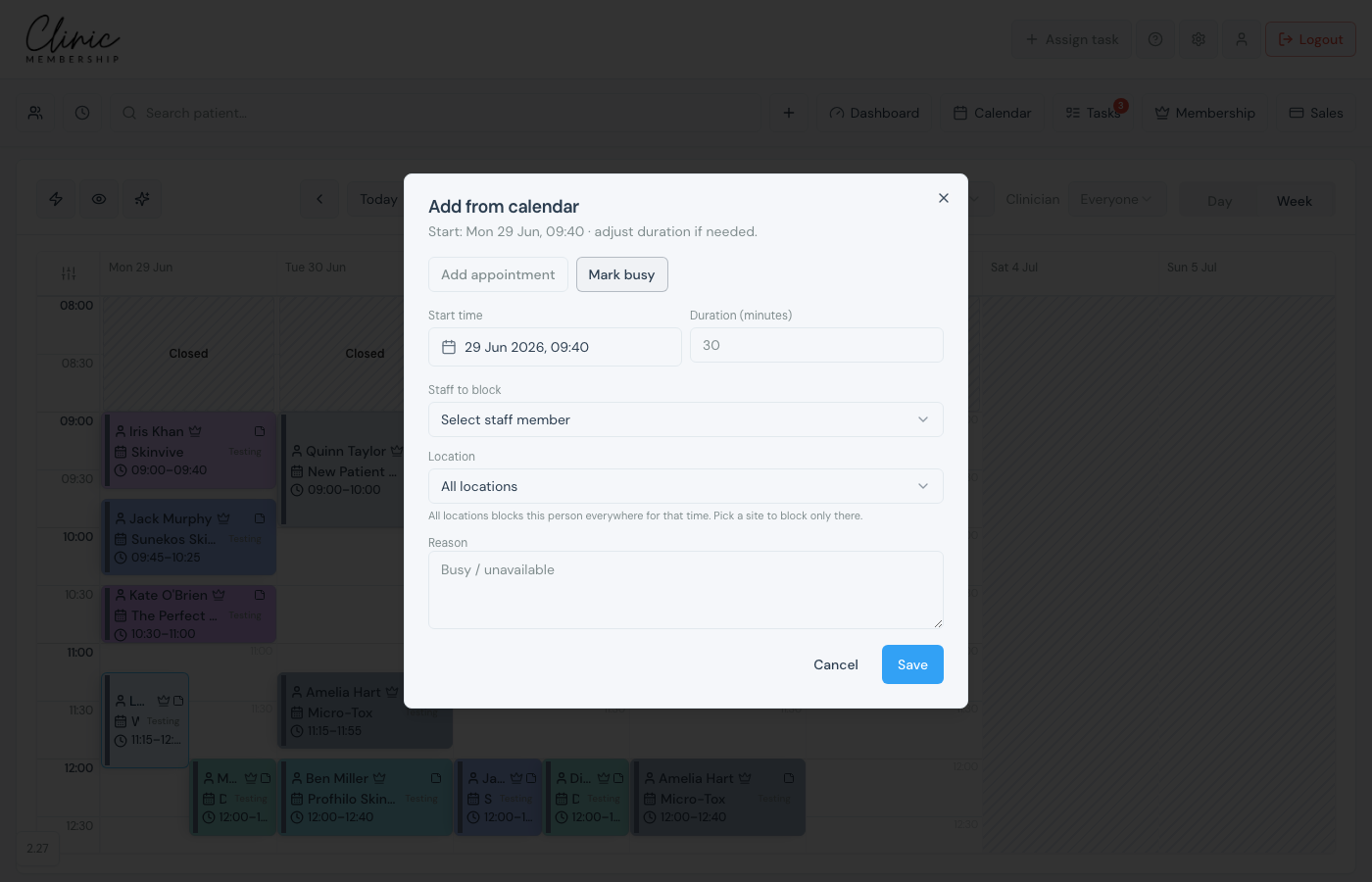
Busy blocks from the calendar work the same way as time off in Settings. They respect rotas and stop online booking in the blocked window. Your team can still book a patient over Mark busy from the diary (Edit busy → Book appointment), including when dragging the start-time preview on the calendar.
Note
To close the whole clinic on a bank holiday, use automatic bank holiday blocking in Settings → Team. For one-off clinic closures, add time off for each bookable clinician, or block each person from the calendar.
