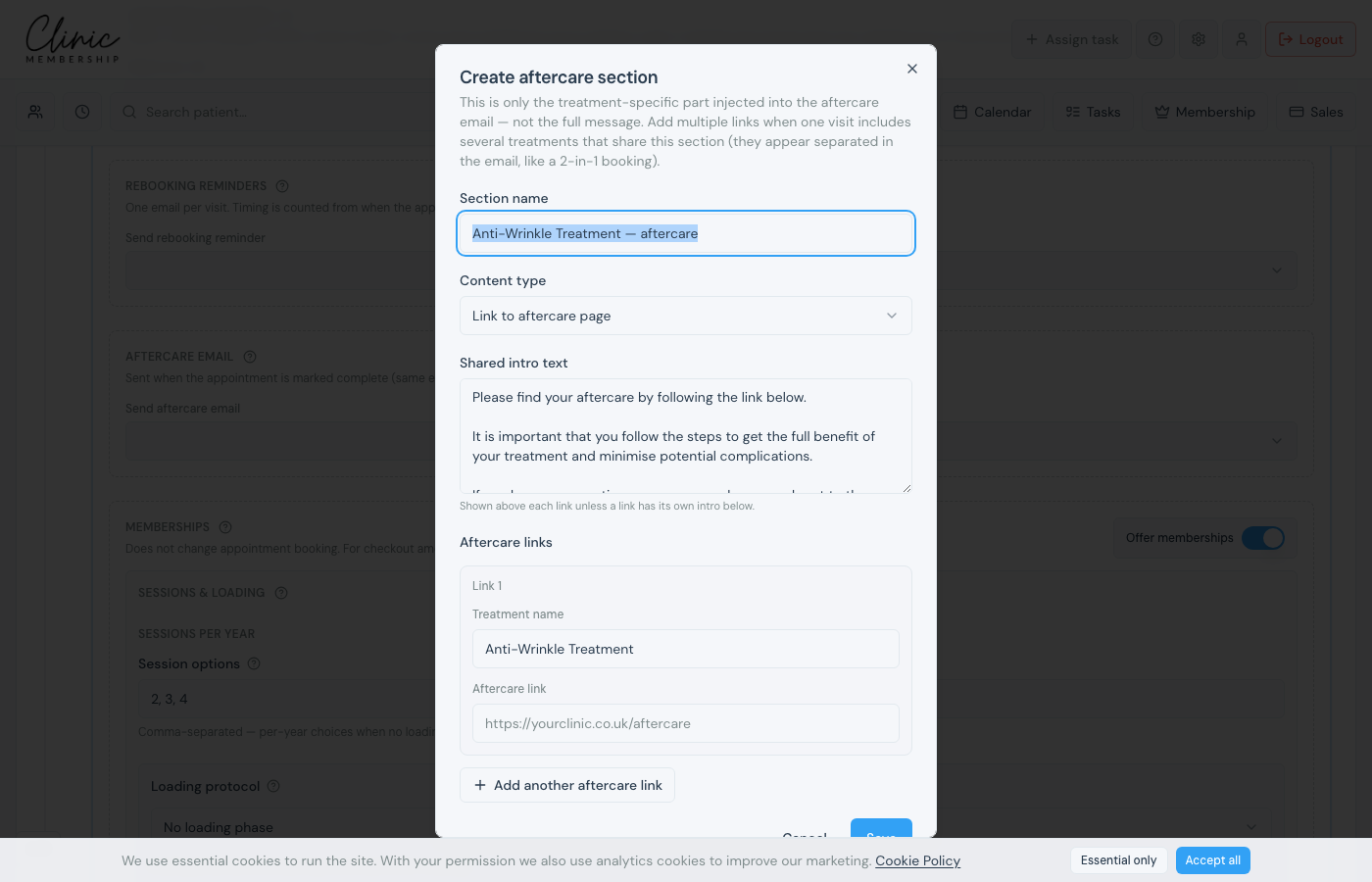
Aftercare emails are configured per service on the same form as booking and rebooking. When staff mark an appointment complete, eligible patients receive one email with the aftercare content you have linked to that treatment.
Turn on aftercare for a service
- Go to Settings → Services.
- Click Edit on the service (or add a new service first).
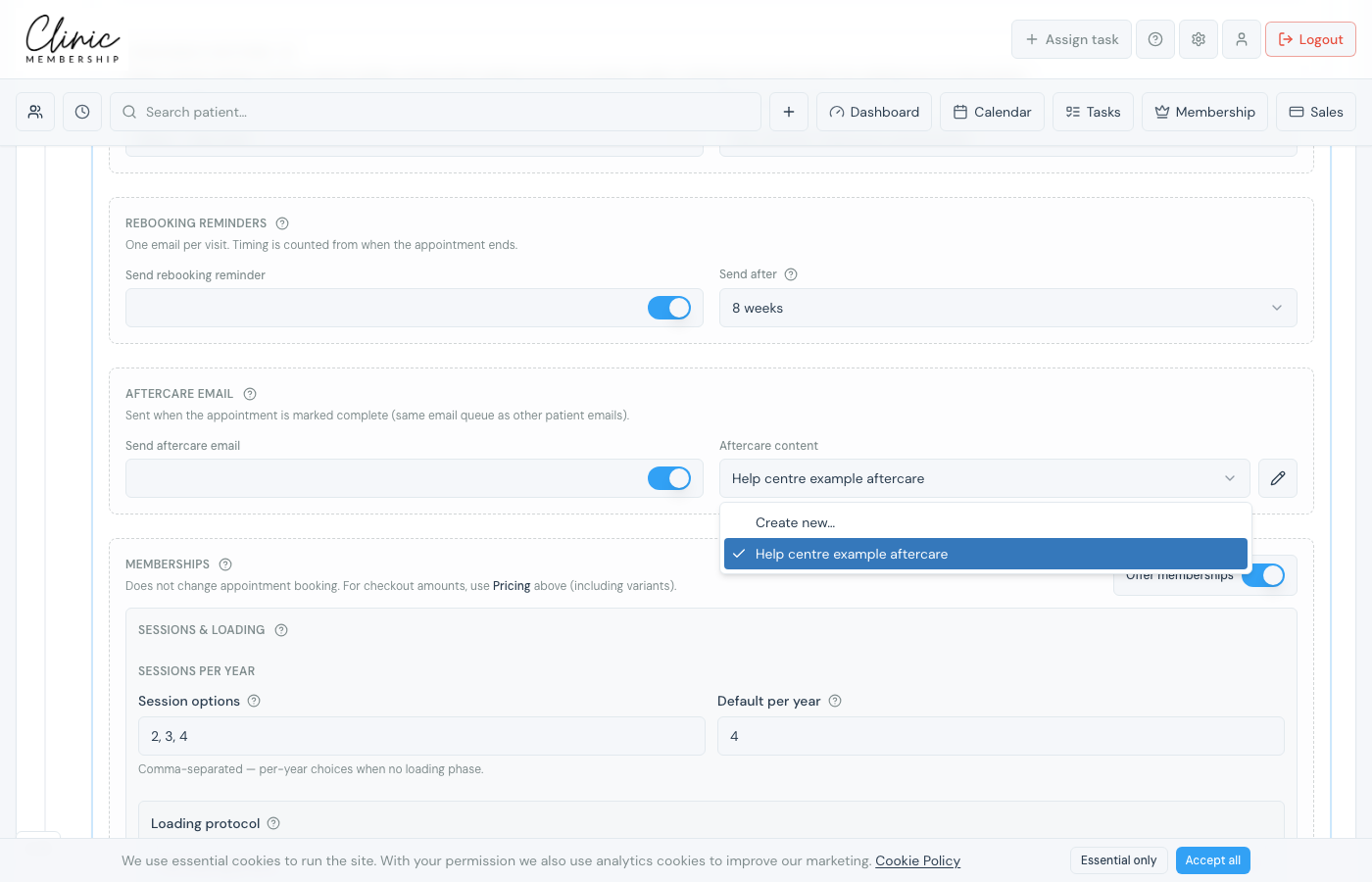
- Scroll to the Aftercare email section.
- Switch on Send aftercare email.
- Choose or create the aftercare content for that treatment.
- Click Save settings at the bottom of the page.
Tip
You can reuse the same aftercare content across several services, or write something specific per treatment.
Create new aftercare content
Choose Create new in the Aftercare content dropdown to add instructions for a treatment. Pick a content type: each works differently in the email patients receive:
- Link to aftercare page: send patients to a page on your website (you can add more than one link for combo treatments).
- Hosted PDF, upload a PDF; patients get a download link in the email.
- Paste aftercare text, put the full instructions in the email body.