


Rebooking reminders are set per service. After a visit is marked complete, Clinic Membership can send one email encouraging the patient to book again, unless they already have a future booking for that same service.
Turn on rebooking for a service
- Go to Settings → Services.
- Click Add a new service, or Edit on an existing service in the list.
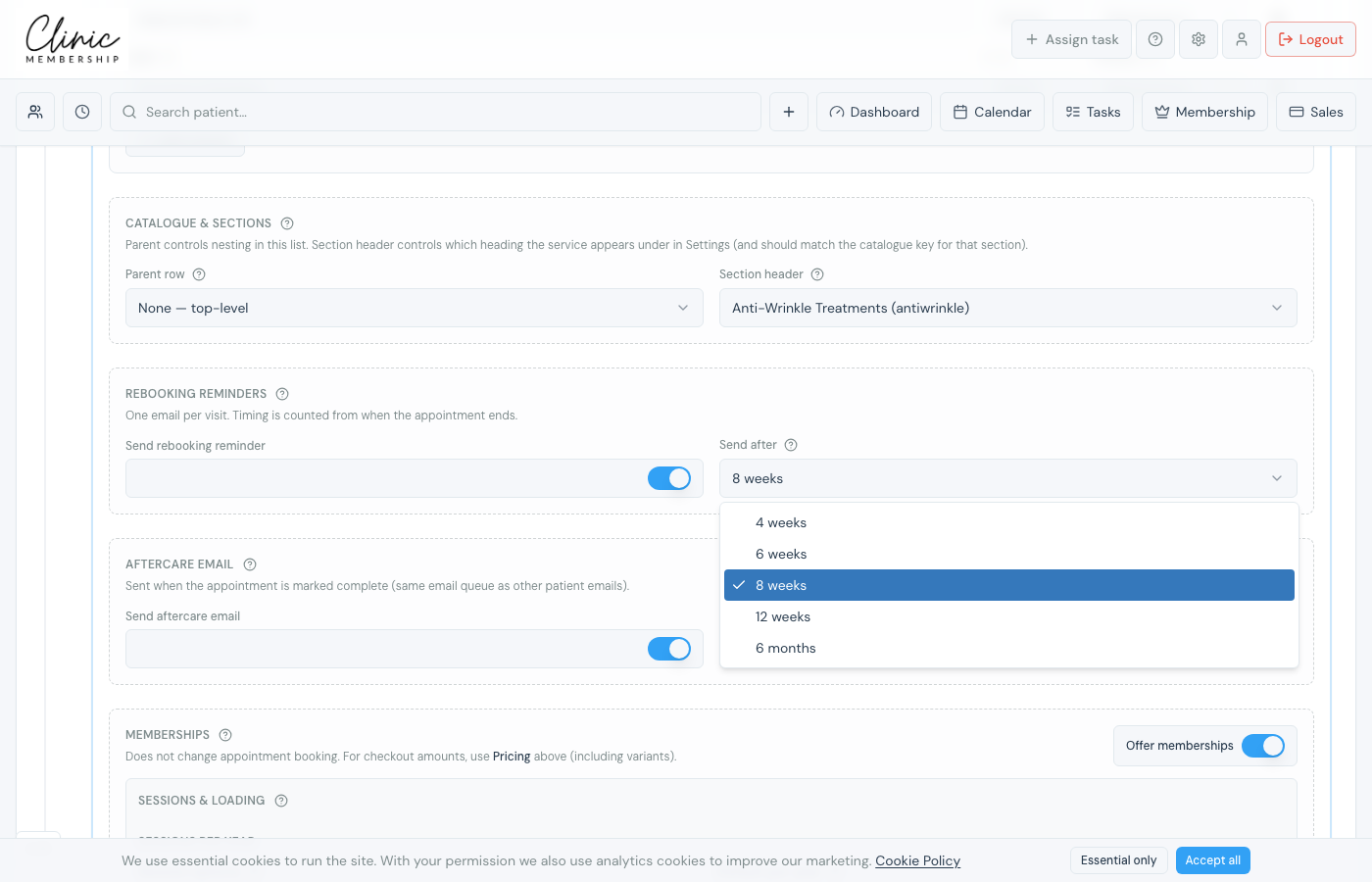
- Scroll to the Rebooking reminders section on the service form.
- Switch on Send rebooking reminder.
- Choose Send after (for example 12 weeks), timing is counted from when the appointment ends.
- Click Save settings at the bottom of the page (or Add service if you are creating a new row).
Note
Rebooking is per service. Turn it on for each treatment you want nudges for, for example anti-wrinkle every 12 weeks, skin treatments on a different cadence.
Customise the email (optional)
The default rebooking email works out of the box. To change the wording, go to Settings → Communications, find the rebooking template, and edit the subject or body. Your clinic name and booking link are filled in automatically.
What happens next
Many clinics also send aftercare instructions when a visit is marked complete. That is a separate setting on the same service form.
