


Services are the treatments patients can book online and your team sees on the calendar. Each service needs a name, how long it takes, and a price. You can group them into sections (for example Injectables, Skin, Consultations) so your list stays easy to scan.
Before you start
- You need admin access to your clinic dashboard.
- Have a rough list of treatments, durations, and prices ready. You can refine them later.
Add your first service
- Log in to your clinic admin and go to Settings.
- Open the Services tab.
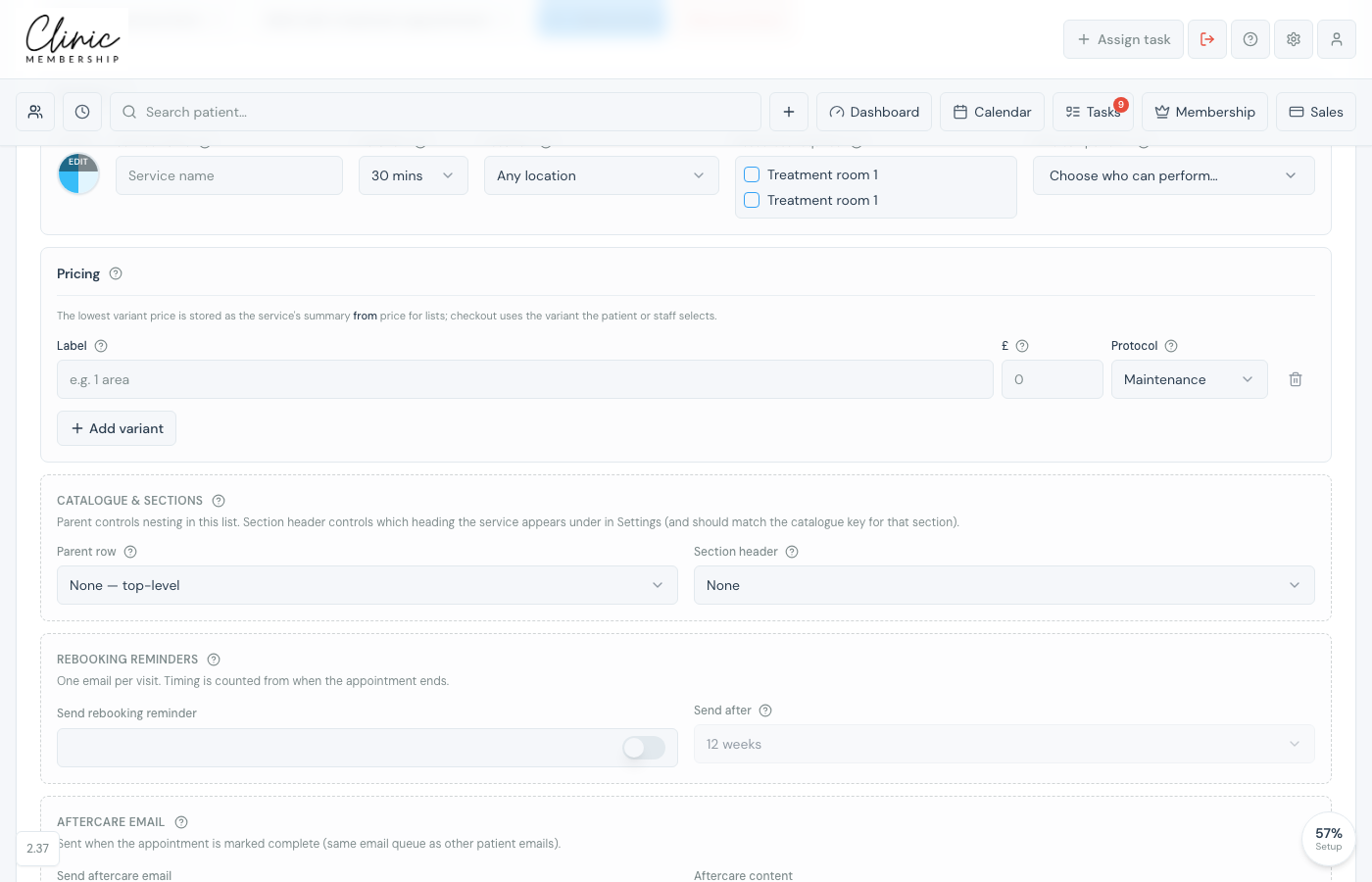
- Click Add a new service to expand the form (use Add multi-treatment appointment only when patients pick two or more treatments in one visit).
- Enter the service name (for example Anti-wrinkle consultation).
- Set the duration in minutes. This controls how long the appointment blocks on your calendar.
- Add at least one pricing variant with a label and price in pounds.
- Optional: pick a section header so the service appears in the right group on your booking page.
- Click Add service.
Link a service to a membership plan (optional)
If you sell memberships, you can connect a service row to a membership plan so members see the right benefits when they book. Expand the membership section on the service form and choose the plan it belongs to. This is optional, many clinics add services first and link memberships once plans are live.
Organise with sections
When you have more than a handful of treatments, use Add section to create groups (for example Skin treatments or Consultations). Drag services to reorder them: the same order appears on your online booking page and member portal.
Tip
Start with your five most-booked treatments. You can add variants (for example different areas or strengths) later from the same service row.
More options on the same form
When you add or edit a service, you will see extra sections below the basics, rebooking reminders, aftercare emails, membership links, and booking rules. You do not need to configure all of them on day one. This guide covers getting services live; the guides below walk through each option when you are ready.
Multi-treatment visits
To let patients pick two, three, or four treatments in one diary slot, click Add multi-treatment appointment (separate from Add a new service), then turn on Allow in a multi-treatment appointment on each component treatment. Full steps are in Set up multi-treatment appointments.
What happens next
Set up multi-treatment appointments
Create a bundled multi-treatment service.
Get your online booking link
Share your booking page so patients can book the services you just added.
Link resources to a service
Require a room or device for treatments that need one.
Set staff rotas
Set working hours so patients see bookable slots.
Send appointment reminders
Email patients before each appointment.
