


When staff book, reschedule, cancel, or mark a no-show, Clinic Membership often queues an email to the patient (confirmation, update, or cancellation). Emails are not sent instantly. You have a short window to stop them if reception is still fixing the diary.
Open Live activity
- Go to Admin → Calendar.
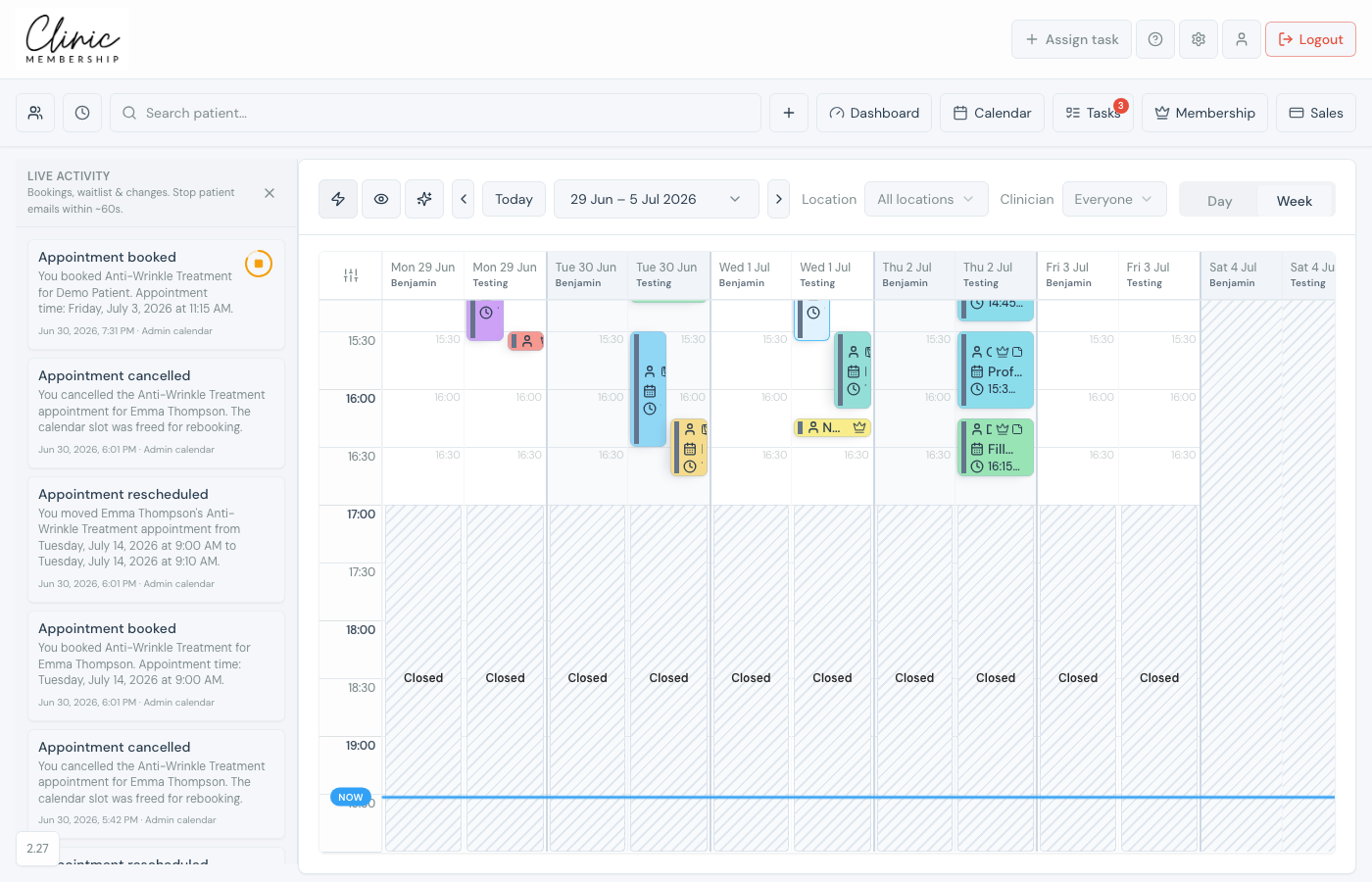
- Click the lightning bolt in the toolbar.
- The Live activity panel opens on the left: a feed of recent bookings, changes, waitlist events, and cancellations from your audit trail.
- The list refreshes automatically while the panel is open.
- Click Full audit trail at the bottom for the complete history.
Stop a patient email
- After you save a booking, move, or cancellation, look for the same event in Live activity.
- While the countdown ring is visible (about 60 seconds for new bookings and cancellations; slightly longer after a reschedule), click the square Stop button.
- The email is cancelled: the patient will not receive it.
- If the ring has expired, the email has already been sent.
Tip
Keep Live activity open on a busy reception screen. If two people are editing the diary, it shows who changed what and gives either person a chance to stop a mistaken email.
When stop is available
- New staff-made bookings, confirmation email.
- Reschedules, updated time email (includes a short debounce if you move the same visit twice quickly).
- Cancellations and no-shows, cancellation or no-show notice where configured.
- Not every audit line has a stop button, only actions that would email the patient.
Other calendar shortcuts
The same toolbar includes privacy mode (hide surnames), Smart view (zoom to opening hours), and Jump ahead date shortcuts. See Smart features on the admin calendar.
