


Reception and clinicians book directly on Admin → Calendar. You do not need to send the patient to online booking for staff-made appointments.
Book an existing patient
- Open Admin → Calendar and move to the day you need (Day or Week view).
- Optional: use Location and Clinician filters to focus the diary first.
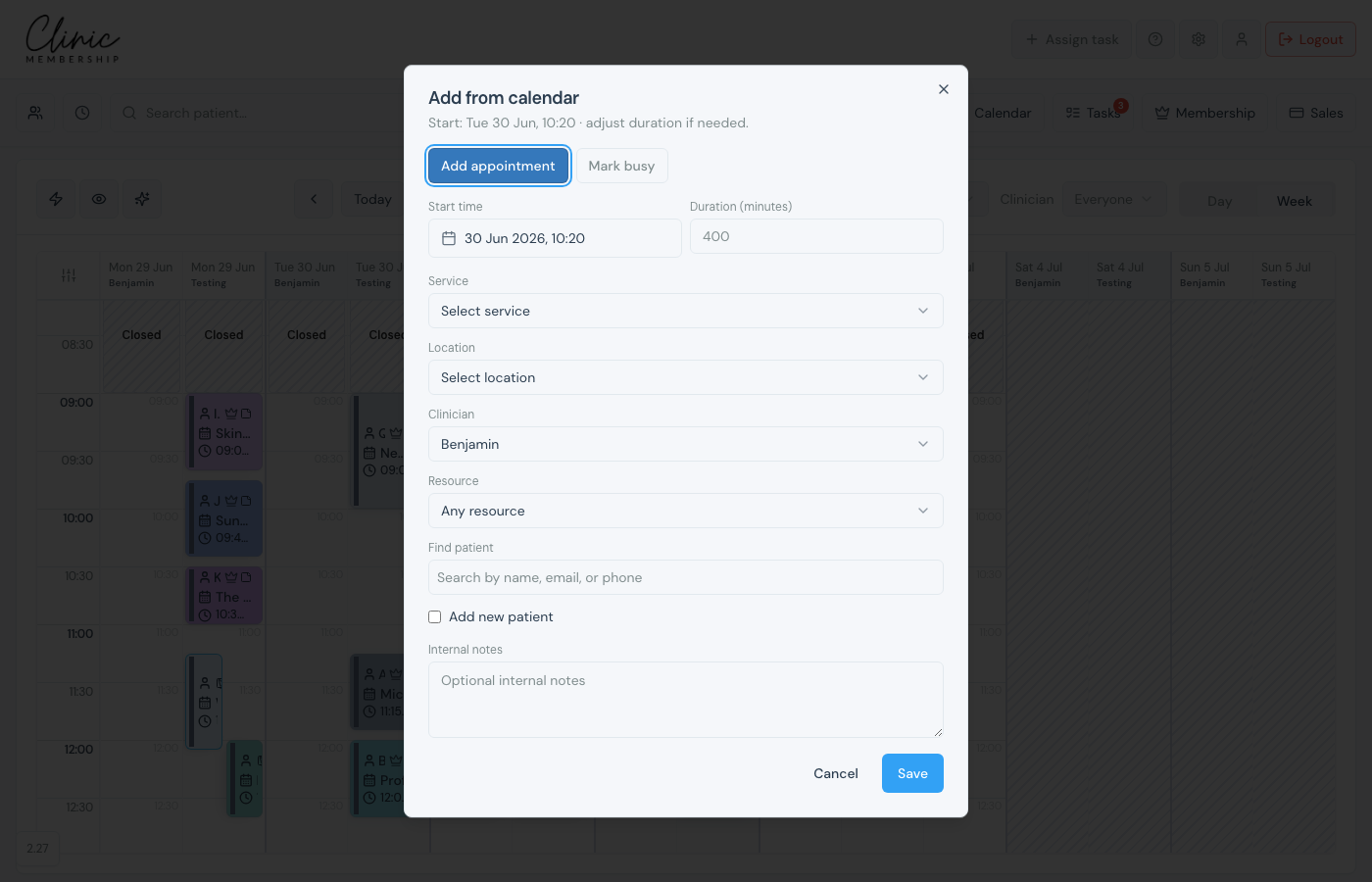
- Click an empty slot, or click and drag to set the start time and length.
- Choose Add appointment.
- Select the service, then Location and Clinician when your clinic has more than one.
- Under Find patient, type at least two characters of name, email, or phone and pick the person from the list.
- Review start time and duration, add internal notes if helpful, then click Save appointment.
Add a new patient while booking
- Open the booking composer as above.
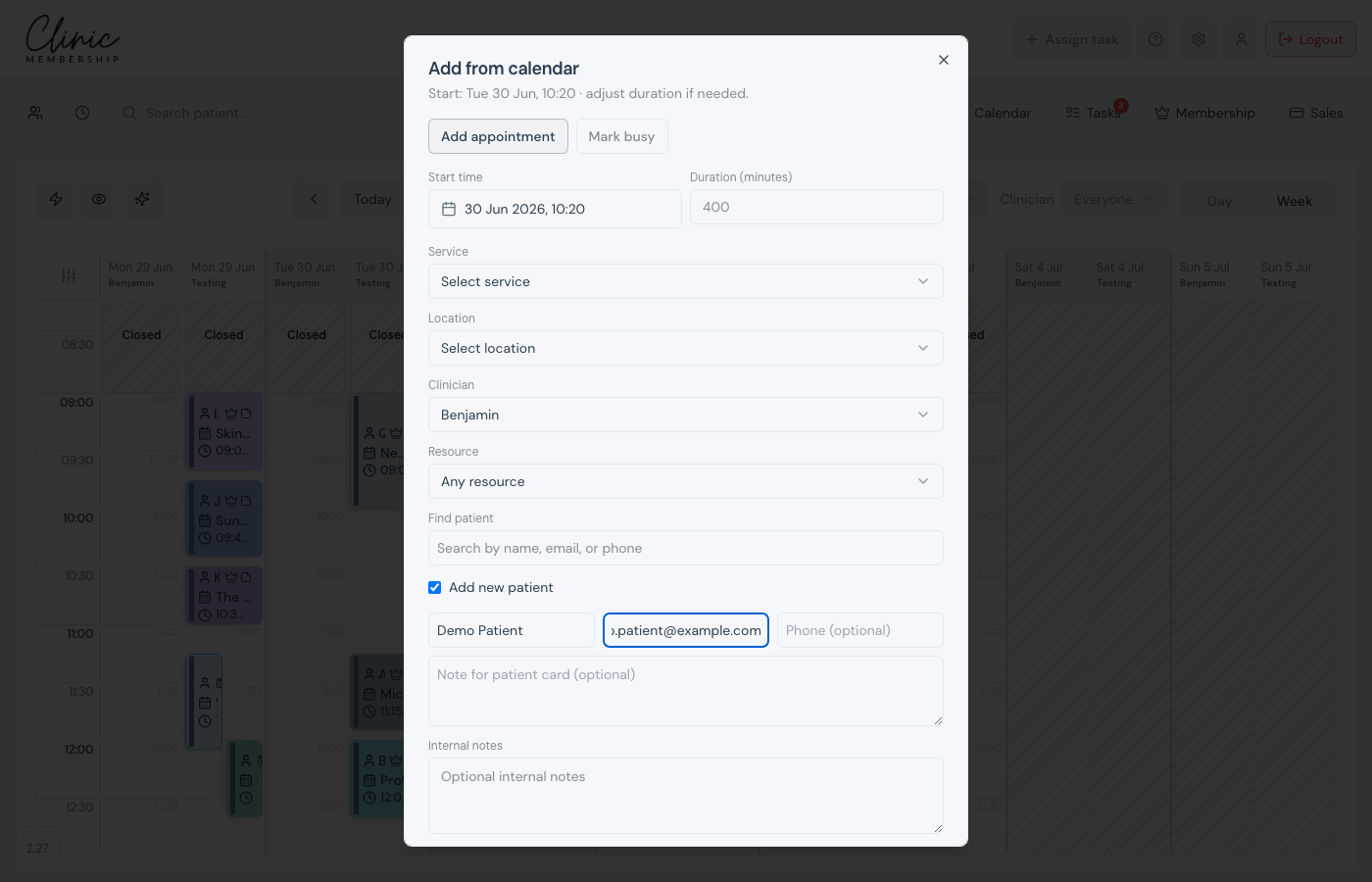
- Tick Add new patient.
- Enter their name, email, and optional phone.
- Complete the service and time fields, then Save appointment.
- The patient record is created and the visit appears on the diary.
Tip
After you save, the patient may receive a booking confirmation email. You have about 60 seconds to stop it from Live activity if you made a mistake. See Live activity and stopping patient emails.
If the slot is too short
When you place a new appointment by dragging a start time, Clinic Membership checks whether the full treatment duration fits the rest of the day. If the gap is too short, you can book a shorter visit here, change treatment, or pick another time, so the diary does not overlap the next booking.
- Drag or place the start-time preview on the calendar.
- If Not enough time at this slot appears, choose Book N minutes here, Change treatment, or Pick another time.
- Confirm and finish the booking as usual.
If the visit would run past the last hour on the diary, or sit over lunch, a break, or closed time, you get Outside working hours instead. You can still Book anyway for emergencies or cover. That warning is not shown when another appointment is already in the way.
Multi-treatment visits
If the service is a bundled appointment, choose First treatment, Second treatment, and any further slots after you pick the service. Later treatments can be None if the patient only needs fewer. When you complete the visit, Confirm 2-in-1 treatments (or 3-in-1 / 4-in-1) asks which treatments were included. See Set up multi-treatment appointments to configure the bundle.
What happens next
Set up multi-treatment appointments
Set up 2-in-1, 3-in-1, or 4-in-1 bundled services.
Take a deposit when booking on the calendar
Optionally take a deposit (or email a pay link) when saving.
Reschedule an appointment on the calendar
Move a visit by drag-and-drop.
Live activity and stopping patient emails
Stop a confirmation email before it sends.
Filter the calendar and book at a location
Filter the diary by location and clinician.
