


If your clinic uses Take deposit on online booking (with Card on file turned on), staff get the same choice when saving a new appointment on Admin → Calendar. You can take the deposit now, skip it, or (when there is no card) email a secure pay link. Reschedule never asks for a deposit.
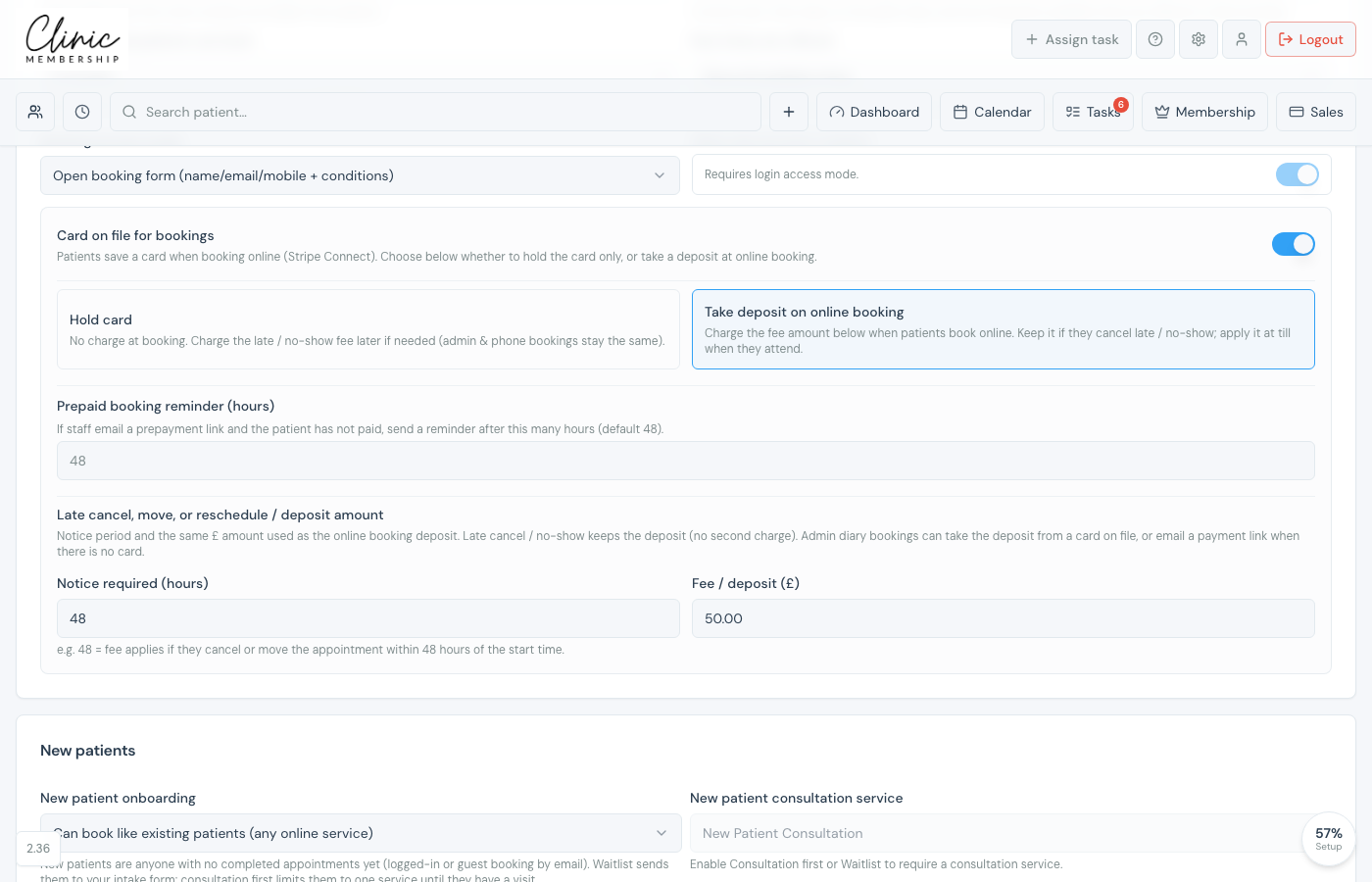
Turn deposits on first
- Go to Settings → Calendar (scheduling).
- Under Booking settings, turn on Card on file for bookings.
- Choose Take deposit on online booking (not Hold card).
- Set Notice required (hours) and Fee inside that notice (£). That fee is also the deposit amount.
- Click Save settings.
Book and choose whether to take a deposit
- Open Admin → Calendar and start a new booking as usual (slot → Add appointment).
- Choose the service, location, clinician, and patient, then click Save.
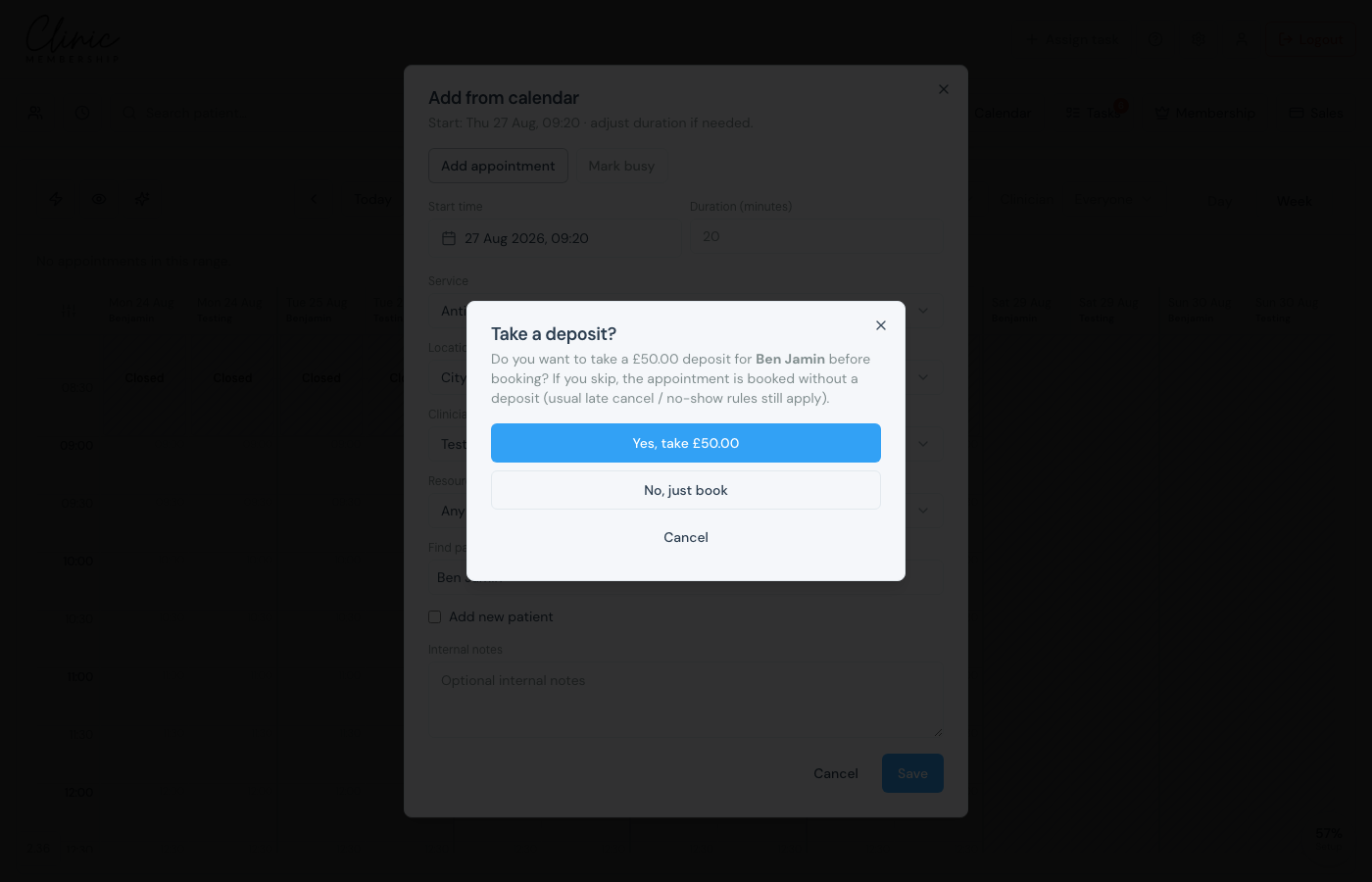
- If deposits are on, Take a deposit? appears with the clinic fee amount.
- Yes, take £…, charge the card on file (or continue to add a card / send a link).
- No, just book: create the appointment without a deposit (late cancel / no-show rules still apply).
- Cancel: go back to the booking form without saving.
No card on file: add a card or send a payment link
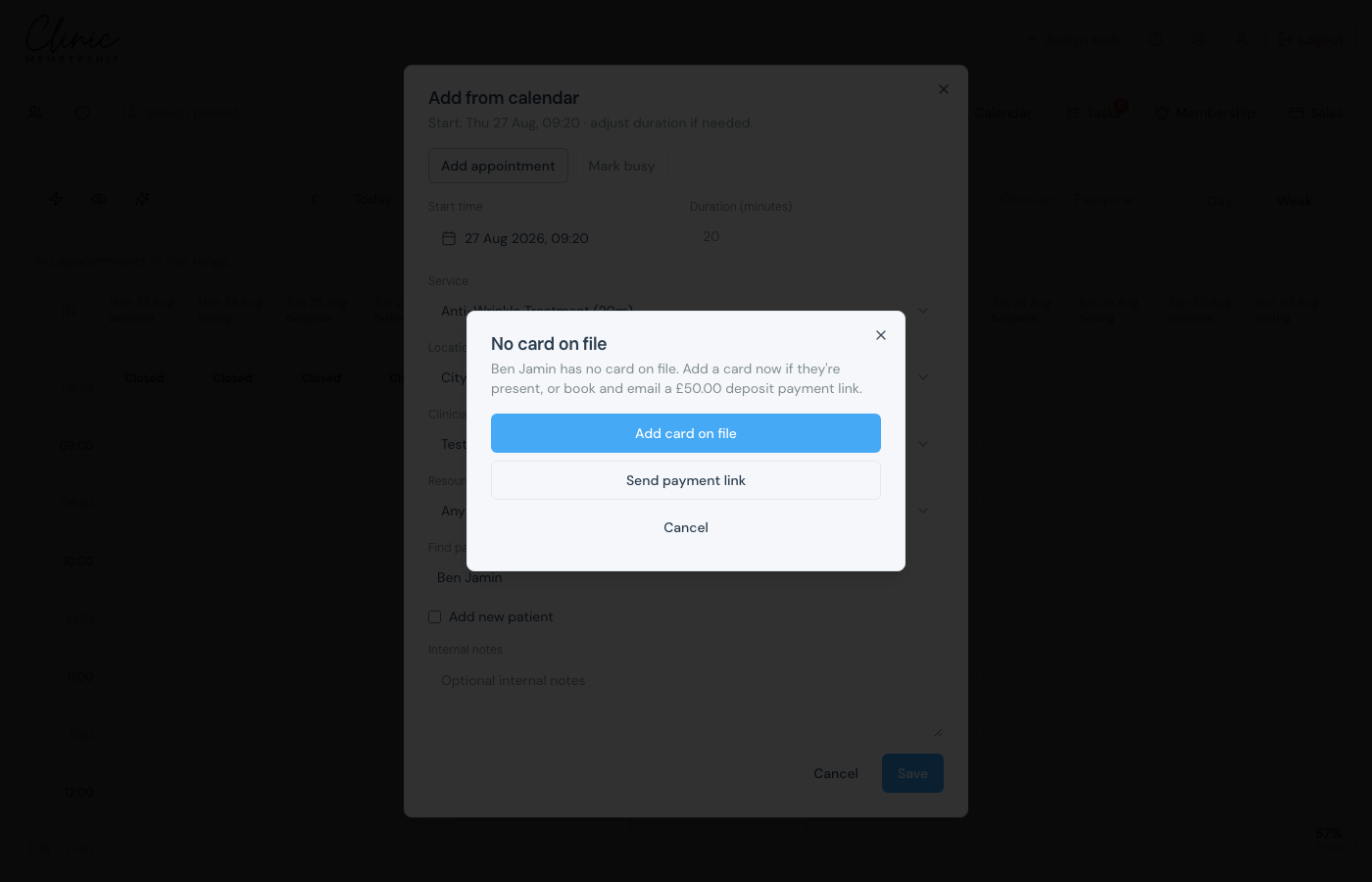
- If you chose Yes and the patient has no card, No card on file offers two options.
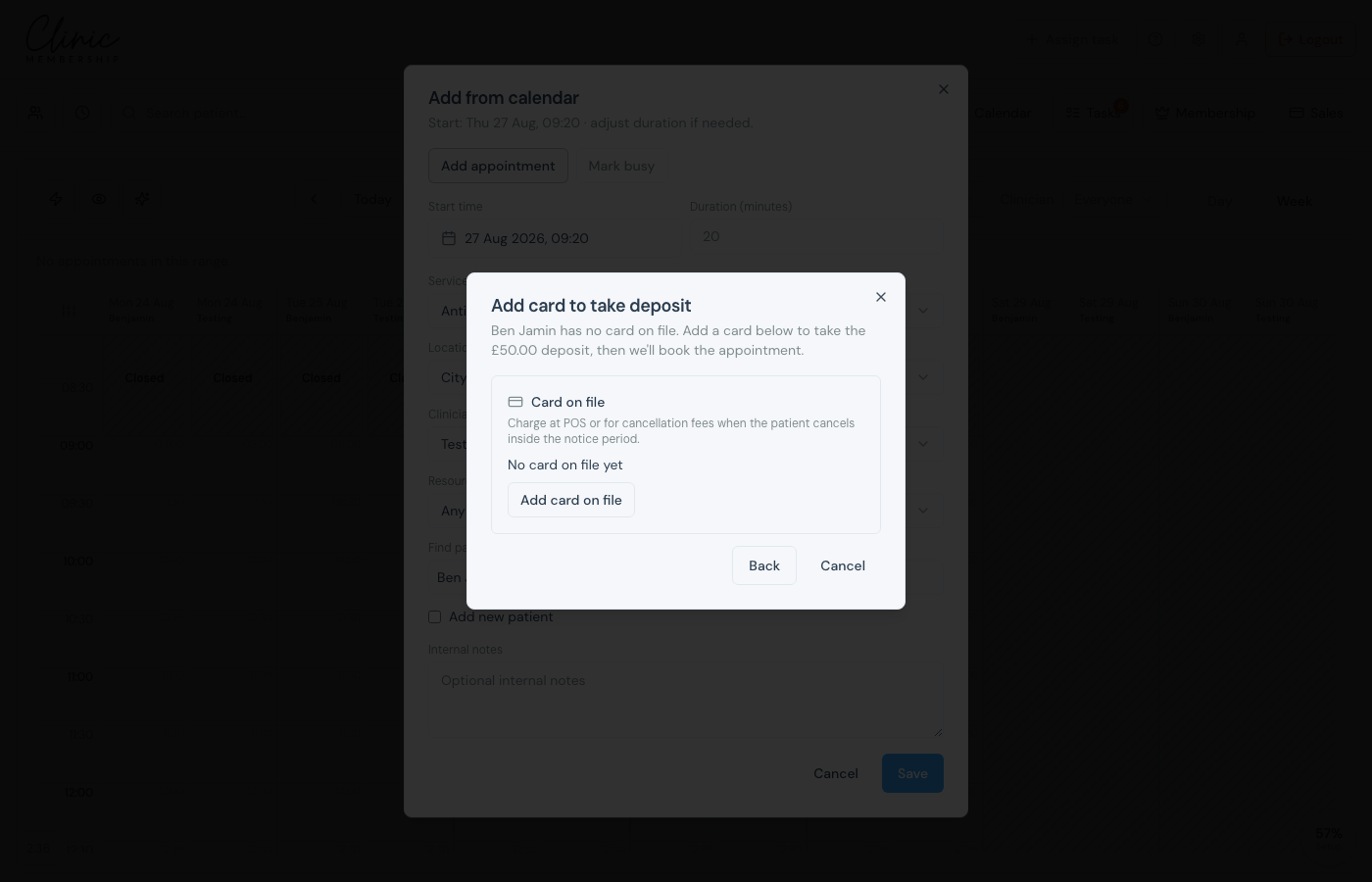
- Add card on file, take the card while they are present, then charge the deposit and book.
- Send payment link: book the appointment now and email a deposit pay link. We send a reminder if it is still unpaid (same timing as prepaid reminders). When they pay, the deposit is held and their card is saved for the clinic.
Tip
When the deposit is charged from a card at booking, the patient confirmation email mentions that the card on file was charged. Deposit pay-link emails live under Settings → Communications → Booking (deposit payment link, reminder, and paid).
