


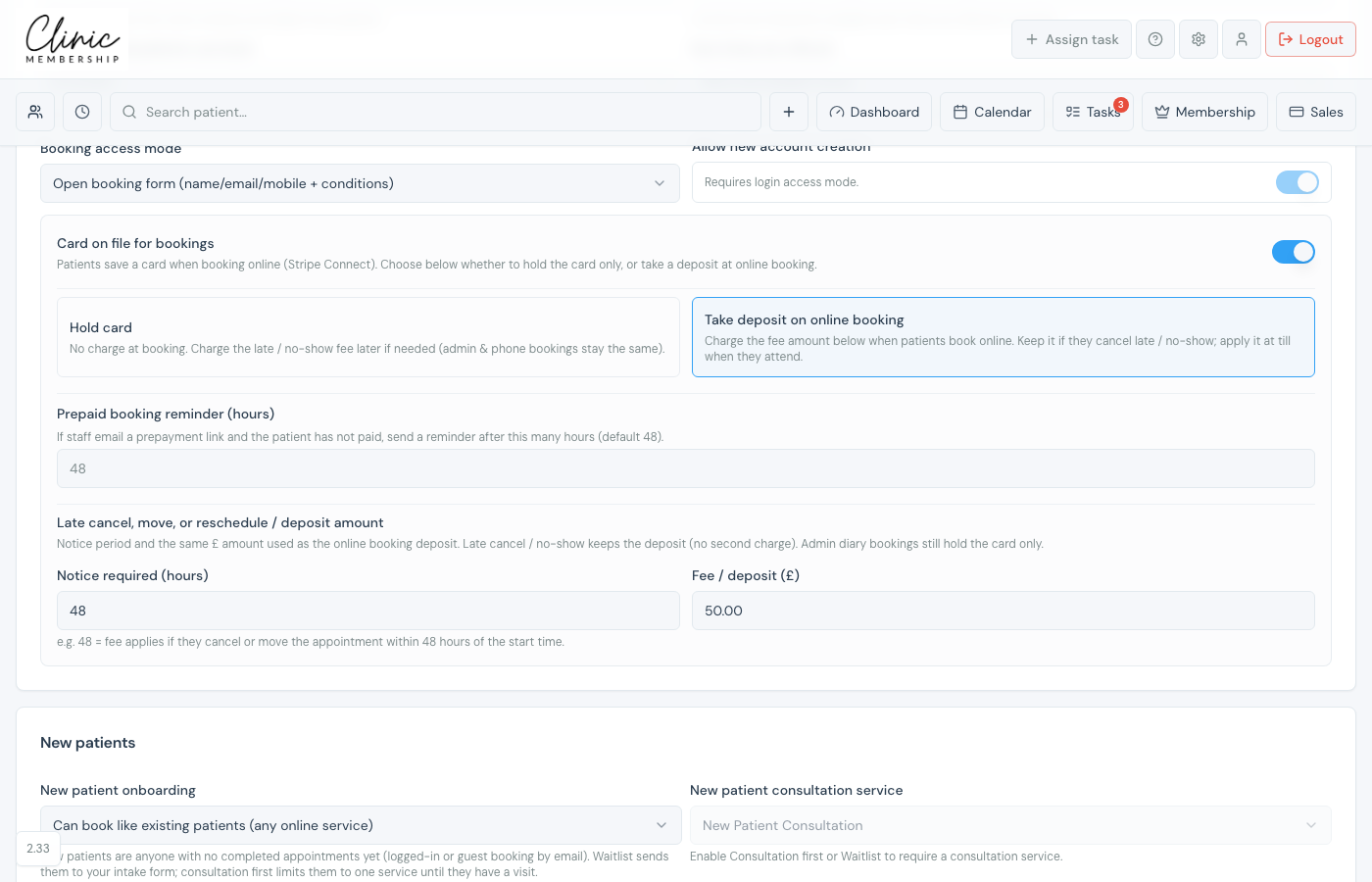
With Card on file turned on, you choose Hold card or Take deposit on online booking. Take deposit charges the fee amount when someone books online (same £ as your late cancel / no-show fee). If they attend, the deposit is applied at Sales; if they cancel late or miss the visit, you keep it: no second charge. Connect Stripe first. See Connect Stripe for patient payments.
Choose Hold card or Take deposit
- Go to Settings → Calendar (scheduling tab).
- Scroll to Booking settings → Card on file for bookings and switch it on.
- Choose Hold card: no charge at booking; you can charge the late / no-show fee later if needed.
- Or choose Take deposit on online booking, charge that fee amount when patients book online.
- Set Notice required (hours) and Fee inside that notice (£): the fee is also the deposit amount.
- Click Save settings.
Note
Admin diary bookings do not take a deposit automatically when you reschedule. On clinics with Take deposit, staff can optionally take a deposit when saving a new calendar booking, including charging a card on file or emailing a payment link if there is no card. Reschedule never asks for one.
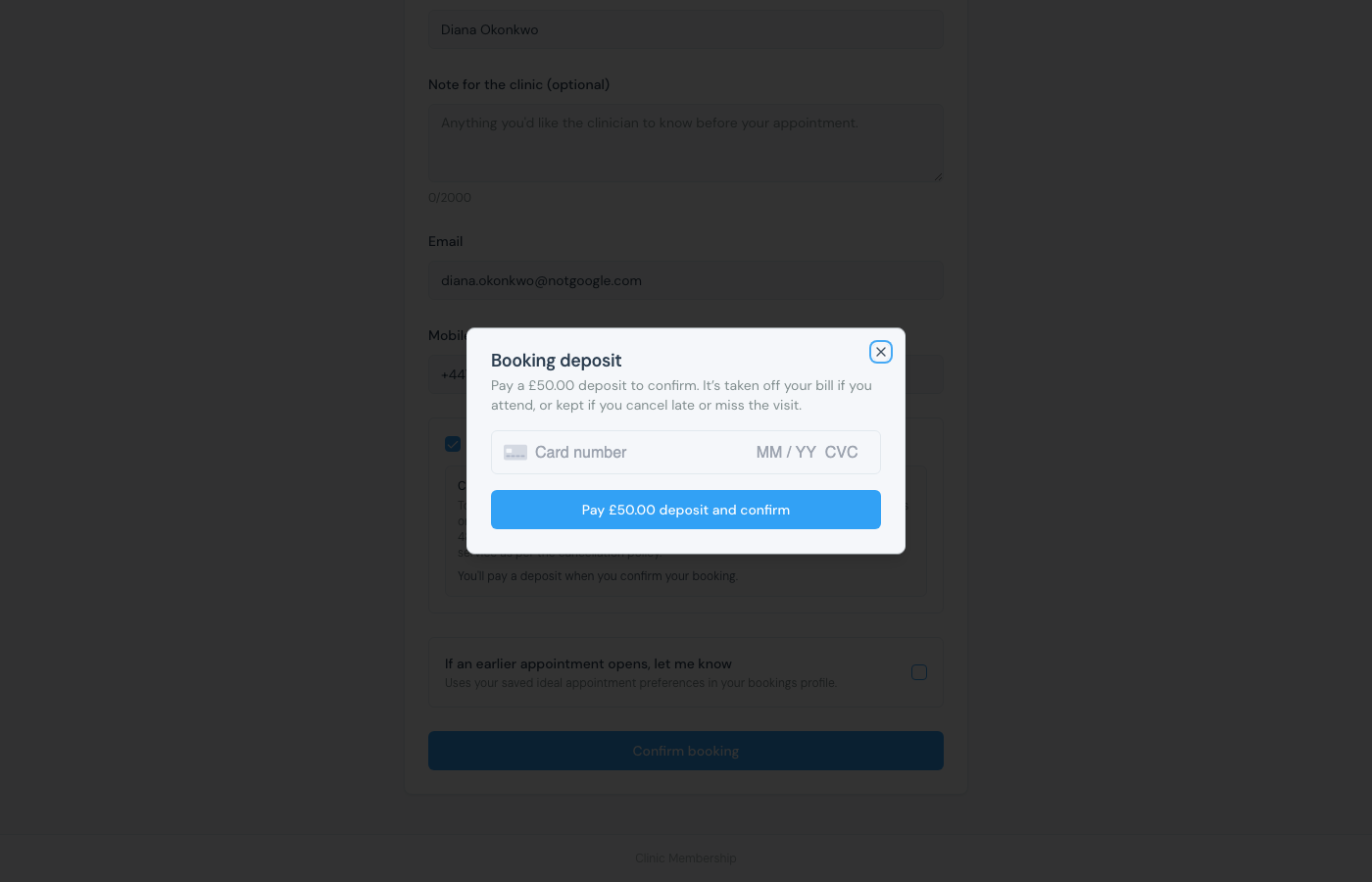
What patients see when they book
- The patient picks a service and time on your online booking page, then taps Confirm booking.
- A Booking deposit step asks them to pay the deposit (and saves the card on file).
- After payment, the appointment is confirmed. The deposit is applied at the till if they attend, or kept if they cancel late / miss.
Refund or remove on the patient card
Unused booking deposits show on the patient card under Credit & vouchers. Refund sends the money back to the original card through Stripe. Remove clears the leftover deposit (and any matching account credit from that cancel) when you already settled it another way. Remove never refunds through Stripe.
What happens next
Set up card on file for bookings
Hold card only: save a card without taking a deposit at booking.
Take a deposit when booking on the calendar
Take a deposit (or email a pay link) when staff book on the diary.
Charge no-show fees
Charge or record a missed appointment from the calendar.
Take payment at reception (POS)
Apply credits and collect the balance at Sales when they attend.
