


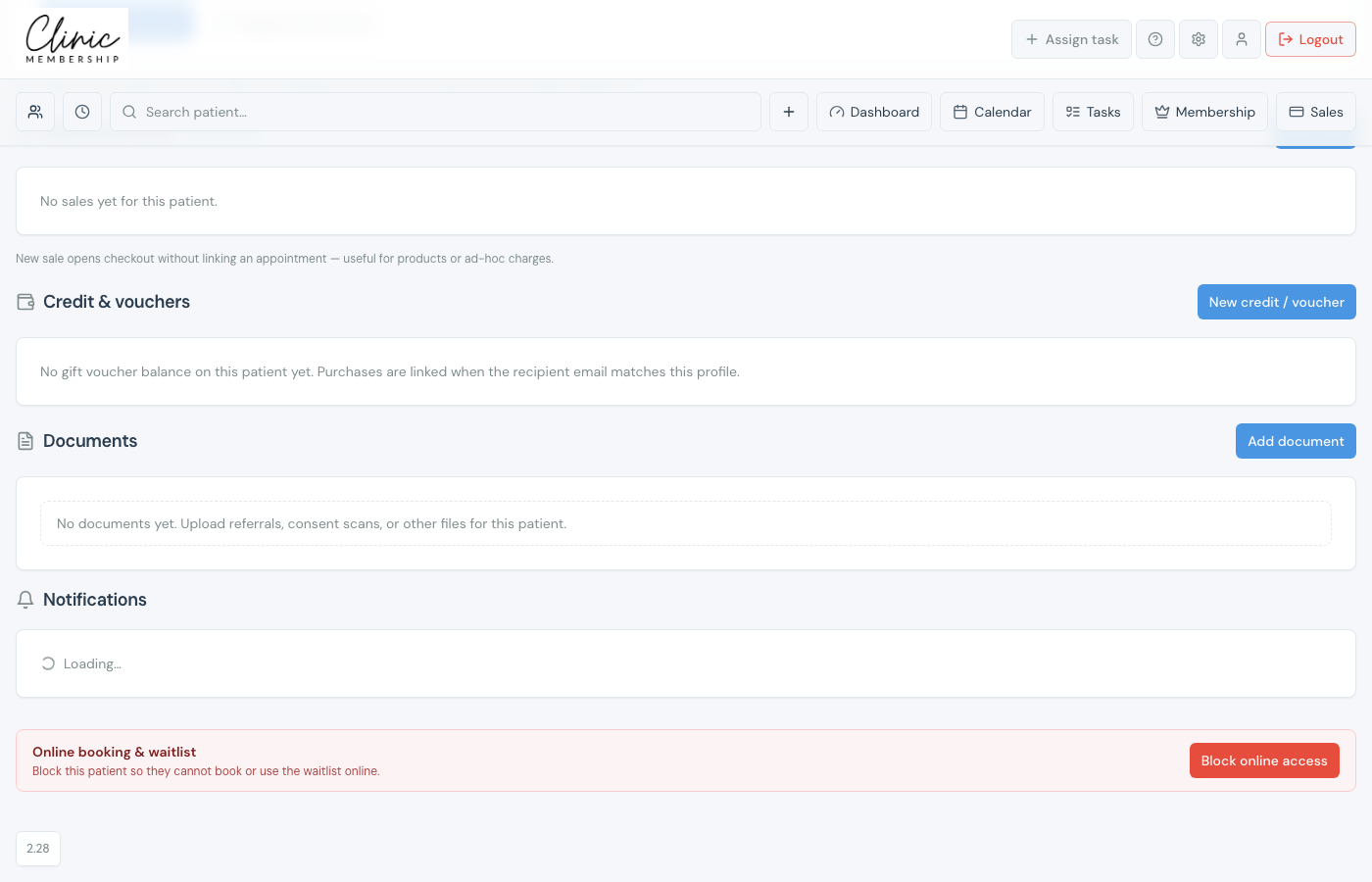
The Documents section on the patient card is for operational files your team needs at reception or on the phone, referral letters, ID copies, consent scans, or correspondence. Files stay in Clinic Membership and are visible to staff only (patients do not see them in the portal).
Note
This is separate from Documenti clinical notes and consent forms. Clinical documentation stays in Documenti; use Documents for admin files you want on the Clinic Membership patient card.
Add a document
- Open the patient card (Admin → Patients, or search from the top bar).
- Scroll to Documents, between Credit & vouchers and Notifications.
- Click Add document.
- Choose a PDF, image (JPG, PNG, WebP, GIF), or Word file (up to 15 MB).
- Check the Document name. It is filled from the filename; edit if you want a clearer label.
- Click Upload.
View, download, rename, or delete
- Click a document name to download it.
- Each row shows file type, size, upload date and time, and who uploaded it.
- Use the ⋯ menu on the right to Rename or Delete.
- Deletes are permanent for staff: the file is removed from storage.
Supported files
- PDF, letters, forms, scanned documents.
- Images: JPG, PNG, WebP, GIF (e.g. phone photos of paperwork).
- Word: .doc and .docx.
- Maximum 15 MB per file.
Tip
Use a clear document name (e.g. “GP referral: June 2026”) so reception can find the right file quickly when the patient calls.
