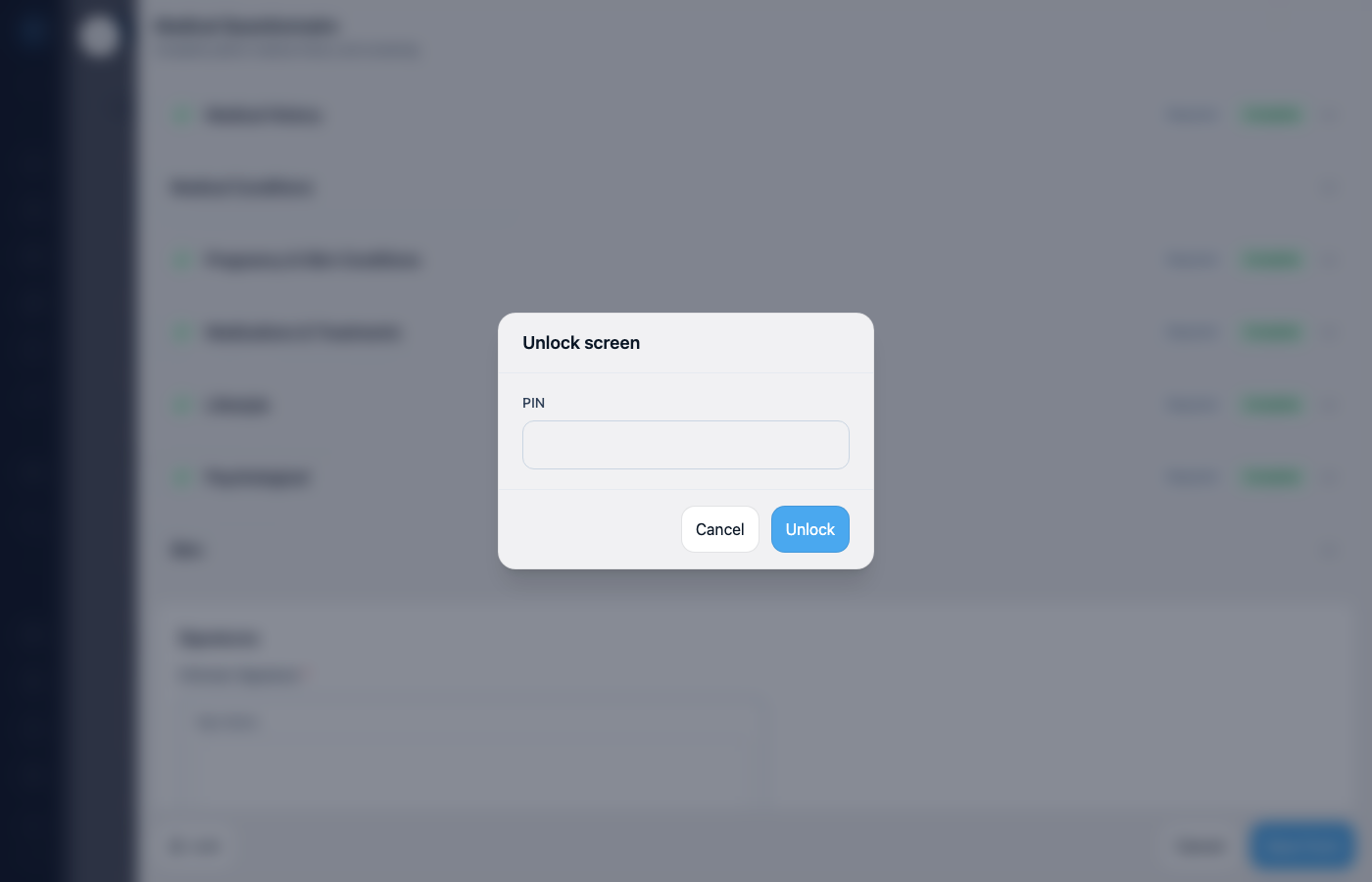
When a patient needs to fill a form on your tablet or laptop, Screen Lock PIN keeps Documenti locked to that form. They can complete the form; you unlock with your PIN to get back to the rest of the app.
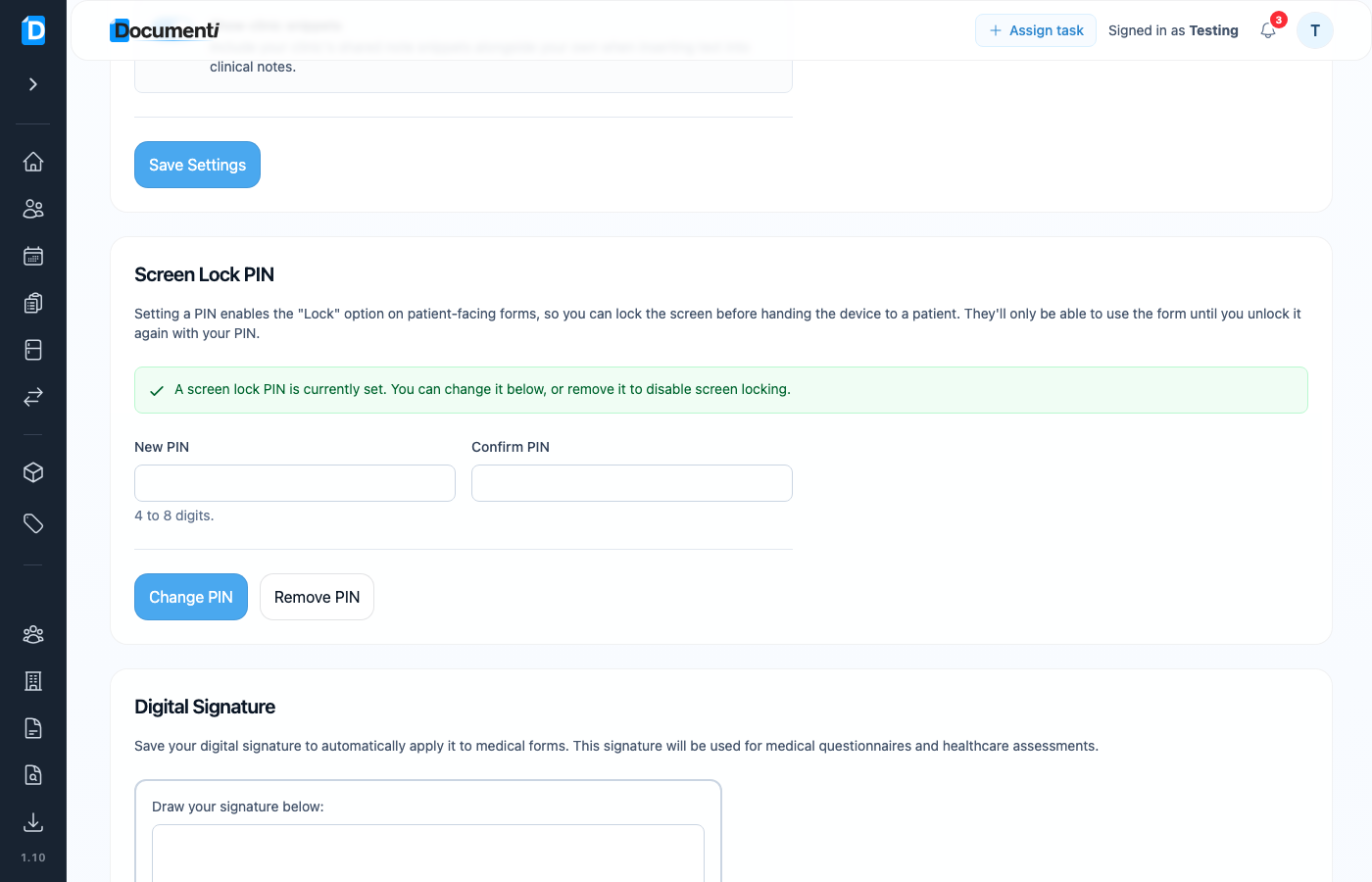
Set your PIN
- Open Settings from your account menu.
- Find Screen Lock PIN.
- Enter a 4–8 digit PIN, confirm it, and save, or Change PIN / Remove PIN if one is already set.
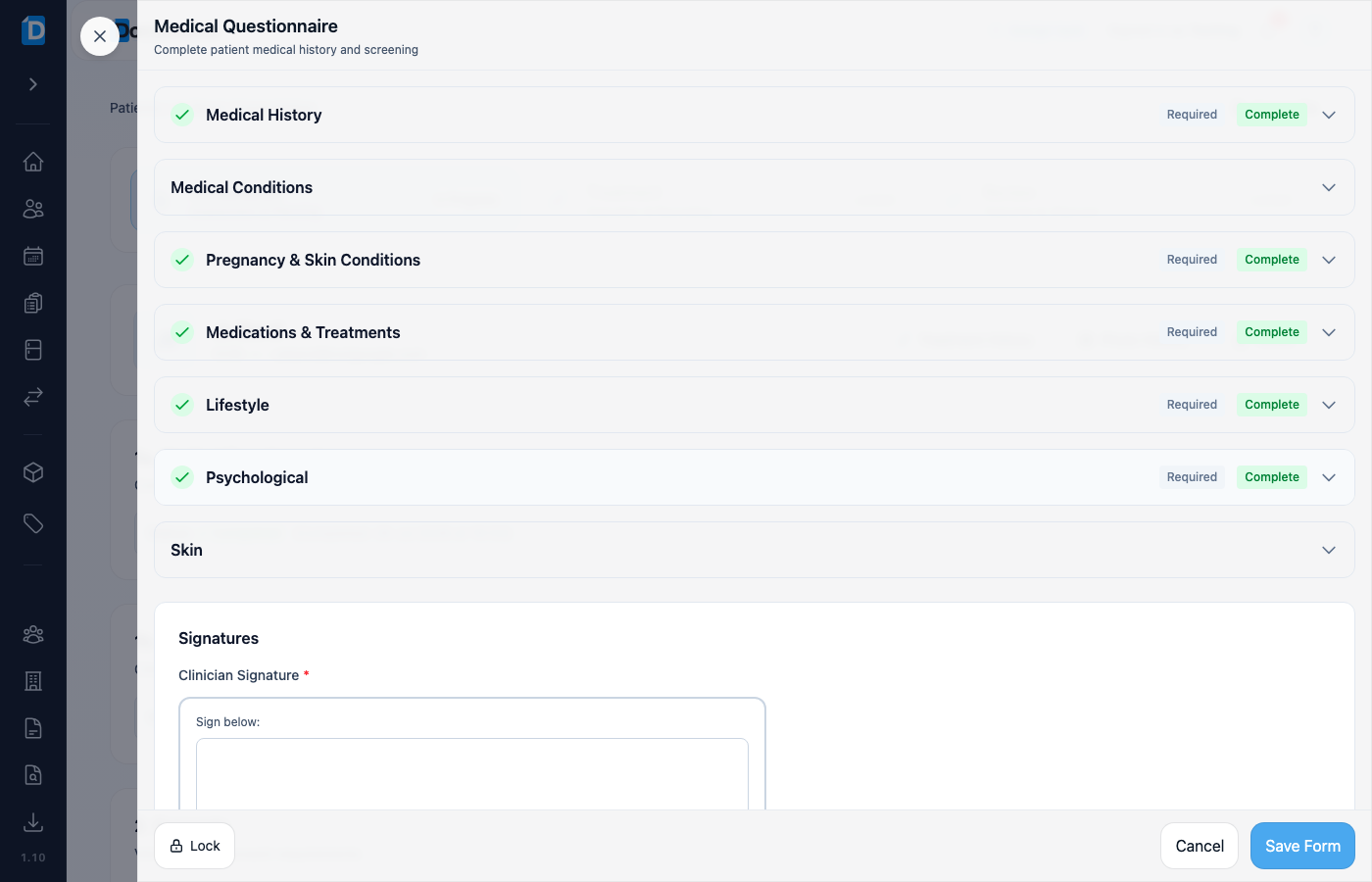
Lock before you hand over the device
- Open the form the patient needs to complete (for example from a consultation).
- On the form footer, choose Lock (padlock icon).
- Hand the device to the patient: they can use the form only.
Note
Lock appears on every consultation form once a PIN is set, including clinician-only forms such as Healthcare Assessment. If Lock is missing, set a Screen Lock PIN in Settings first. Removing the PIN disables screen locking.
Unlock when you get the device back
- Take the device back from the patient.
- On the Unlock screen, enter your PIN.
- Choose Unlock: Documenti opens again so you can finish or save the form.