


Patients do not need a manual send from reception for each form. You set the rules once in Documenti (which form goes with which procedure, and when it should go out) and Documenti handles the rest. Clinic Membership delivers the email using your clinic sender and branding.
What you need in place
- Form emails use your clinic name. They send from your custom address if you have one, otherwise from Clinic Membership (
noreply@clinicmembership.co.uk). - Ensure the patient exists in Clinic Membership with a correct email (synced to Documenti).
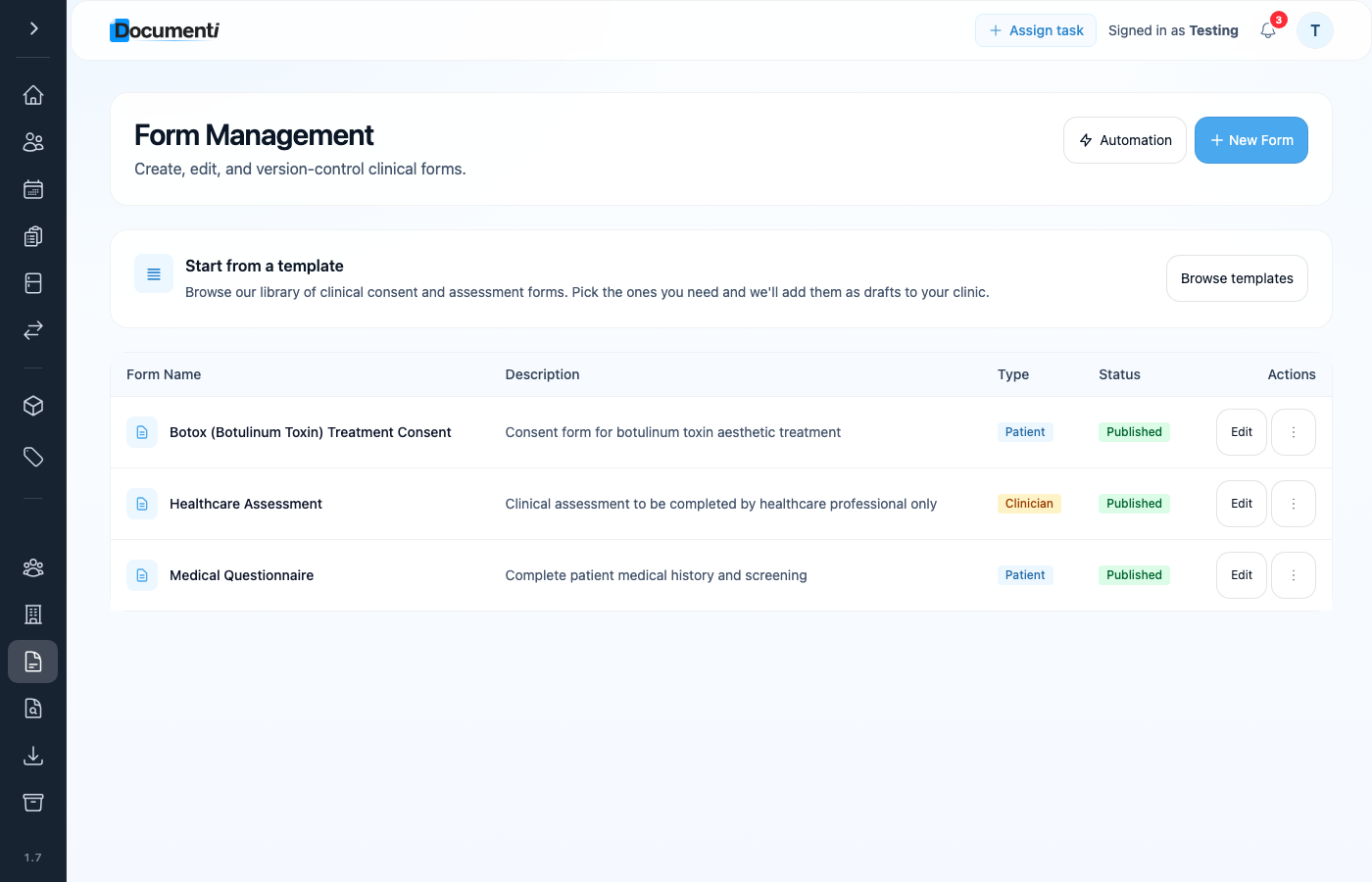
- Publish the form in Documenti, draft forms cannot be sent.
- Open Forms → Automation to add sending rules, and map bookable services to procedures so the right consents go out.
Automatic sending
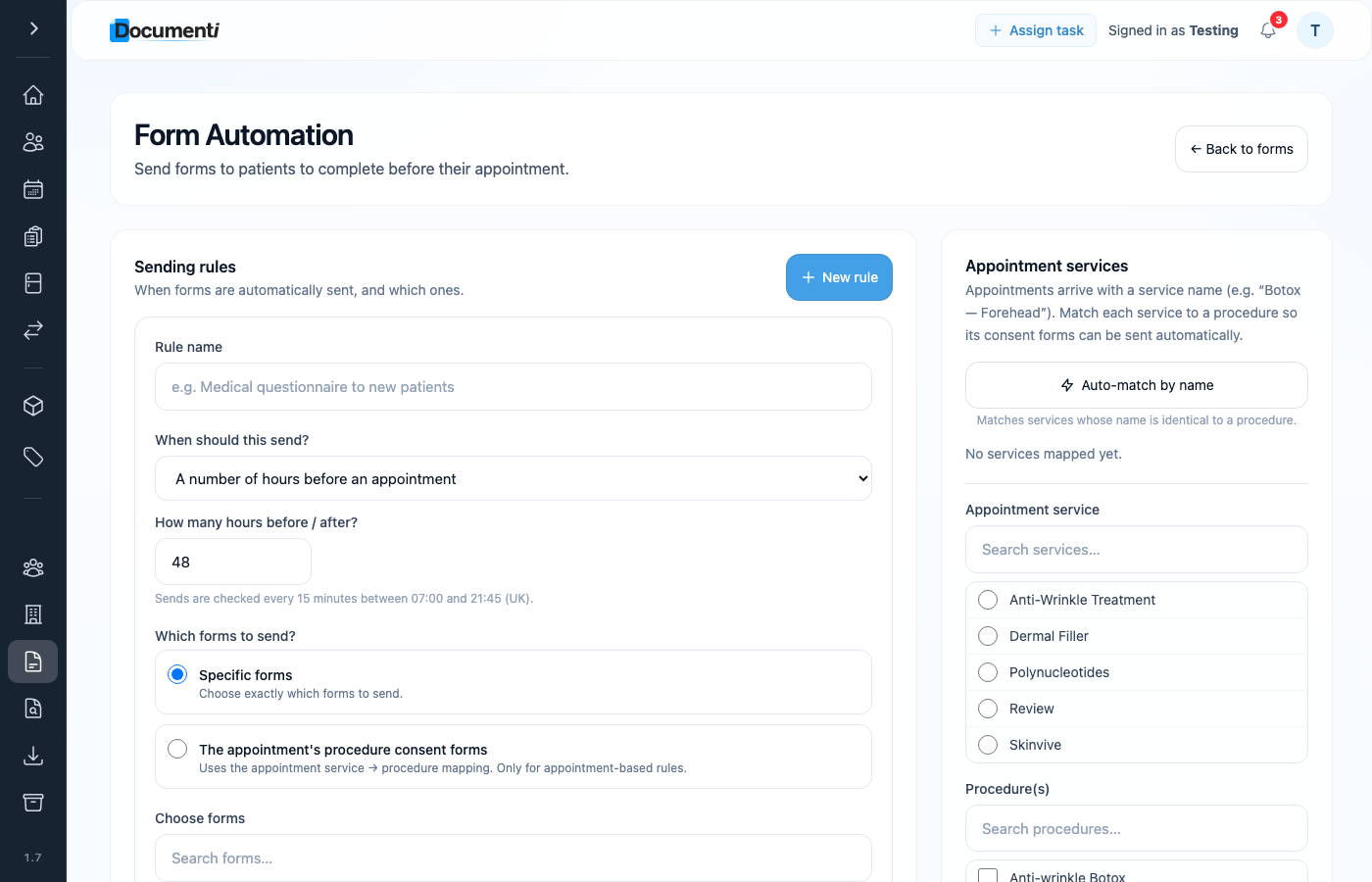
In Documenti, open Forms → Automation to set sending rules, for example, a medical questionnaire or BDDQ a set number of days before the appointment. Map each Clinic Membership bookable service to the matching Documenti procedure so combo treatments pull every linked consent. Once saved, matching patients receive the form by email without anyone clicking send each time.
When should the form send?
Each rule needs a trigger: the event that queues the form email. Pick the option that matches your clinic workflow:
- When a new patient is added, useful for a medical questionnaire or registration form as soon as someone is created in Documenti.
- When a consultation is started, sends when a clinician opens a consultation for that patient.
- When an appointment is booked, sends as soon as the booking reaches Documenti from Clinic Membership.
- When an appointment is rescheduled, sends again if the appointment date or time changes.
- A number of hours before an appointment, common for consents and BDDQ screens (for example 48 hours before).
- A number of hours after an appointment, for aftercare or follow-up forms.
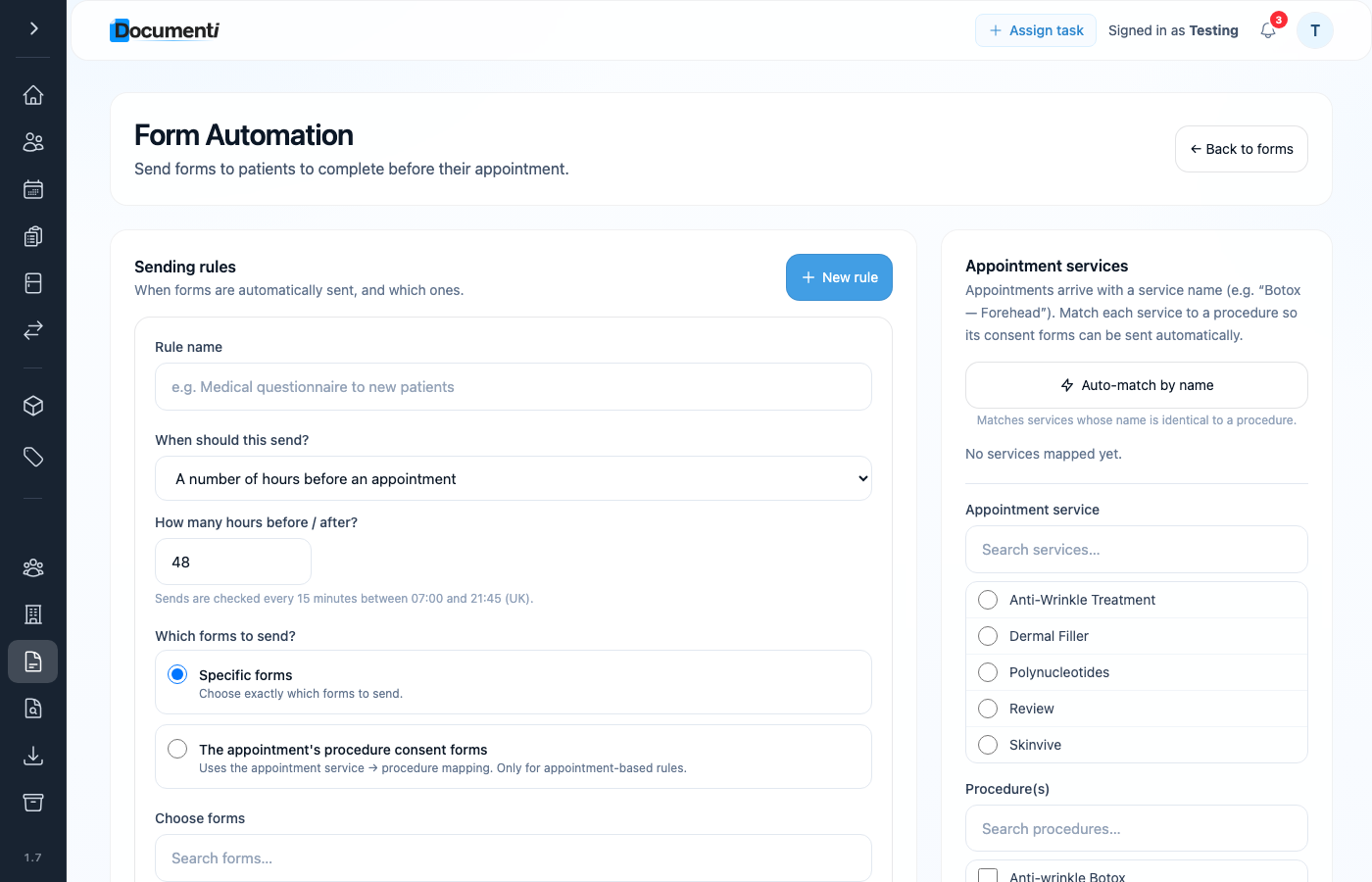
Sends are checked every 15 minutes between 07:00 and 21:45 (UK time). Clinic Membership delivers the email using your clinic sender and branding. Completed forms stay in Documenti, clinical answers are not stored in Clinic Membership.
Tip
Start in Set up forms and consents, publish the form, then link it to the procedure and set the send rule there.
Note
If the email does not arrive, check Communications settings in Clinic Membership and that the patient email matches on both systems.
