


Each person who uses Documenti needs a user account in the Documenti app. For the Clinic Membership integration to work smoothly, their Documenti email must match their Clinic Membership login email.
Add users in Documenti
- Sign in at app.documenti.co.uk as your clinic owner or admin.
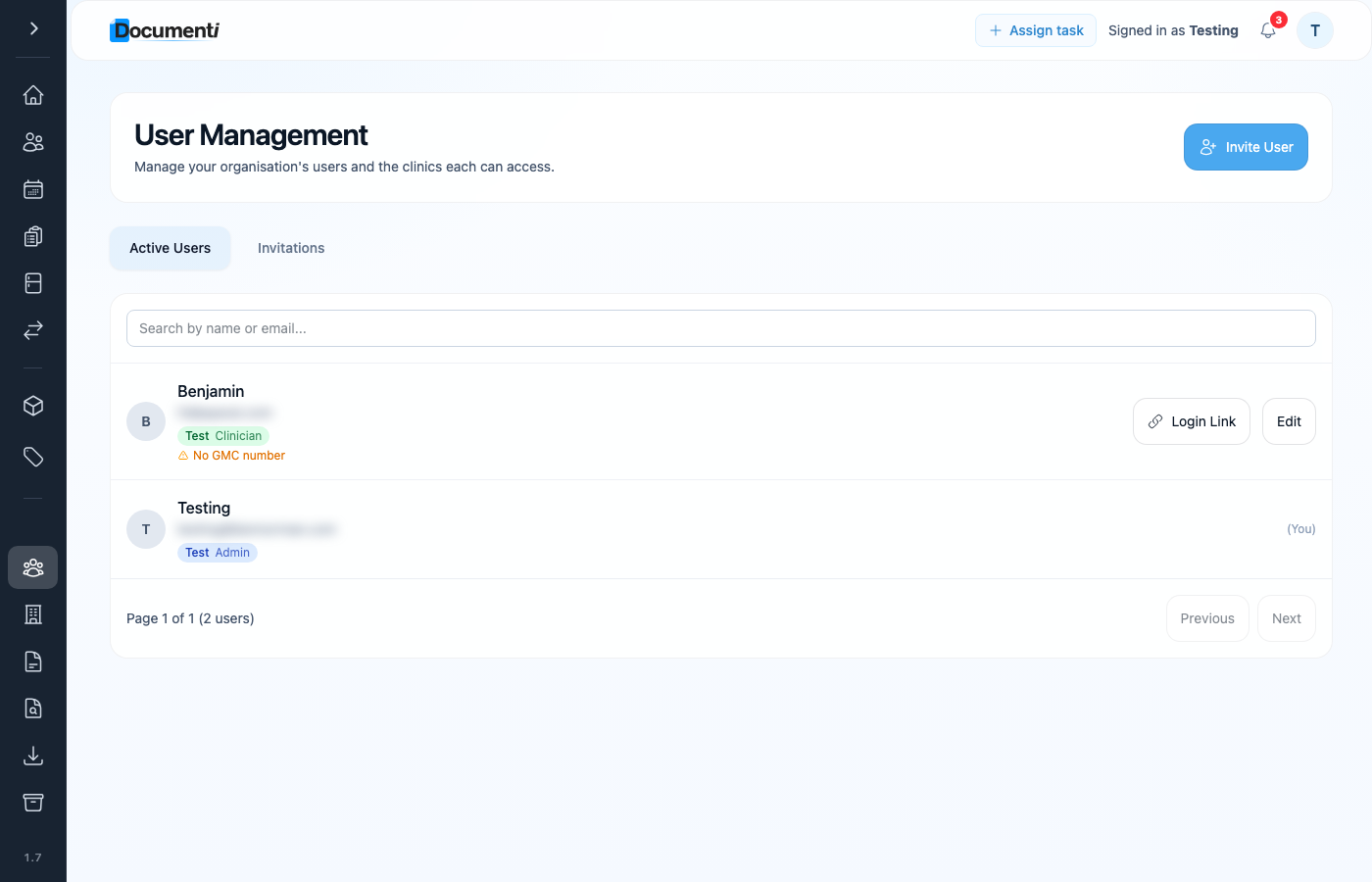
- Open User Management from the main menu.
- Add each clinician and any reception staff who need Documenti access.
- Set their role, practitioners see the daily list and clinical tools; admin users can manage forms and procedures.
- Use the same email address they use to sign in to Clinic Membership.
Why email matching matters
- Tasks assigned in Clinic Membership go to the Documenti user with the same email.
- Appointments on the daily list show the clinician name from the booking, staff mapping uses email behind the scenes.
- A mismatch means tasks may not assign, or the wrong person appears on the list.
Tip
Add the person in Clinic Membership first (Settings → Team), then create their Documenti user with the identical email.
