


Tasks let you assign follow-ups to team members, for example call this patient back or chase a form. Tasks require Documenti to be connected to your clinic; without it, the Tasks page explains how to get set up.
Create a task
- Open a patient card (or click Assign task in the top navigation from anywhere).
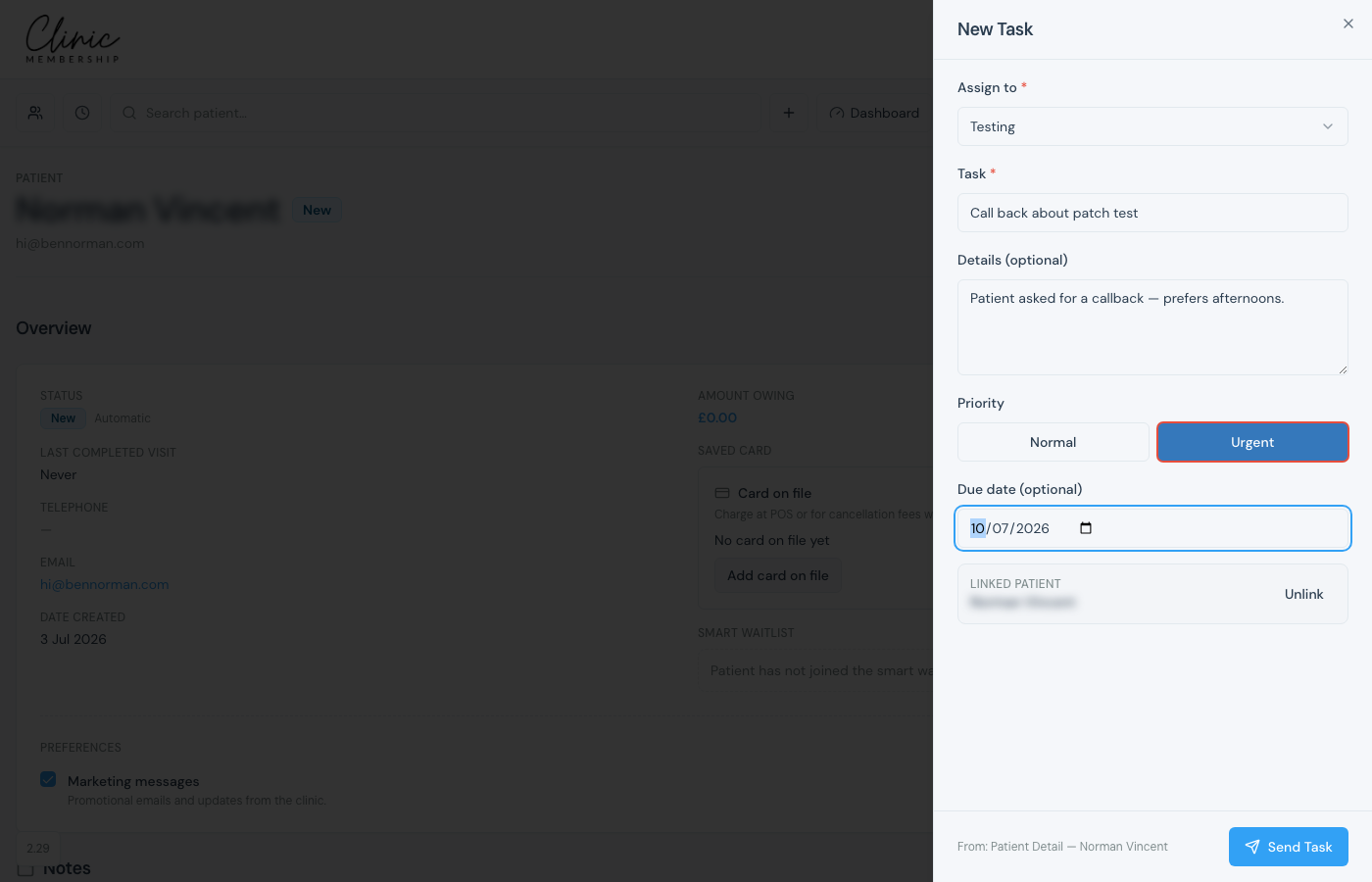
- Click Assign task: the New Task panel opens on the right.
- Choose Assign to: pick a team member.
- Enter Task and optional Details.
- Set Priority or an optional Due date if needed.
- Click Send Task.
Tip
From a patient card, the patient is pre-linked automatically. You do not need to add their name again.
View your tasks
- Open Admin → Tasks.
- Use the filter bar: toggle Assigned to me, Created by me, or All; Pending or Completed.
- Use the Due dropdown for Overdue, Today, Soon, or a specific date; use Sort for Newest or Due date.
- Mark complete when done, or reply in Discussion to reassign or add notes.
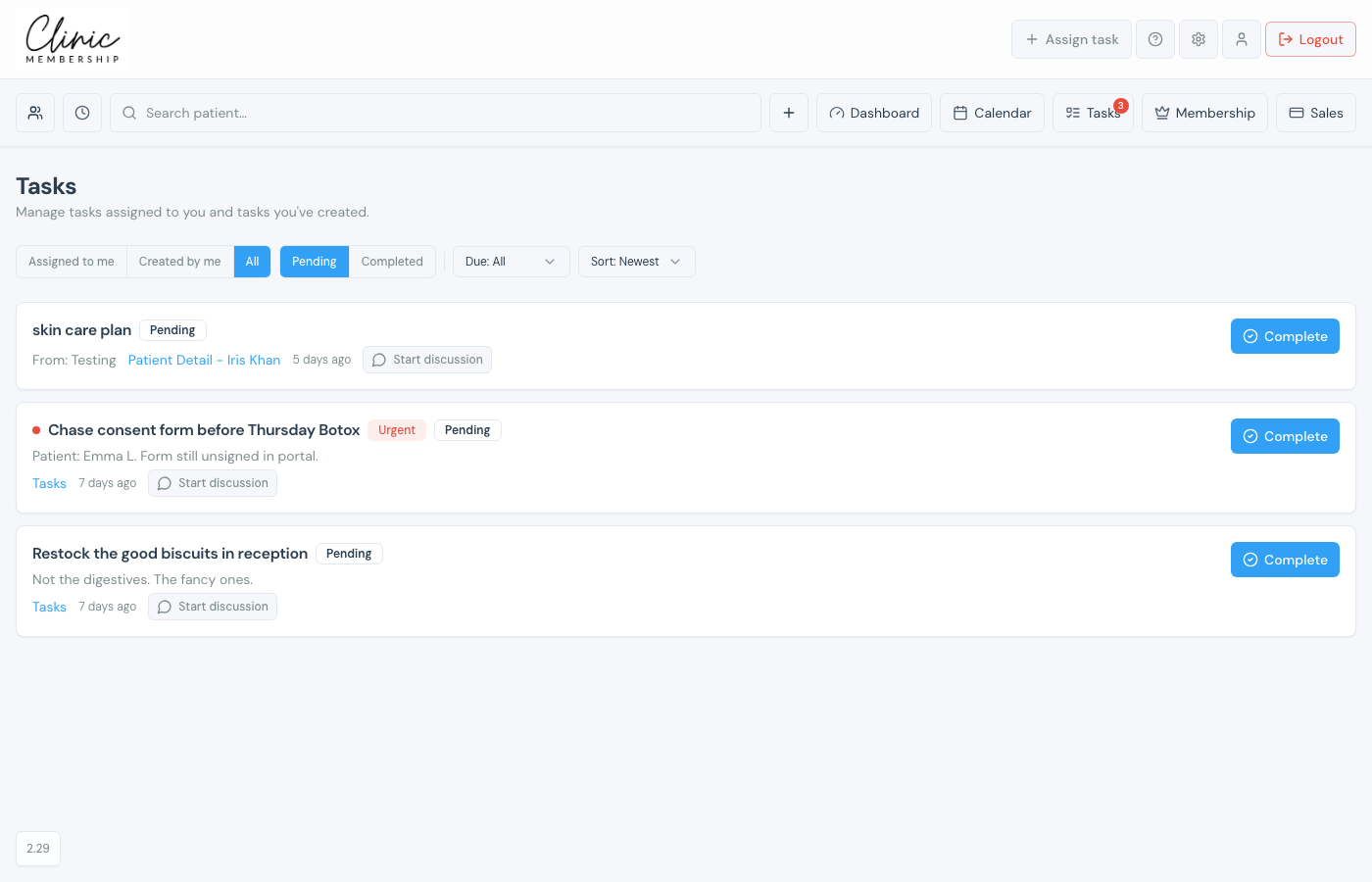
Tasks in Documenti
When Documenti is connected, tasks stay in sync both ways. A task you assign in Clinic Membership appears in Documenti for the clinician, and tasks created in Documenti show on Admin → Tasks here. Due dates sync too. The assignee must use the same email in both systems. See Set up users in Documenti.
