

Quizzes and surveys are short questions for your website. A quiz can point someone to a treatment to book. A survey ends with thank you. You then see who finished, and what they answered.
Create a quiz or a survey
- Go to Settings → Growth and open Quizzes and surveys, or go to Admin → Quizzes.
- Click New quiz or New survey.
- On Build, name it and add a short description if you want. Link name fills from the title unless you edit it.
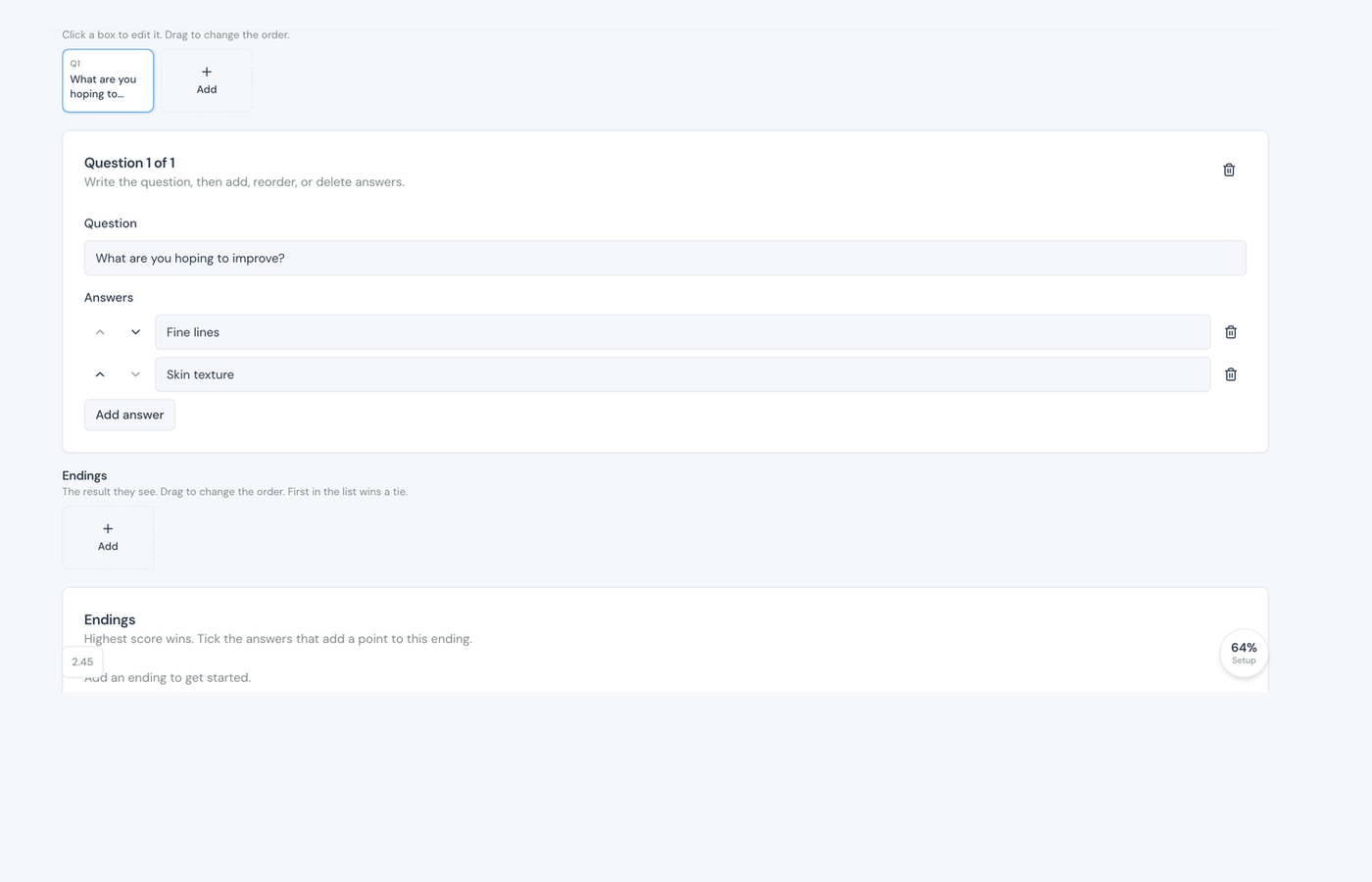
- Add questions and answers. Click a box to edit it. Drag to change the order.
- Save. Keep it as a draft until you are ready.
Quiz endings
A quiz needs at least one ending (the result they see). Highest score wins. First in the list wins a tie.
- Add an ending and write the title and result copy.
- Tick the answers that add a point to this ending.
- Under After this result, choose Book this treatment, Go to your website, or No button.
- For a booking, you can pre-select a treatment, or leave it blank so they open the booking page. New patients still follow your waitlist or login settings.
Survey thank you
A survey has no score and no booking button. People answer the questions, then see a thank you. Write the title and message on Build. That is the only ending.
Share it on your website
- Turn it to Published and save.
- Open the Share tab.
- Copy the embed code and paste it on a full-width WordPress or Squarespace row. Or send the link.
Note
The embed code is ready after you publish and save. A draft has no public embed yet. You can also put a quiz or survey in an email marketing send, once it is published.
See results
Open the Results tab on the same quiz or survey. You see views, starts, submissions, completion, typical time, which answers were chosen, and (on a quiz) which ending they reached. From the list you can archive one (it comes off your website) or delete it. Restore an archived one to edit it again.
On Dashboard & reports, Quizzes shows views, starts, finishes, and appointments booked from a quiz ending. Quiz answers ranks answers from most chosen to least.