
Birthday messages send one email on the morning of a patient's birthday, with a card in the clinic colours. You design the card once. After that it goes out on its own, but only while Send birthday emails is on.
How the gift works
Choose Birthday only if you want a card and nothing to redeem. Choose Birthday card and gift if you want an offer as well. The offer is not printed on the email card. They have to open it.
- They get the email on the morning of their birthday, with the card you designed.
- If there is a gift, the card says Click here to reveal. That link opens the clinic site (the member portal).
- They open the gift there to see what it is: the offer, the code, and when to use it.
- They can Book your next appointment from that same page, so they have a visit ready to use the gift.
- At reception, open a sale for that patient. Sales shows the birthday offer. Click Apply birthday offer. It is one use, on the lines you allowed.
Note
They will not see the gift in the email itself. The email is the card. The gift is waiting on the clinic site after they click the link.
Who receives it
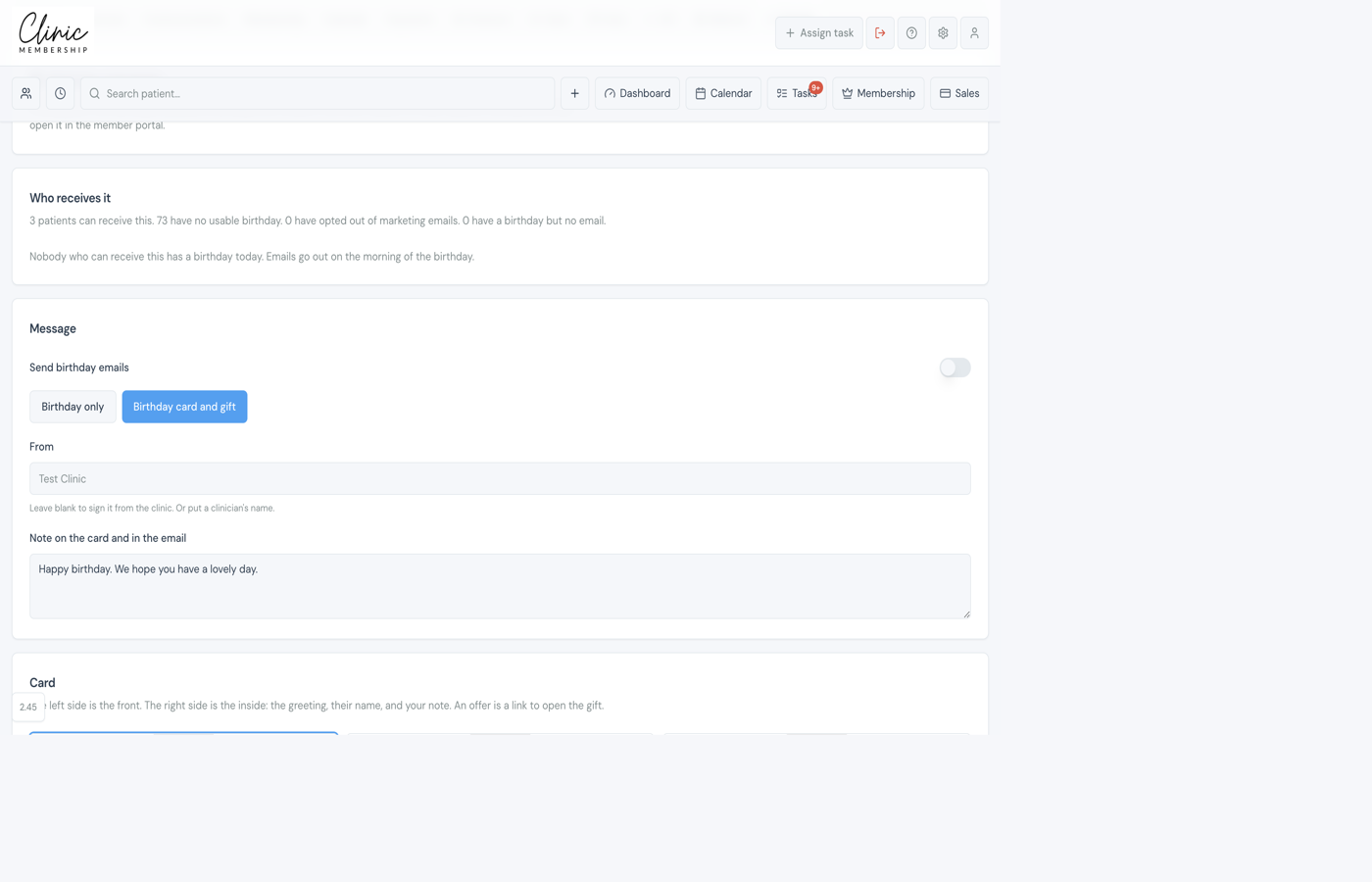
Only people with a usable birthday, an email, and marketing allowed. The page shows how many are ready, how many have no birthday, how many opted out, and how many have a birthday but no email. It also says how many have a birthday today. Emails go out on the morning of the birthday.
Turn it on and write the note
- Go to Settings → Growth and open Birthday messages.
- Switch on Send birthday emails.
- Choose Birthday only, or Birthday card and gift if you want an offer.
- Set From (leave blank to sign it from the clinic, or put a clinician's name).
- Write the note that appears on the card and in the email.
Design the card
- Pick a front, or upload your own picture.
- Use Font and Colour on the preview. Colour defaults to the clinic colours. Clinic resets it.
- The left side is the front. The right side is the inside: the greeting, their name, and your note.
- Happy Birthday, their name, and Click here to reveal stay as they are. You change the note, the font, the colour, and who it is from.
- Click Preview card to see the sample for Alex. Click Send a test to me to email that same card to yourself.
Set the gift
This block only appears when you chose Birthday card and gift. The offer is one use, applied at the till to the lines you allow.
- Choose Percent off (5–30) or Amount off (£5–£50).
- Set Use by: 30 days, 6 weeks, 90 days, or 12 months from their birthday, or Does not expire.
- Choose Applies to: treatments and retail, treatments only, or retail only.
- Narrow it if you want: all of those, only selected, or leave selected out.
- Add an extra line if you need it (for example not valid with other offers).
- Read What they see after they open the gift, then Save.
Tip
Nobody is emailed unless Send birthday emails is on. Save after you change the card or the gift. The test email uses the sample name Alex, and that preview code cannot be used.
See who opened it, and report on it
Recent on the same page lists who was sent a card, whether the email went, whether they opened the link, and whether they opened the gift. Status is Ready, Used, Replaced, or Expired.
On Dashboard & reports, the Birthdays widget shows birthday emails sent, links opened, gifts opened, bookings within 14 days, and gifts redeemed at the till.