


When a patient has an active membership package, their patient card shows how much of each included treatment they have used this membership year, so reception can book the right visit without guessing.
Open the membership panel
- Go to Admin → Patients and open the member’s card (or Search patient in the top bar).
- Scroll to Membership.
- On an active package, find This membership year.
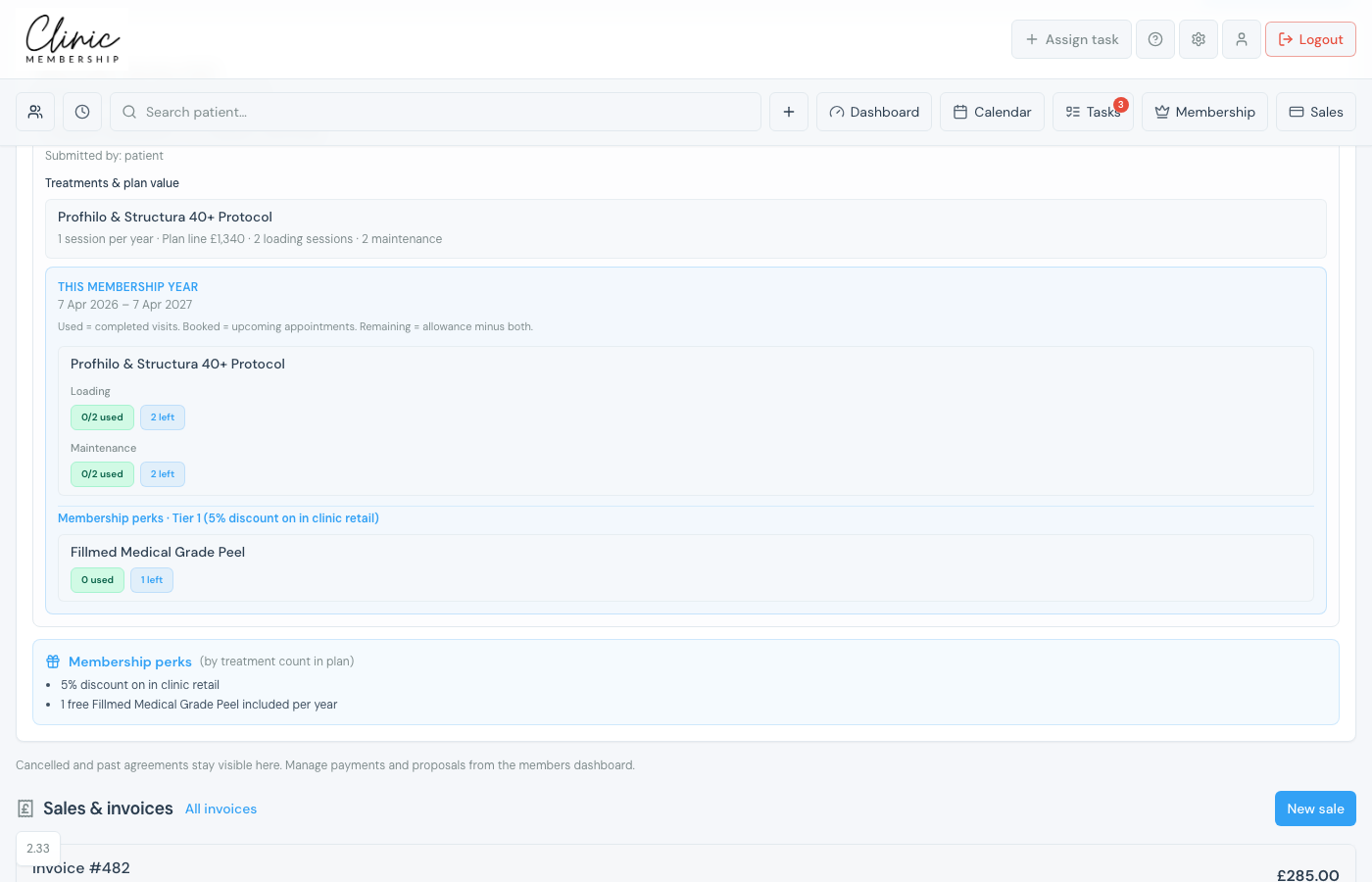
What the badges mean
- Used, completed visits that counted against the allowance.
- Booked, upcoming appointments that will use allowance when attended.
- Left, allowance minus used and booked (or None left this year).
Loading and maintenance
If a treatment has a loading phase then maintenance visits (for example Profhilo or Polynucleotides), they appear under that treatment as separate Loading and Maintenance lines. Treatments without a loading course (for example Anti-wrinkle) show a single used / booked / left row. Bookings use the right allowance so loading sessions are not mixed up with maintenance.
Membership perks
When the package includes perks (for example a complimentary treatment or retail discount tier), the same used / booked / left badges show under Membership perks so staff and the member portal stay aligned.
Tip
Members can also see remaining treatments in their portal and plan visits. See Membership treatment planner.
