Use Refund to card when the sale should stay on the books and you only need to send some (or all) of the Stripe card payment back. Use Void when the invoice should not stay as a real sale, wrong amount, duplicate, or a full cancel.
Part refund to the original card
- Open the paid invoice (Sales → Invoices, or the patient card → Sales & invoices).
- Click Refund to card (shown when there is a Stripe Connect card payment left to refund).
- Enter the amount in pounds, up to the remaining card total. Optional: tick Send refund email and add a note.
- Confirm Refund to card. The invoice stays paid; the sale is not voided; stock is not put back.
Note
You can refund more than once until the card amount on that invoice is used up. Account credit is separate. It does not pay out through Stripe.
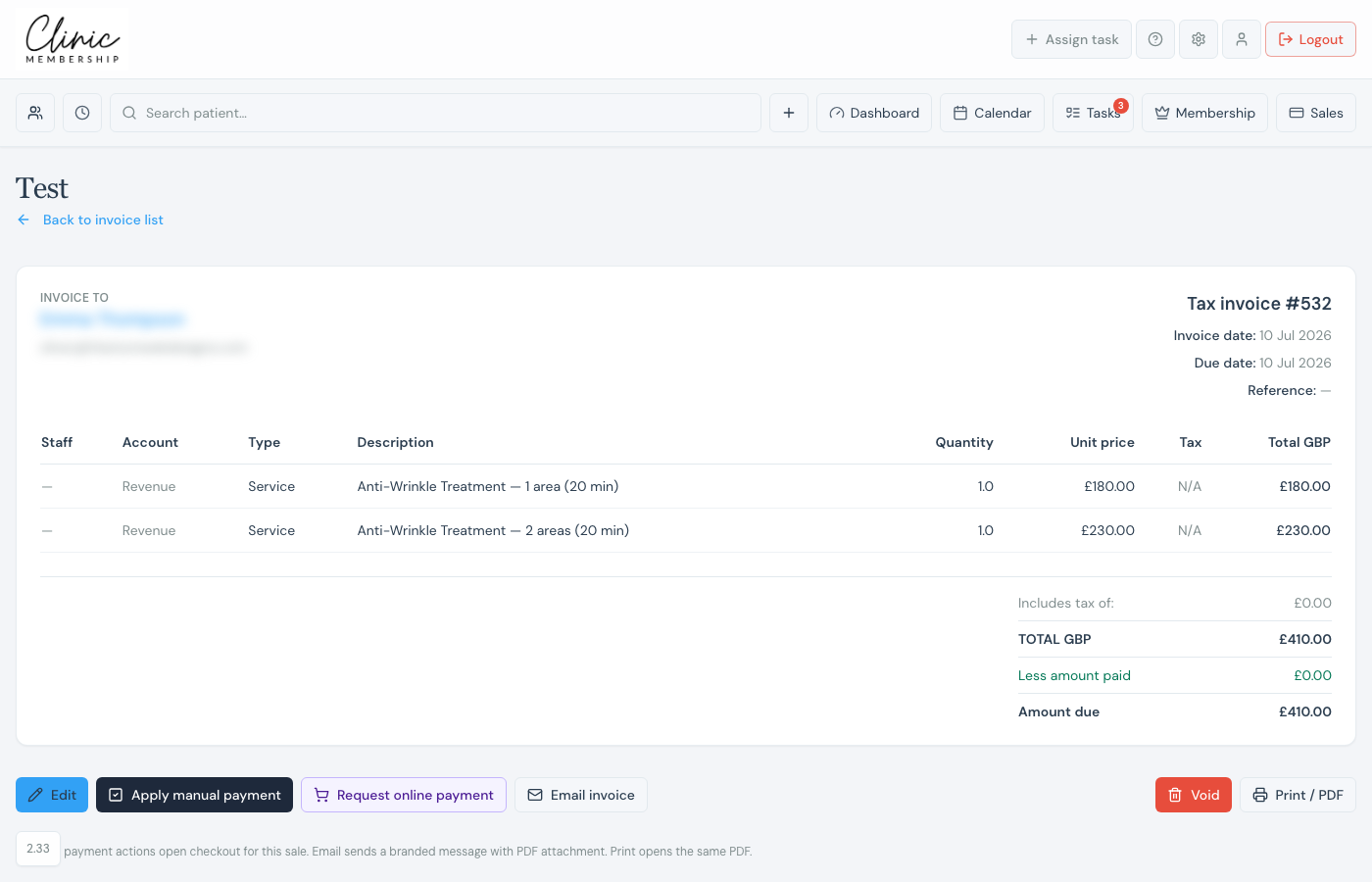
Open the invoice to void
- Go to Sales → Invoices, or open the patient card → Sales & invoices → the invoice row.
- Open the invoice you need to correct.
- At the bottom of the invoice, click Void (red).
Void, or void and refund
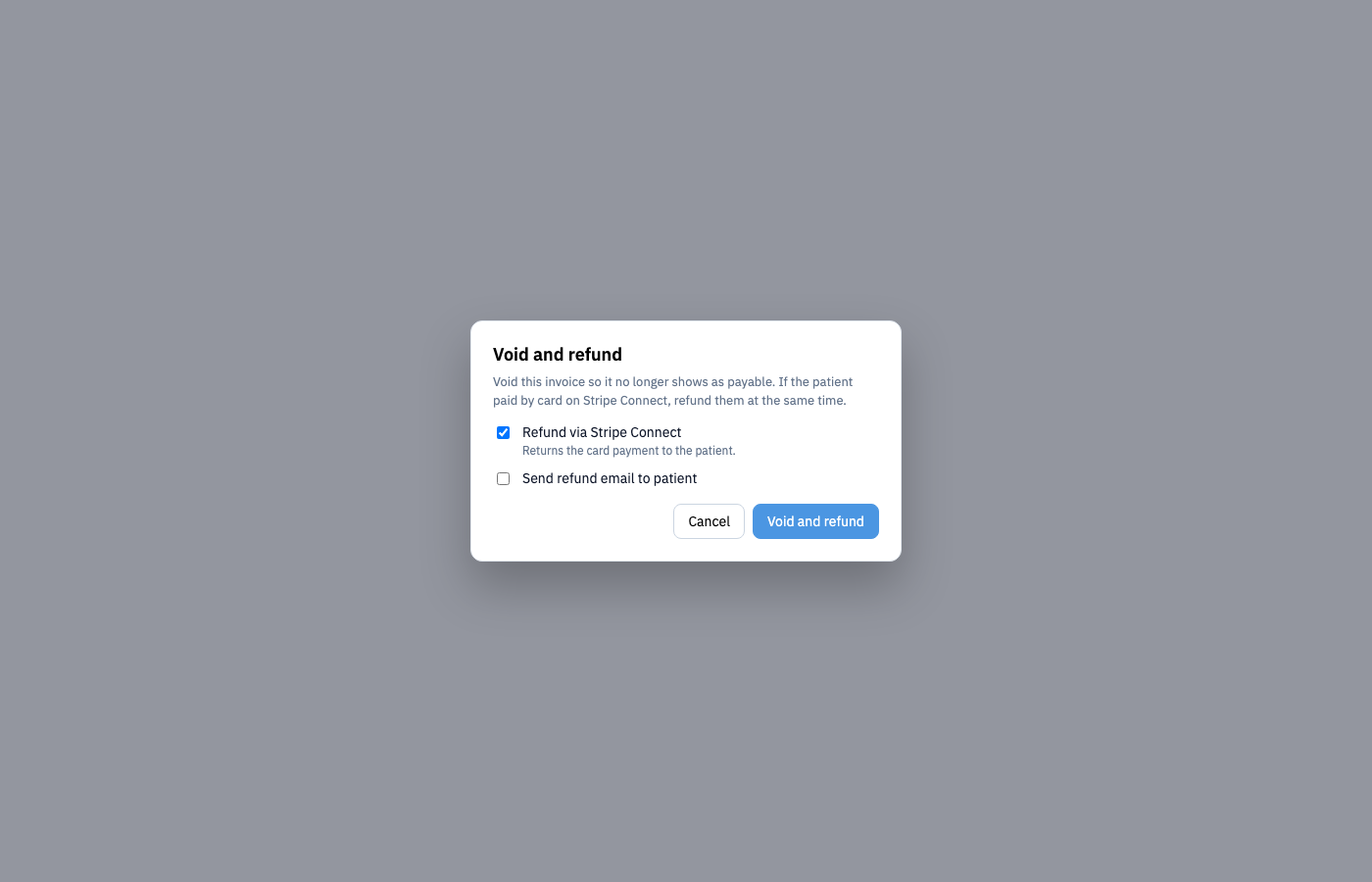
- If the patient paid by card on Stripe Connect, tick Refund via Stripe Connect (required when a refundable payment exists).
- Optional: tick Send refund email to patient and add a short note.
- Confirm Void invoice or Void and refund.
Note
Cash or offline card payments are not returned automatically, void the invoice in Clinic Membership, then refund the patient the same way they paid. Some Connect payments may need a refund from the Stripe Dashboard.
What a voided invoice looks like
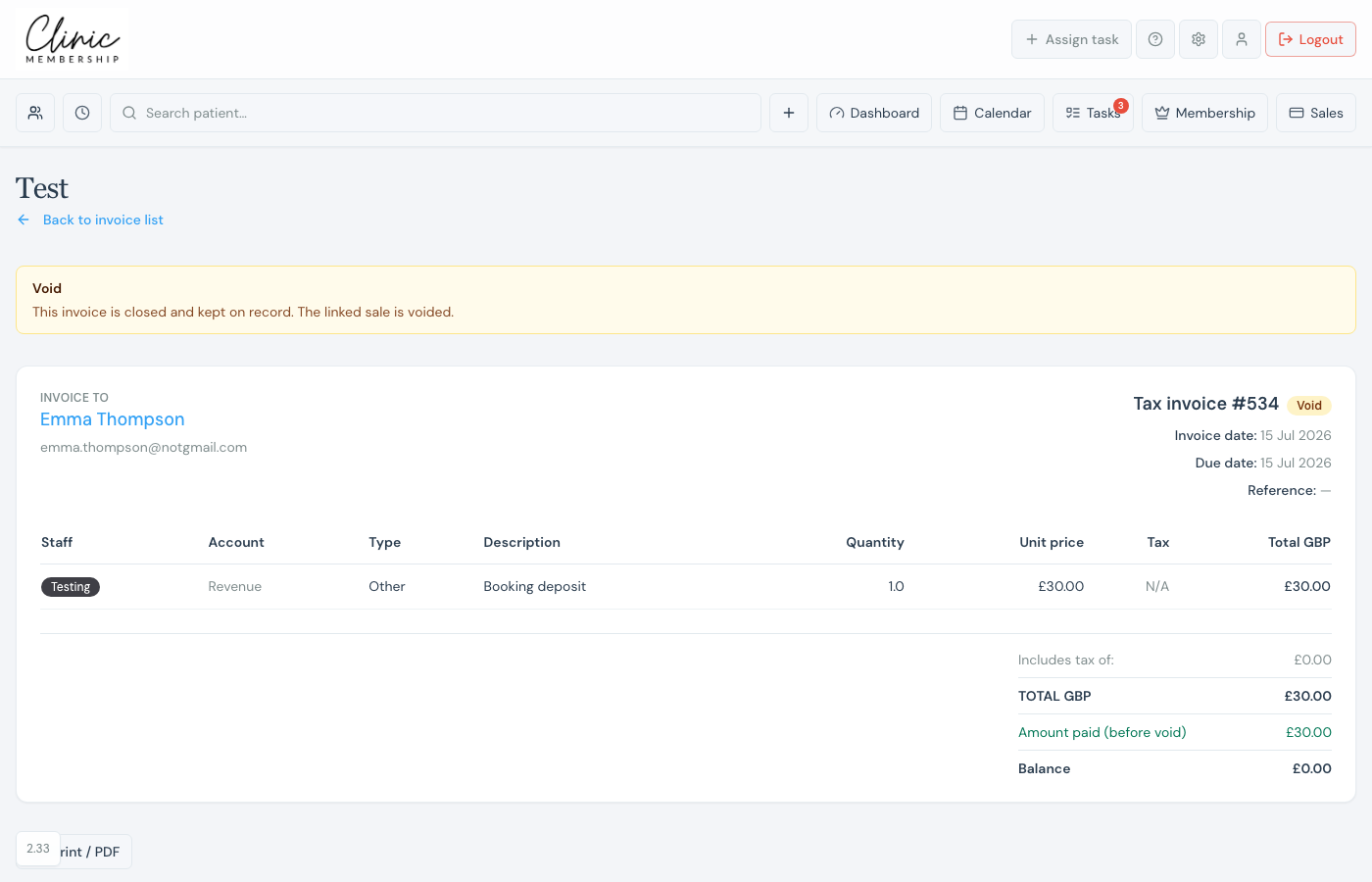
After you void, the invoice stays on record with a Void banner and badge. Print / PDF still opens the original document for your audit trail.