


Your clinic site can be saved to a phone or tablet home screen so people open it in one tap, without downloading anything from an app store. This works for your online booking page, member portal, and staff login.
Note
Use your clinic’s own web address (for example your booking link or members portal), not the generic Clinic Membership marketing site. If you use a custom domain, share that URL.
Before you share instructions
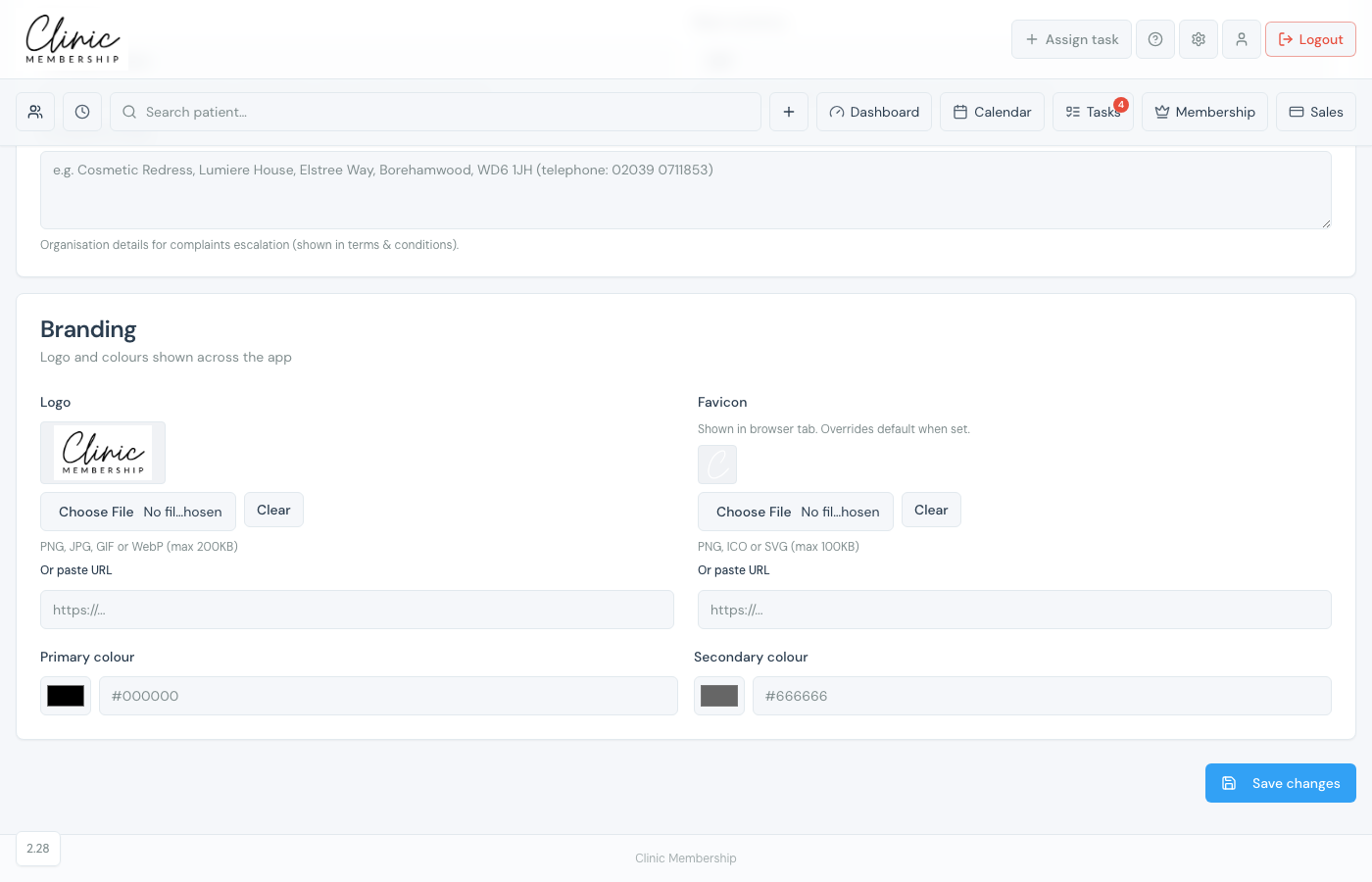
The icon and name on the home screen come from your clinic branding in Settings → Business (the same details you set during initial onboarding).
- Home screen title: your Business name (Settings → Business → Business details). This is the clinic name patients see across the app and emails.
- Home screen icon: your Favicon (Settings → Business → Branding). Upload a square image for the best result on iPhone and iPad.
- On iPhone and iPad, the person adding the shortcut can edit the name on the confirmation screen before they tap Add, useful if you want something shorter than your full business name.
Tip
After you change your business name or favicon in settings, people who already saved the shortcut may need to remove it and add it again to see the updated icon or title.
iPhone and iPad (Safari)
- On the phone, open Safari and go to your clinic page, for example your booking link, member portal, or staff login page.
- Tap the Share button: the square icon with an arrow pointing up. On iPhone it is usually at the bottom of the screen; on iPad it may be in the toolbar at the top.
- Scroll the share menu if needed, then tap Add to Home Screen.
- Check the name shown under the preview icon. Edit it if you want a shorter label.
- Tap Add. The shortcut appears on the home screen and opens your clinic site full screen, like an app.
On some versions of Safari you can also tap the … or page-settings control in the address bar, then choose Add to Home Screen from that menu.
Android (Chrome)
- Open Chrome and go to your clinic page, booking, member portal, or staff login.
- Tap the three-dot menu (⋮) in the top-right corner.
- Tap Add to Home screen or Install app (the exact wording depends on your Chrome version).
- Confirm the name if prompted, then tap Add or Install.
- The shortcut is added to your home screen (and sometimes the app drawer). Tapping it opens your clinic site in a standalone window.
Samsung Internet and other Android browsers follow a similar flow: open the browser menu and look for Add to Home screen or Add page to.
Who might use this
- Patients, quick access to book, view membership, or pay without hunting for a link in email.
- Reception and clinicians, pin the staff login on a clinic iPad or personal phone for faster sign-in.
