


Patients see your clinic name, logo, and colours on the booking page and in emails. Set these under Business settings before you share your booking link widely.
Business details and branding
- Go to Settings → Business.
- Enter business name, contact email, phone, and address, used in emails and terms.
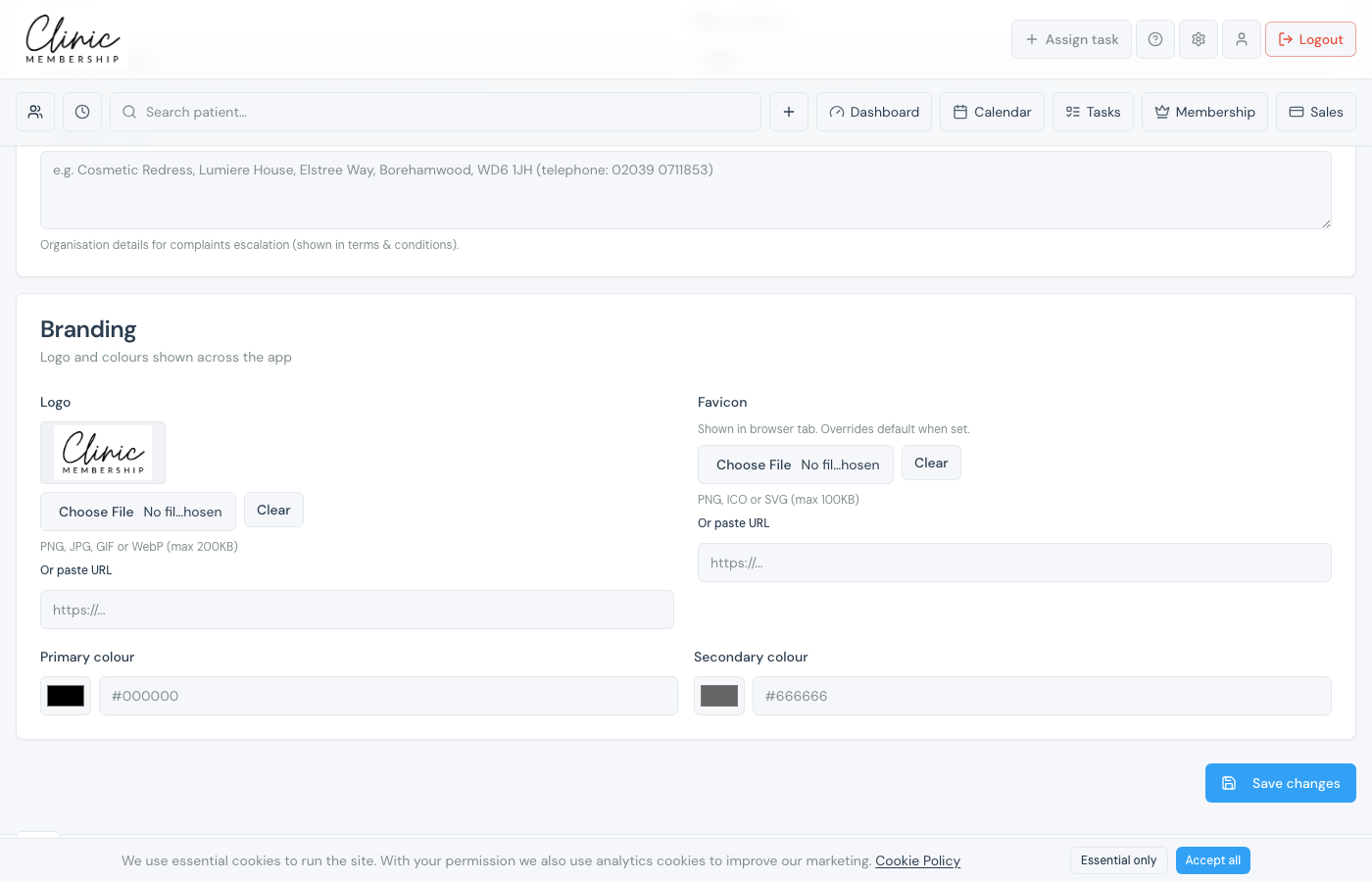
- Scroll to Branding and upload your logo (or paste a URL).
- Upload a Favicon: a small square image used in the browser tab and as the icon when patients add your site to their phone home screen.
- Set primary colour if you want booking to match your clinic brand.
- Click Save settings at the bottom of the page.
Tip
Founders+ adds custom domain and deeper portal branding. See Settings → Premium for custom member URLs.
