


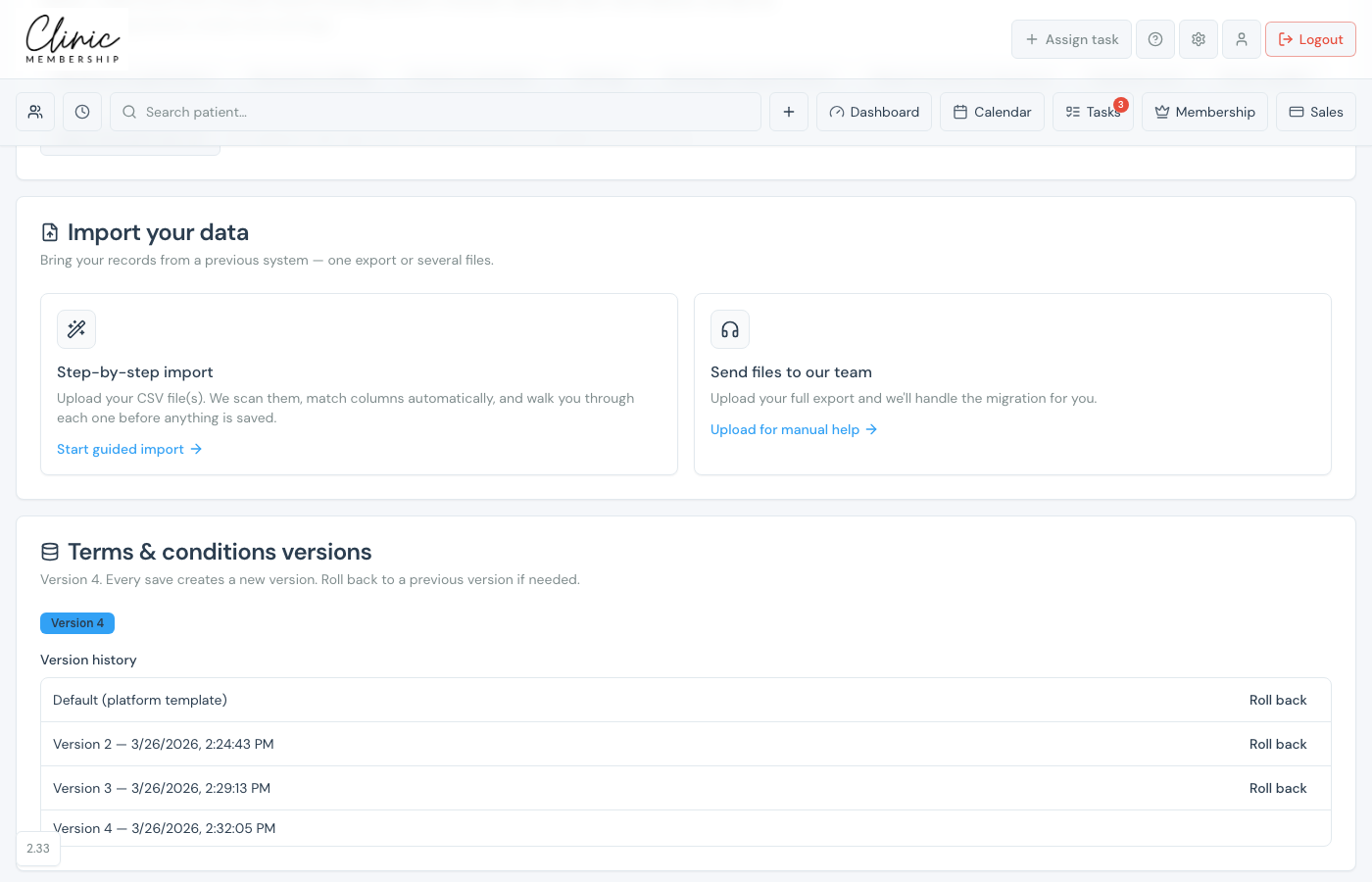
The import wizard scans your files, matches columns to Clinic Membership fields, and lets you review before anything is saved. You can upload several files in one go (for example patients plus past appointments).
Start a guided import
- Go to Settings → Data.
- Scroll to Import your data.
- Attach your CSV export(s) from your old system.
- Click Start step-by-step import.
- Review the scan summary, fix any blocking warnings.
- Match services or products if prompted, then confirm each file.
- Click Import when the review screen shows everything ready.
Tip
Want us to do it? Attach the files, open Typical files checklist, then click Request our team to import this for you and confirm Yes, request import. You can still add a missing file after that. Full path: Onboard from another system.
What happens next
Onboard from another system
Full onboarding paths: send files to our team, or self-guided data import.
Onboard from paper notes
Coming from paper notes? Build a simple CSV and choose the best route.
Set up your bookable services
Make sure services exist before importing bookings that reference treatments.
Send appointment reminders
Turn on reminders once imported patients have future appointments.
