


Appointment reminders are sent by email before a visit (for example 24 hours ahead). They are different from rebooking emails (after a completed visit) and aftercare emails (when you mark complete). Optional WhatsApp and SMS use the same Hours before appointment timing once you turn those channels on.
Customise the reminder email
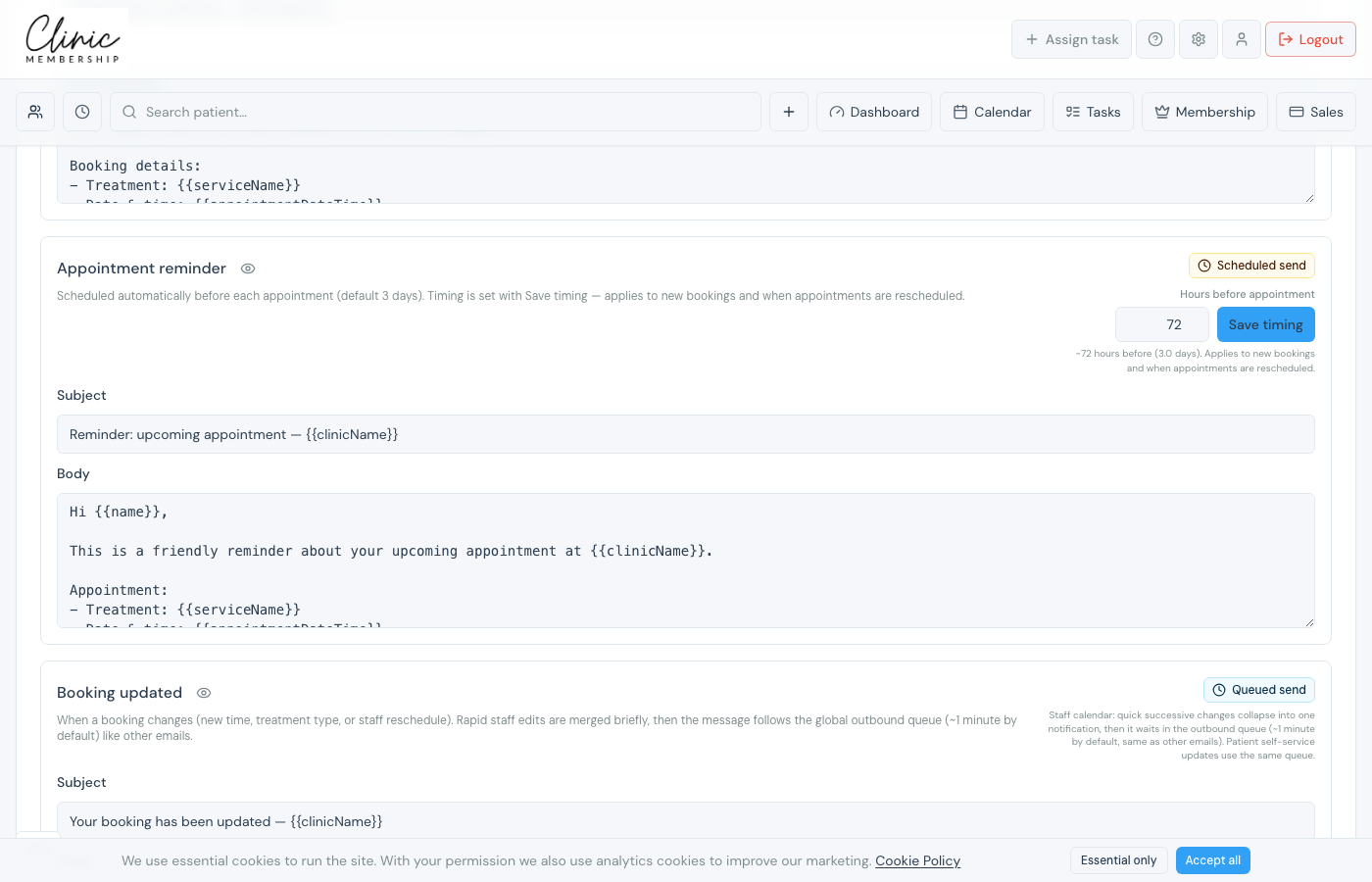
- Go to Settings → Communications.
- Under Email templates, click Booking to filter booking-related emails.
- Find Appointment reminder, edit the subject or body if you want your own wording.
- Set Hours before appointment (for example 24) on the same row.
- Click Save settings at the bottom of the page.
Include the clinic location
If you have more than one site, add {{locationName}}, {{locationAddress}}, {{locationDirections}}, or {{locationSection}} to the reminder (and to Booking confirmation / Booking updated). They fill when the appointment has a location; otherwise they stay blank. Full list: Communications and email templates.
Note
Reminders send automatically for confirmed appointments. Patients who have not confirmed may receive a separate confirmation email first, also under the Booking filter.
Optional WhatsApp or SMS
After email reminders are set, you can add WhatsApp and/or SMS in the same Communications settings. If both mobile channels are on for the clinic, each patient picks WhatsApp or SMS, never both. Email still goes out either way.
What happens next
Communications and email templates
All templates, location placeholders, and marketing opt-out.
Send rebooking reminders
Nudge patients to book again after a completed visit.
Connect WhatsApp notifications
Optional WhatsApp reminders for patients who opt in.
Set up SMS notifications
Optional SMS reminders, charged on your Clinic Membership invoice.
