


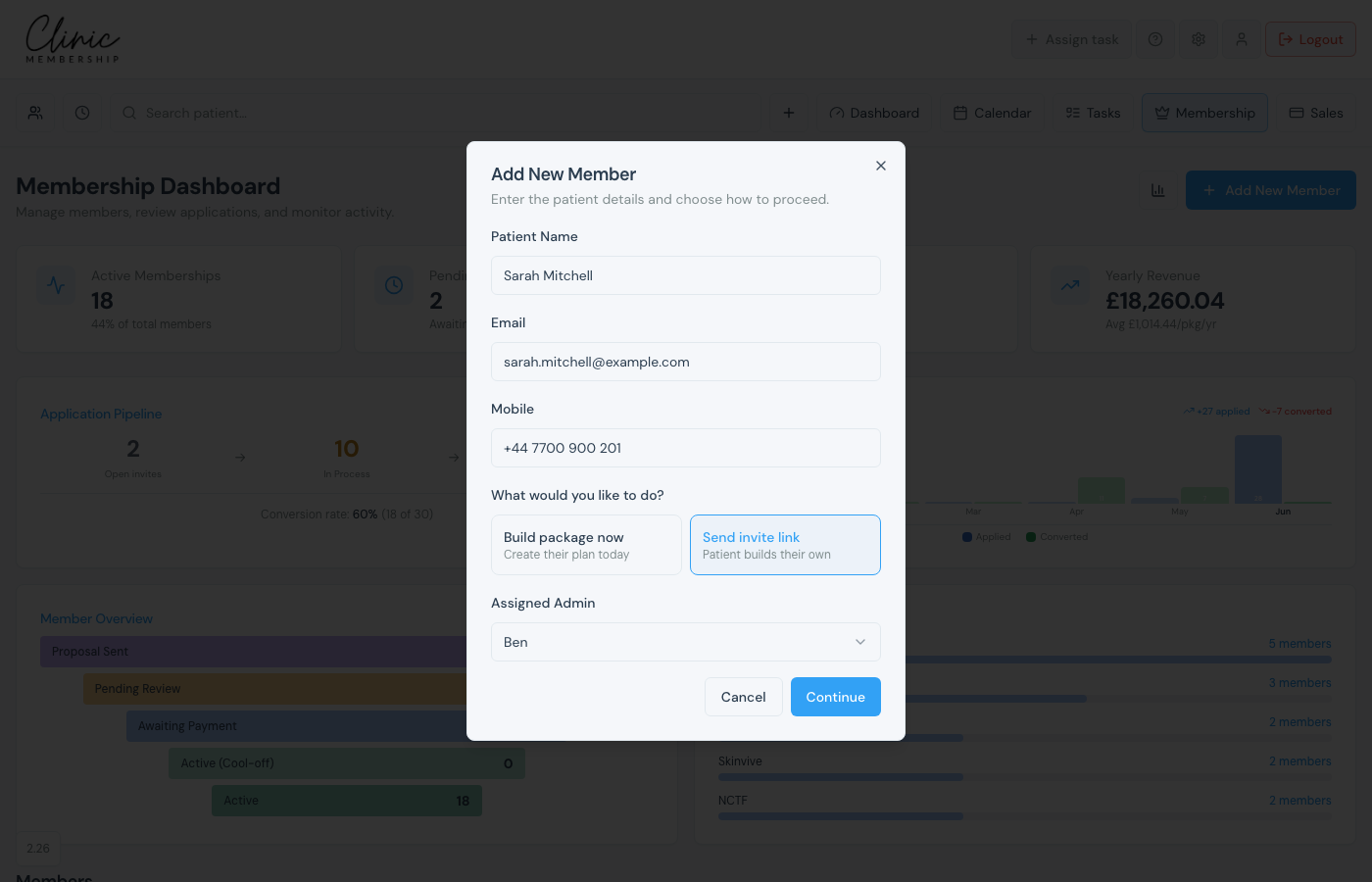
Once membership plans are set up, add patients one at a time from the Membership dashboard. Choose whether they receive a link to build their own plan, or you build a bespoke package and send it for review.
Send an invite link
- Click Membership in the top navigation.
- Click Add New Member.
- Enter name, email, and mobile.
- Choose Send invite link.
- Pick the assigned admin contact if prompted.
- Click Continue: the patient receives an email with their invite link.
Build a package first
- Click Membership → Add New Member and enter the patient details.
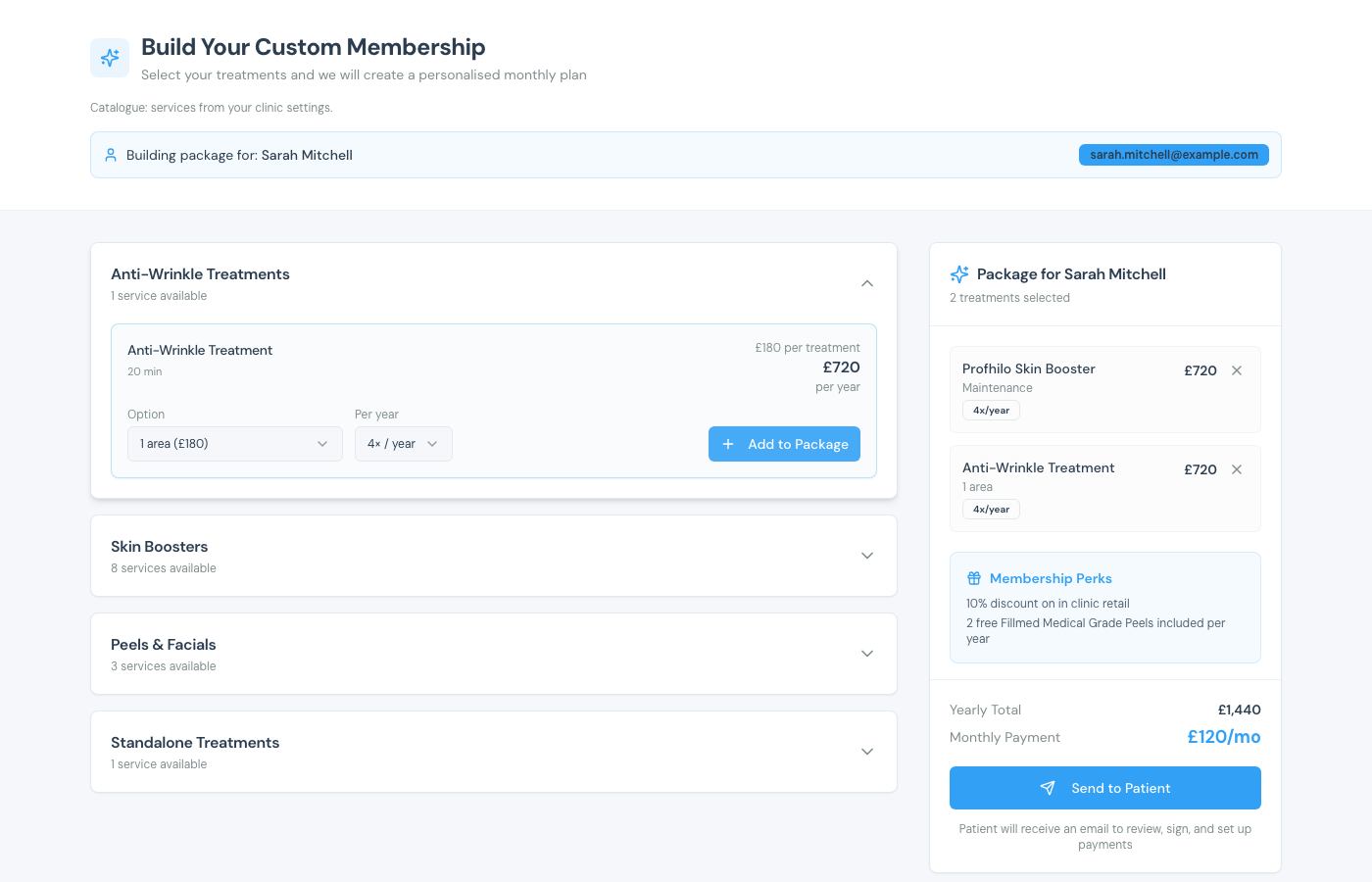
- Choose Build package now, then click Continue.
- If Use a membership package appears, tap a prebuilt plan to apply it, or keep building a custom package below.
- Add or adjust treatments from the catalogue. They appear in the package on the right.
- When you are happy with the plan, click Send to Patient.
- The patient receives an email to review, sign, and set up payments.
Tip
Save prebuilt plans under Settings → Membership → Membership packages (presets). Use a membership package then appears in the builder. You can still edit treatments, extras, and the monthly amount before you Send to Patient. Membership status (Promoted or Invite only) controls whether patients can self-serve sign-up.
Suggest from history
If the patient already has visits or checkouts and no membership yet, open their patient card → Membership → Suggest from history to build a package from that data. See Smart membership packages.
What happens next
Set up membership plans
Create plans and link them to services first.
Smart membership packages
Suggest a package from visit and checkout history.
Membership usage on the patient card
See used and remaining once they are active.
Connect Stripe for patient payments
Stripe must be connected for membership billing.
