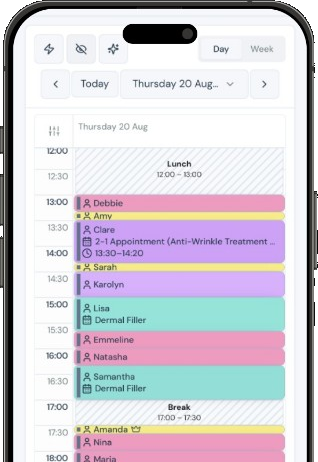


The AI assistant answers the clinic phone and chats with patients on your website. It books, moves, and cancels using the diary rules, treatments, hours, clinicians, and new-patient setting you already have. There is no second copy to keep up to date. Calls stay off until you turn the AI assistant on.
Open the AI assistant
- Go to Settings → Growth.
- On the AI assistant card, click Open.
- Read How it works, then work through the steps on the page.
Read the clinic card and the fee
- Click View your clinic card. It shows the name, phone, address, treatments, hours, clinicians, and booking rules already saved.
- Change those in Business and the rest of Settings if anything is wrong. The card updates with them.
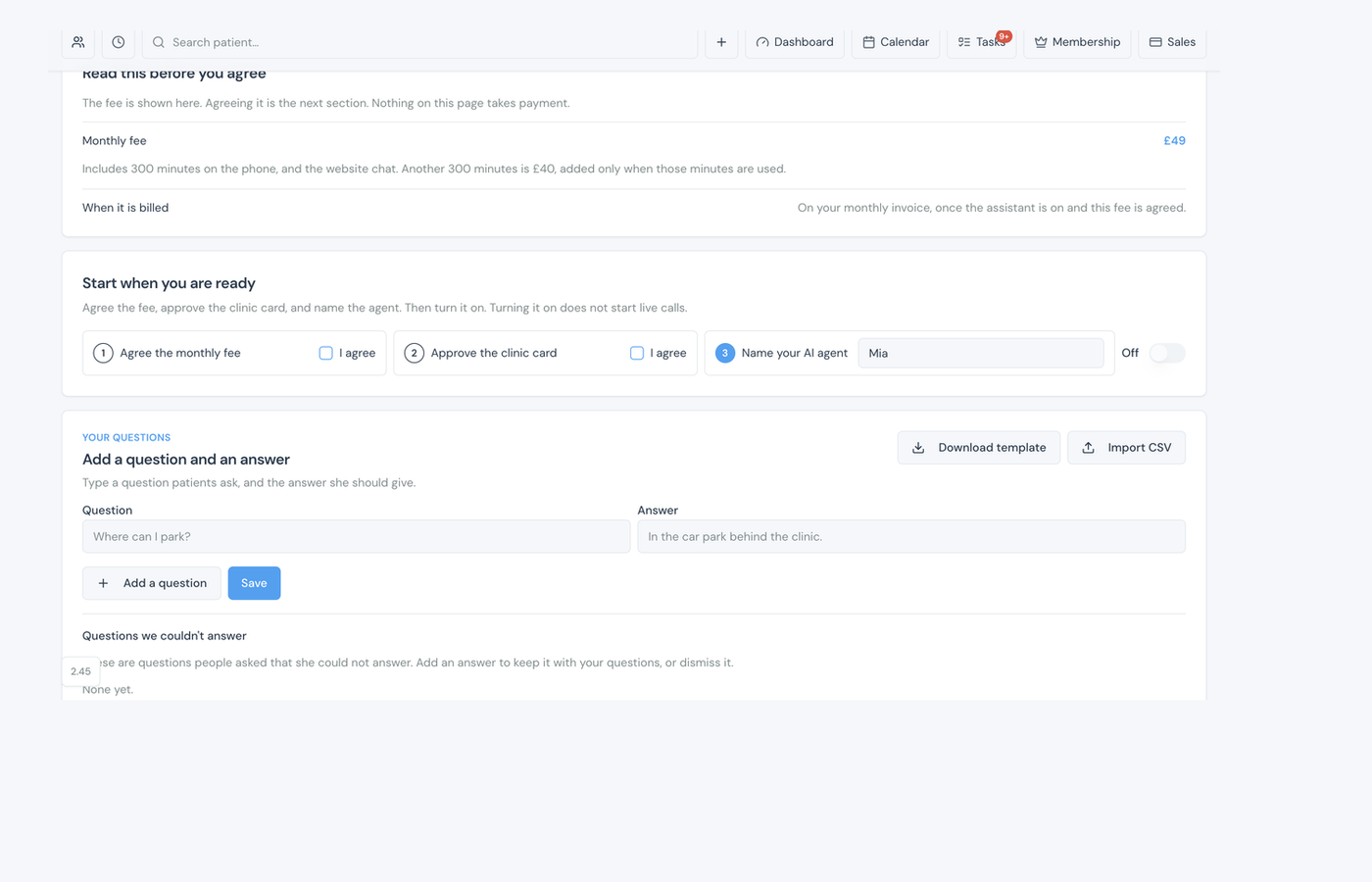
- Confirm the costs. The monthly fee is £49 for 300 phone minutes, covering a full month. If you sign up part way through a month, the first bill is worked out by the days left, so it is fair. Website chat is included. Further minutes are billed separately.
Note
If a price, address, hour, or treatment changes later, the card is shown again and needs a new approval. Agreeing the fee does not approve the card.
Turn the AI assistant on
Under Start when you are ready, agree to the bits below. You cannot switch it on until all four are done. Name the agent if you want (Clara is the default).
- Tick I agree on Agree the monthly fee.
- Tick I agree on Approve the clinic card.
- Tick I agree on Agree the DPA add-on. Use Read it if you want the add-on in a new tab first.
- Name your AI agent if you want. Use letters, up to 40 characters.
- Switch the AI assistant to On. Turning it on does not start live calls.
Get a number
Once the AI assistant is on, Get my number appears. Patients keep ringing the clinic number they already know. You redirect that number to the mobile number Clinic Membership gives you, and the AI assistant answers.
- Click Get my number.
- Check the company number, name, work email, website, street, town, and postcode.
- Add a mobile number, usually a 07 number.
- Upload proof of address (a utility bill, bank statement, or driving licence). The address on it has to match the boxes. PDF, JPG, or PNG, under 5 MB. A PO Box is not accepted.
- Click Send this.
Note
The number is then being commissioned. We email you as soon as it is live. After that, redirect your existing clinic number to the mobile number shown, then publish the privacy sentence before patients start ringing it.
To add the chatbot to your website, get the code in Settings → Calendar, under Booking widgets, links, and buttons. Choose Chatbot, then copy or preview it, and paste it on your site.
For compliance
- Copy the privacy sentence and add it to your clinic privacy notice before you redirect the number.
- Download the impact assessment and keep it with your clinic records.
- Click Mark as done when both are done.
Questions the AI assistant cannot answer from settings
Under Your questions, add short notes for things settings do not hold, such as parking or which door. A note does not replace a price or an hour.
- Type a question and an answer, then click Add a question.
- Or download the CSV template, fill it in, and import it. Up to 40 questions are kept.
- Click Save.
When the AI assistant cannot answer someone, the question appears under Questions we couldn't answer. Add an answer to keep it with your questions, or dismiss it.
Help it say a word
If the AI assistant struggles with a treatment name or a phrase, add it under Pronunciations. Put the word or phrase, then how to say it (for example Skinvive, then skin-veve). Save.
Tip
Play the greeting at the top of the page to hear how the AI assistant introduces itself with your clinic name.
See what it did
Activity on the same page lists recent calls and chats: who it spoke with, how long a call lasted, and whether it booked, moved, cancelled, emailed the clinic, or could not answer. Filter by All, Calls, or Website chat. Diary changes also sit under All.
On Dashboard & reports, the AI assistant widget shows phone minutes used and how many are left before the next charge, plus calls, chats, appointments booked, moved, or cancelled, questions it could not answer, and emails to the clinic.
What happens next
Send email marketing
Draft newsletters and offers to opted-in patients.
Get your online booking link
Copy the chatbot code from Calendar, under Booking widgets, links, and buttons.
Set online booking rules per service
The AI assistant follows the booking rules already saved.
Reports and dashboards for owners
Add the AI assistant widget on Dashboard & reports.