


Each service can have Online booking rules that apply when patients book or change appointments online. Days are counted from the calendar date of the last completed treatment of the relevant type.
Open online booking rules
- Go to Settings → Services.
- Click Edit on a service (or add a new one).
- Scroll to Online booking rules.
- Turn on the rules you need and fill in the fields.
- Save the service.
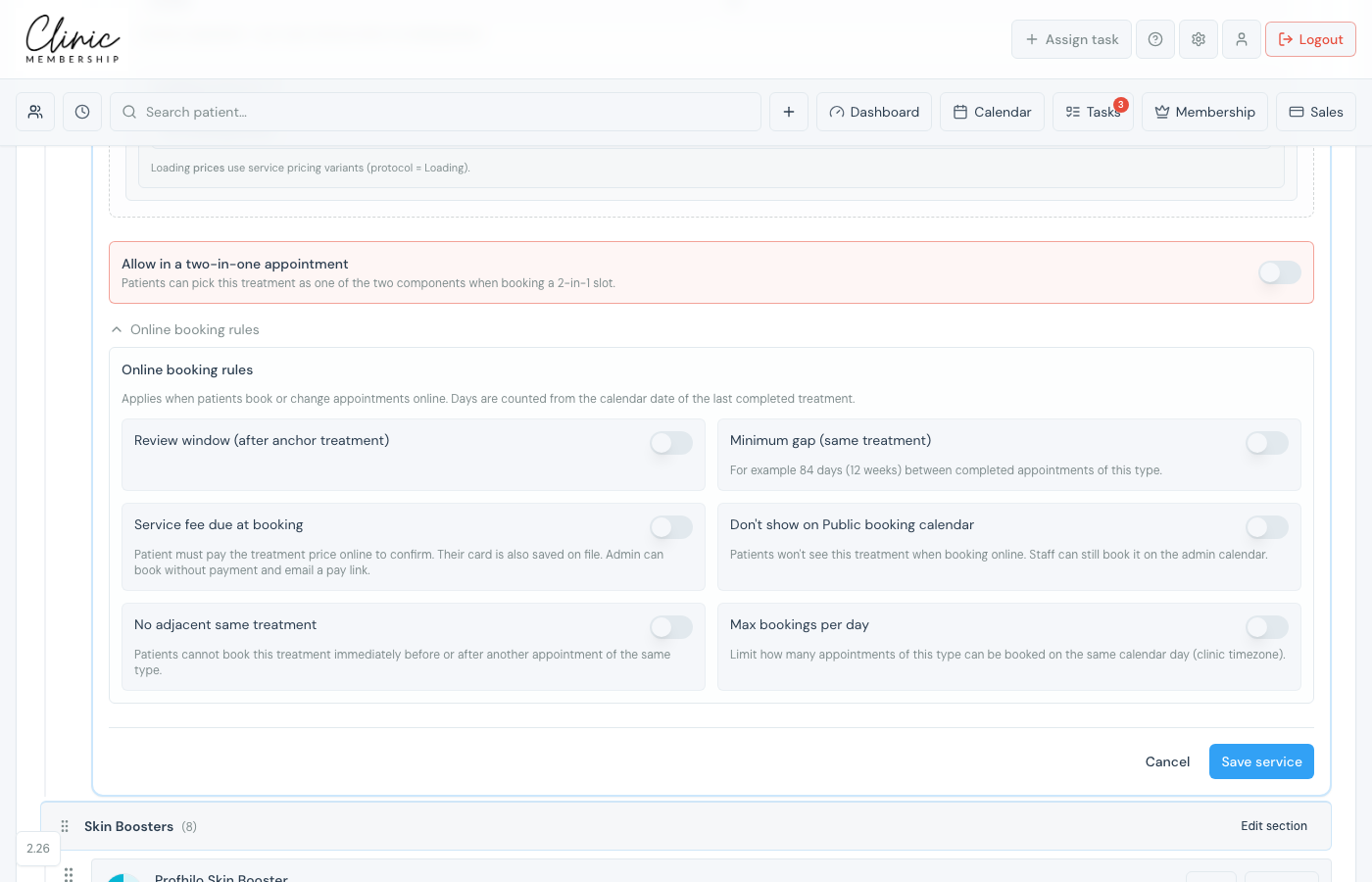
What each rule does
- Review window, after an anchor treatment, the patient can only book this service within your earliest and latest day range (for example a review 2–4 weeks after Botox).
- Minimum gap (same treatment), full days since the last completed appointment of this type (for example 84 days between skin booster sessions).
- Service fee due at booking, patient pays the treatment price online to confirm; their card is saved on file. Good for new consultations. Staff can still book without payment and email a pay link.
- Don't show on Public booking calendar, hidden from patient booking; staff can still book on the admin calendar.
- No adjacent same treatment, stops back-to-back slots of the same service (useful for short appointment types).
- Max bookings per day, cap how many of this service can be booked on one calendar day (for example one or two new patient consults).
Tip
Combine minimum gap with rebooking reminders: the gap enforces clinical spacing online; rebooking emails nudge patients when they are due back.
What happens next
Set up your bookable services
Add services before configuring rules.
Set up online booking deposits
Take a deposit at online booking (when Hold card is not enough).
Set up card on file for bookings
Card on file and prepaid booking work together.
Send rebooking reminders
Email patients when they are due for a follow-up.
