


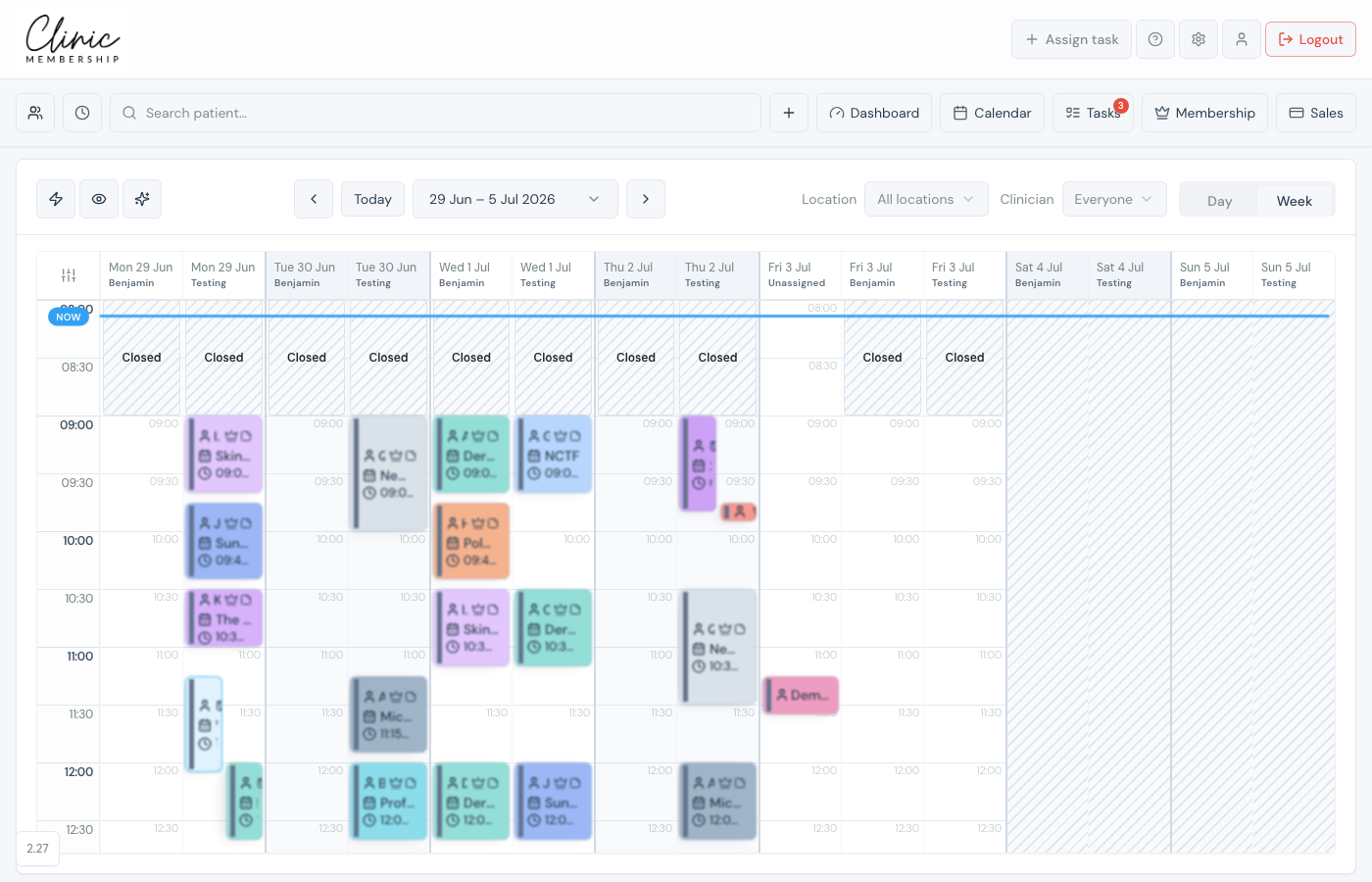
When your clinic has more than one location or more than one bookable clinician, filters appear on Admin → Calendar. Use them to focus the diary, then book appointments at the correct site.
Location and clinician filters
- Location: All locations shows every site on one diary (location names appear on appointment tiles). Open the menu and tick one or more sites to focus the diary.
- Clinician: Everyone shows all bookable clinicians. In Week view, each day splits into one column per person (for example Benjamin and Testing side by side). Tick specific people to narrow the diary.
- Click outside the menu to close it. Your last choice is remembered on this device.
Book an appointment at a location
- Open Admin → Calendar.
- Optional: set Location and Clinician filters first.
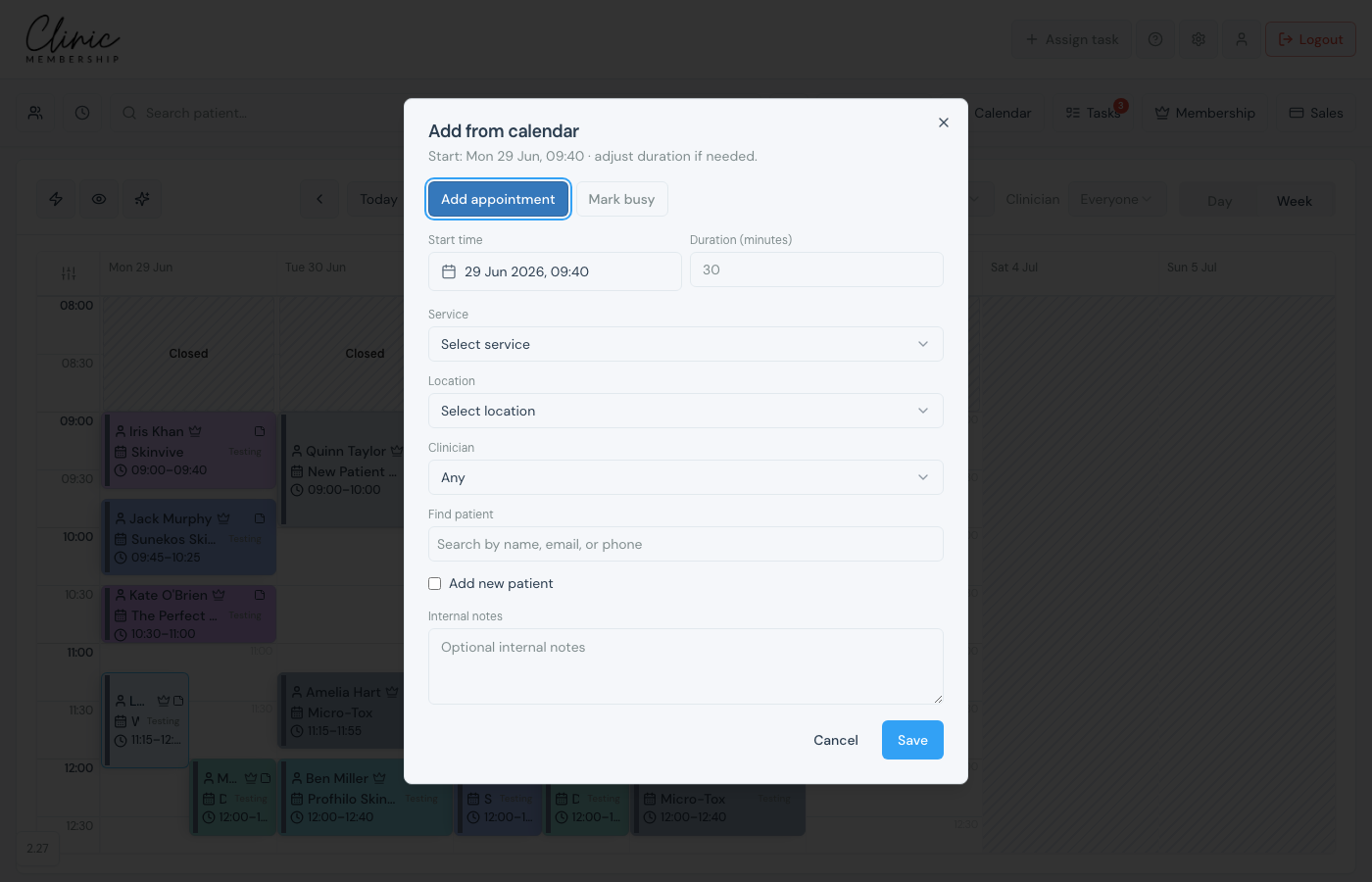
- Click or drag on an empty slot to open the booking panel.
- Choose Add appointment.
- Select the service, then Location (required when you have multiple sites).
- Pick Clinician: a named person (every booking must be assigned).
- Find or add the patient, then save.
Online booking
Patients see a Location step on your public booking page when you have more than one site. You can also build embed links filtered by location or clinician in Settings → Calendar. See Get your online booking link.
Tip
Assign locations on each clinician’s rota under Settings → Team so online booking only offers slots where they actually work.
