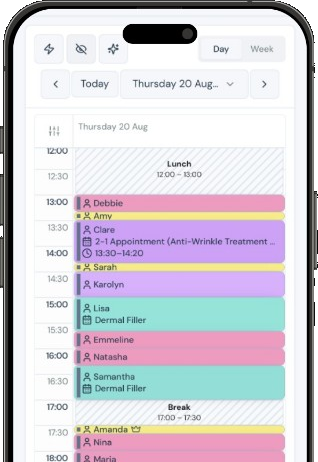


Some treatments should not be booked in the lead-up to a holiday, or for a few days after the clinician is back. Dermal filler is a common one. Turn this on per treatment. Other treatments stay bookable. In a team, only the person on annual leave is blocked.
Turn the rule on
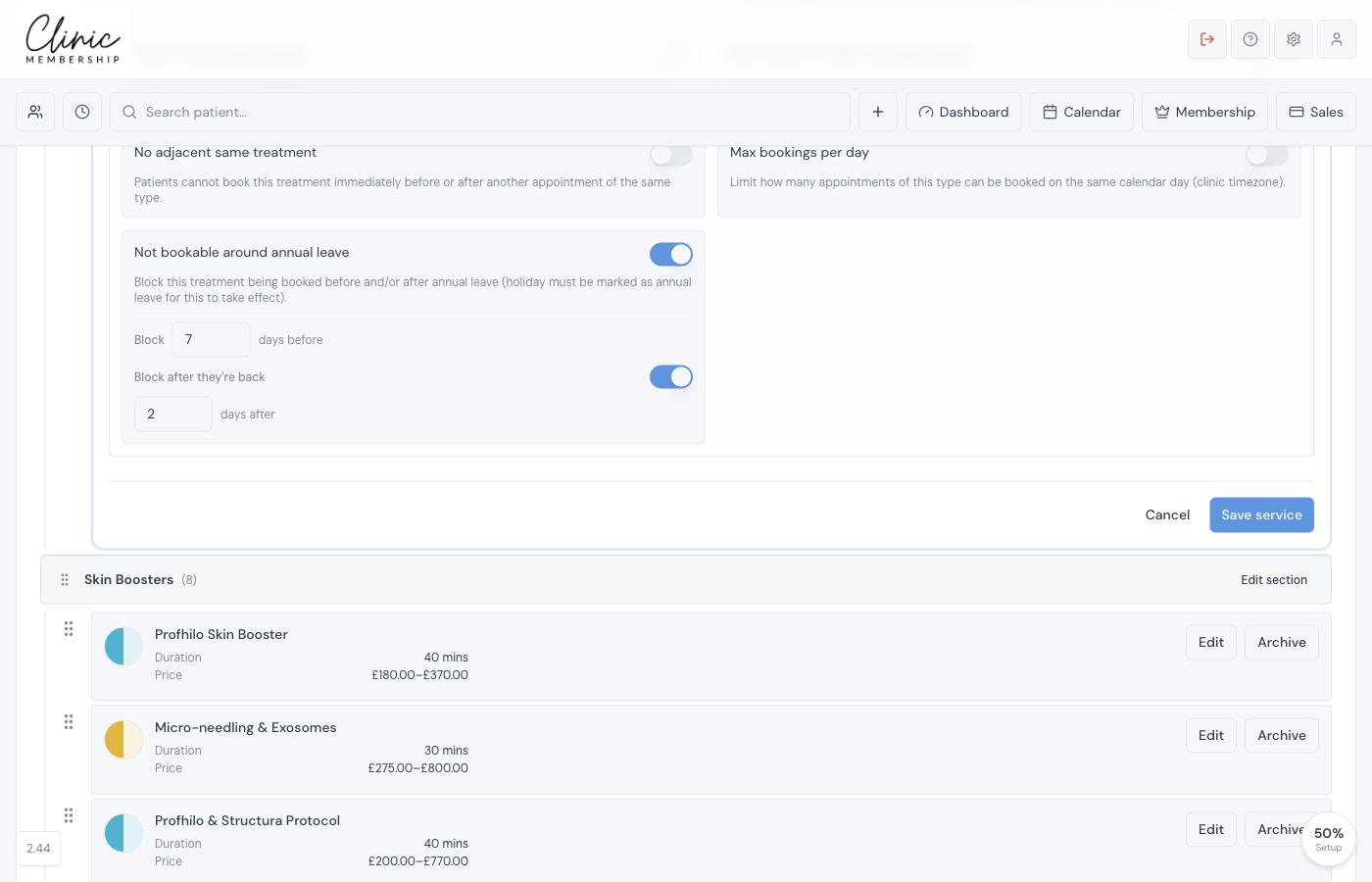
- Go to Settings → Services.
- Click Edit on the treatment (not on a multi-treatment appointment). The rule lives on the treatments inside a 2-in-1, not on the multi-treatment row.
- Open Online booking rules.
- Turn on Not bookable around annual leave.
- Set how many days before to block. 7 is the starting point. You can use 1–90.
- Optional: turn on Block after they're back and set the days after. 2 is the starting point. If leave ends on Friday, 2 days blocks Saturday and Sunday.
- Save the service.
Note
Holiday must be marked as annual leave for this to take effect. A reason that says holiday is not enough. Bank holidays, training, sickness, and a normal day off do not count unless Annual leave is ticked.
Mark the holiday as annual leave
- Go to Settings → Team → Staff time-off, or open the person from the team list. You can also use Mark busy on the calendar.
- Enter the dates.
- Turn on Annual leave.
- Save. The list shows Annual leave next to that block.
The hours they are actually away stay ordinary time off. This rule adds the days before that leave starts, and the days after it ends if you turned that on. If they leave in the afternoon, the morning of that day is blocked too. Leave at one location only blocks that location.
What patients and staff see
- Patients cannot book that treatment online on those days, including when they reschedule or book from a membership.
- Other treatments, and other clinicians, stay bookable.
- Visits already in the diary stay there. Saving the leave reminds you if one is already in the window. It does not cancel it.
- Staff can still book from the diary. The calendar asks you to confirm before it saves.