


A multi-treatment appointment is one diary slot where the patient chooses several treatments, for example toxin and filler in the same visit. You create a bundled parent service (shown as 2-in-1, 3-in-1, or 4-in-1), then tick which normal treatments can be picked as components.
Create the bundled service
- Go to Settings → Services.
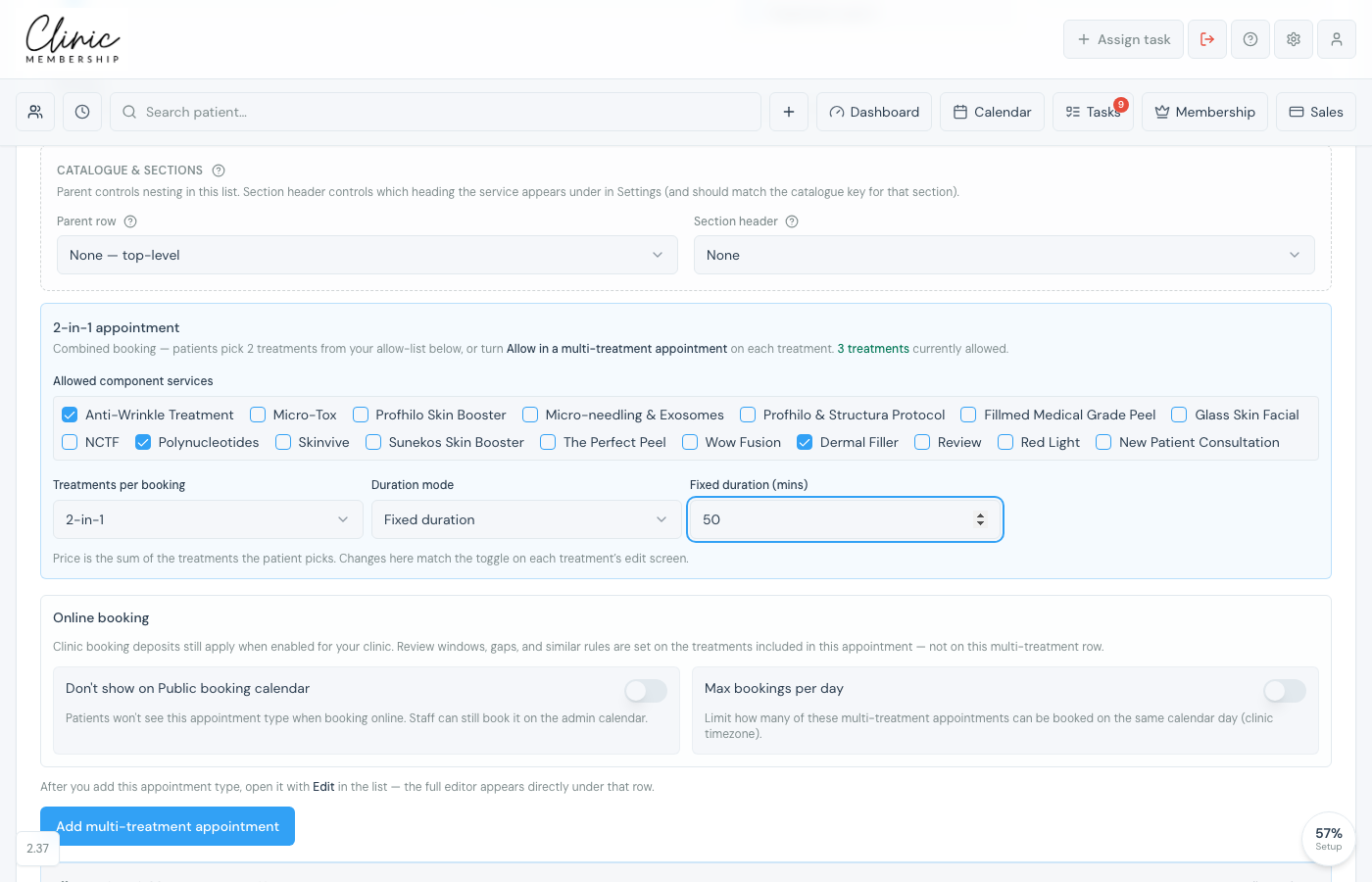
- Click Add multi-treatment appointment.
- Enter a clear name (for example Dual treatment visit).
- Under Treatments per booking, choose 2-in-1, 3-in-1, or 4-in-1.
- Tick Allowed component services: every treatment patients may pick for this visit.
- Choose Duration mode: Fixed duration, or Sum minus time saving (total of the picked treatments minus a saving).
- Set Fixed duration (mins) or Time saving (mins) to match your diary.
- Optionally set section / catalogue nesting, whether it shows on the public booking calendar, and max bookings per day.
- Click Add multi-treatment appointment.
Note
The bundle row shows Varies for price: the invoice uses the prices of the treatments the patient actually picks. Aftercare emails are set on each component treatment, not on the bundle.
Allow treatments as components
- Open each normal treatment that should appear in the pickers.
- Turn on Allow in a multi-treatment appointment (green when on).
- Save settings.
Only treatments with this switch on (and ticked under Allowed component services on the bundle) appear when booking a multi-treatment visit.
Book on the calendar
- Open Admin → Calendar and start a new appointment.
- Choose the bundled service as the Service.
- Pick First treatment, Second treatment, and Third / Fourth if your bundle allows them. Later slots can be set to None if the patient only needs fewer treatments.
- Choose patient, location, and clinician as usual, then Save appointment.
- When you complete or check out the visit, Confirm 2-in-1 treatments (or 3-in-1 / 4-in-1) asks which treatments were included: choose at least one, then Continue.
Online booking
Patients who book the bundled service online see Choose N different treatments for this N-in-1 appointment, then the same First–Fourth pickers. Available times appear after they have selected the required number of distinct treatments.
Tip
Use Online booking on the multi-treatment form if this appointment type should stay off the public calendar, or to cap how many of these visits can be booked per day. Review windows and gap rules belong on the individual treatments inside the visit. Clinic booking deposits still apply when enabled for your clinic.
