

Clinic Membership's Live activity panel shows changes to your calendar as they happen and gives reception a short window to stop a patient email that should never have gone out. If you have ever searched for a way to stop the appointment confirmation email your clinic software sends the moment you click save, this is the feature built for that moment.
Every reception team knows the feeling. A patient rings to move their appointment, you are juggling the phone and the screen, and you drop the visit into the wrong slot. You spot it a second later and fix it, but the patient has already been told about the wrong time. Now there is a follow-up call, an apology, and a patient who is a little less sure of the clinic.
Live activity does not stop mistakes happening. Nothing does. What it does is give you the chance to catch one before the patient ever sees it.
How Clinic Membership shows live calendar changes
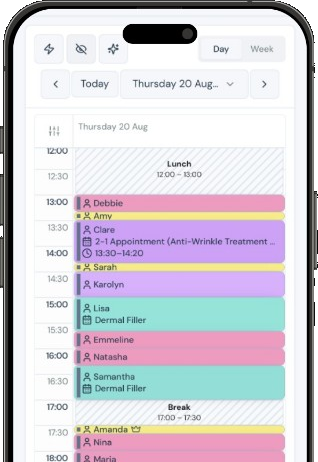
Live activity lives on the admin calendar. In Clinic Membership, go to Admin, then Calendar, and click the lightning bolt in the toolbar. A panel opens on the left with a running feed of recent bookings, changes and cancellations, drawn from your audit trail.
The feed refreshes by itself while the panel is open, so you see what changed without reloading the page. If you need the complete history, the Full audit trail link at the bottom of the panel takes you there.
For a reception desk, that alone is useful. Instead of wondering whether a colleague has already moved Mrs Patel's appointment, you can see the change appear in front of you.
Why patient emails in Clinic Membership wait a moment
When staff book, reschedule or cancel a visit, Clinic Membership often queues an email to the patient: a confirmation, an update or a cancellation notice. The important word is queues. These emails are not sent the instant you click save.
That short wait is deliberate. Reception is often still tidying the calendar in the seconds after a change, and a brief delay means a mistake can be undone before it reaches anyone's inbox. It is the difference between fixing a slip quietly and having to explain it.
Stopping a patient email in Clinic Membership
After you save a booking, a move or a cancellation, look for the same event in the Live activity panel. Next to it you will see a countdown ring. While the ring is visible, for about 60 seconds, you can click the square Stop button on that row.
When you do, the email is cancelled and the patient will not receive it. You can then put the visit in the right place.
If the ring has already run out, the email has been sent. At that point the fix is the old-fashioned one: a quick call or message to the patient.
The full walkthrough is in our Help Centre article, Live activity and stopping patient emails.
What Clinic Membership lets you stop, and what it does not
It helps to be clear about the edges, so nobody on the team relies on the Stop button for something it was never meant to do.
Stop is available on actions made by your staff that would send the patient an email. That covers new bookings made by the team, changes to an existing visit, and cancellations where a notice is set up to go out.
Not every line in the feed has a Stop button. Many audit entries are simply a record of what happened and never send anything to a patient, so there is nothing to stop. The rule of thumb for your team is simple: if you see the ring, you can stop the email; if you do not, there is no email waiting to be stopped.
Two people at the desk with Clinic Membership
Live activity really earns its place when more than one person is working on the calendar at once. On a busy morning, two receptionists might both be taking calls and moving appointments.
With the panel open, each of them can see who changed what, in the order it happened. If one person makes a mistake, either of them can spot it in the feed and stop the email in time. It turns an invisible slip into something the whole desk can catch.
It also helps with the quieter question every clinic owner asks at some point: what happened to that appointment? The feed, and the full audit trail behind it, answer that without anyone having to remember.
If you are tightening up how the desk works more generally, it is worth making sure everyone's working hours are right too. We covered that in how Clinic Membership handles staff rotas.
Making Live activity in Clinic Membership part of the routine
The feature only helps if the panel is open when the mistake happens. A few habits make that easy:
- Open the panel at the start of the day. When you first open the calendar on the reception screen, click the lightning bolt and leave the panel open.
- Glance at the feed after every change. It takes a second and becomes automatic within a week.
- Show new starters the ring and the Stop button. Make it part of their first morning on the desk.
- Agree who stops what. On a two-person desk, a simple rule (whoever made the change stops it) avoids both people reaching for the same row.
- Use the full audit trail for questions later. When someone asks what happened to a visit, start there.
None of this changes how you book. It just gives reception a safety net for the moments when the phone, the patient in front of them and the screen all want attention at once.
Clinic Membership brings your calendar, patients, sales and payments together in one place, with Live activity keeping an eye on the changes in between. Free covers up to 10 patient records. See pricing for paid plans.