

Clinic Membership keeps each clinician's working hours, lunch and breaks in one place, so the rota you set is the rota patients and reception actually see. If you are comparing staff rota software for UK aesthetic clinics, the question that matters is simple: does the rota live with the diary, or somewhere off to the side?
In a lot of clinics it lives off to the side. The week is planned on a printed sheet by the desk, or in a team message thread that scrolls away by Wednesday. Then someone changes their hours, the sheet is not updated, and a patient is booked into a clinician's lunch. Nobody did anything wrong. The rota and the diary just were not talking to each other.
When the rota sits inside your clinic software, that gap closes. Hours, breaks and changes are set once against each person, and everything else follows from them.
How staff rotas work in Clinic Membership
The rota lives under Settings, then Team, in a section called Staff rota. For each person who takes appointments, you add rota rows that say when they work.
Each row covers:
- Who the hours are for.
- The pattern: a single day, weekdays, or every day.
- The day, start time and end time.
- The location, if your clinic works across more than one site.
You add a row, repeat for any other days or people, then save the settings at the bottom of the page. That is the whole idea: a short list of working blocks per person, kept in one place.
The rota then shapes what patients can choose. Online, patients are only offered times inside a clinician's rota blocks, and a clinician with no hours set does not show as available at all.
Lunch and breaks in Clinic Membership
Long days need gaps. Someone might work a full day but should not see patients over lunch, or needs a short gap mid-morning to catch up on notes.
In the Staff rota form, set the overall shift first, then turn on Add breaks. You can pick a morning break, lunch, an afternoon break, or any mix of the three, and set a start and end time for each. Sensible defaults are filled in for you to adjust.
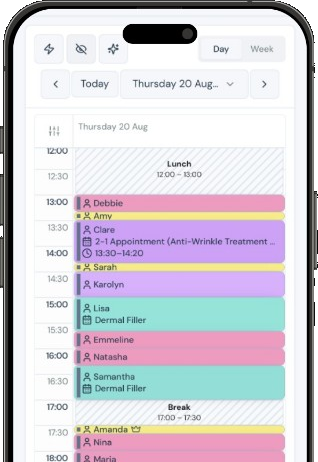
Behind the scenes, the day is saved as separate working blocks either side of each break. On the calendar, the gaps show as hatched bands labelled Lunch or Break, so reception can see at a glance why a slot is not free. Nobody can be slotted into those times by mistake.
Two simple rules keep it tidy: breaks have to sit inside the shift, and they cannot overlap each other. If you later move the start or end of a shift, it is worth checking the breaks still fit.
Changing someone's hours in Clinic Membership
Hours change. A clinician drops a day, moves to later starts, or takes on an extra morning from next month. The temptation is to edit the current rota and hope nobody notices the switch.
Clinic Membership handles this more carefully. Rather than overwriting the current hours, you give them an end and add the new hours with a start:
- On the current day block, click Archive day.
- Choose Last day these hours apply and pick the final date for the old hours.
- Add the new hours for that day, turn on Limit these hours to dates, and set Starts on to the first day of the new pattern.
You can leave either date blank if that end should stay open. Only the person you edit is affected; everyone else's hours stay as they were. If you need the old hours gone straight away, there is a Stop these hours now option.
This means you can plan next month's rota today, and the change happens on the right day without anyone remembering to flip a switch.
Treatment-only hours in Clinic Membership
Some clinics keep part of the week for particular work. A laser session on one morning, for example, or a clinician who only does skin consultations on a set afternoon.
Limit hours to treatments lets you do exactly that. On a rota row, tick a whole section of your treatment list to include everything in it, including anything you add to that section later, or tick just the treatments you want. If the hours are for everything, simply leave this off.
Patients cannot choose a treatment that is not on that rota. Reception, working from the calendar, still sees a warning but can go ahead for cover or a one-off when it makes sense.
Rotas and team settings in Clinic Membership
Rotas live on the same Team settings as staff logins, so setting up a new clinician is one visit to one page. Our post on staff logins and access levels covers the login side.
If you run more than one site, the location on each rota row is what ties a clinician to a clinic on a given day. Our post on running more than one clinic explains how sites fit together.
The full walkthrough, with each screen, is in the set staff rotas guide.
Why a rota in Clinic Membership beats a sheet on the wall
Moving the rota into your clinic software changes a few things straight away:
- No more patients in lunch. Breaks are part of the rota, so those times are simply not offered.
- Changes land on the right day. New hours start on the date you choose, without overwriting the old ones early.
- Special sessions stay special. Hours kept for certain treatments only take those treatments.
- One place to look. Reception sees the hatched Lunch and Break bands on the calendar instead of checking a sheet.
- New starters are quick to add. Hours, location and breaks for a new clinician take a few minutes.
It also takes a recurring job off the owner's list. The rota does not need rewriting every week, only updating when something genuinely changes.
Getting your rota into Clinic Membership this week
You can get a working rota in place in one sitting:
- List who sees patients, and on which days.
- Add each person's usual week under Settings, then Team, then Staff rota.
- Turn on breaks for anyone working a long day, starting with lunch.
- Add any treatment-only sessions with Limit hours to treatments.
- Plan known changes ahead with Limit these hours to dates, so they switch on by themselves.
- Check the calendar to make sure the hatched bands and working hours look right.
Clinic Membership brings your rota together with your patients, calendar, sales and payments in one place. Free covers up to 10 patient records. See pricing for paid plans.