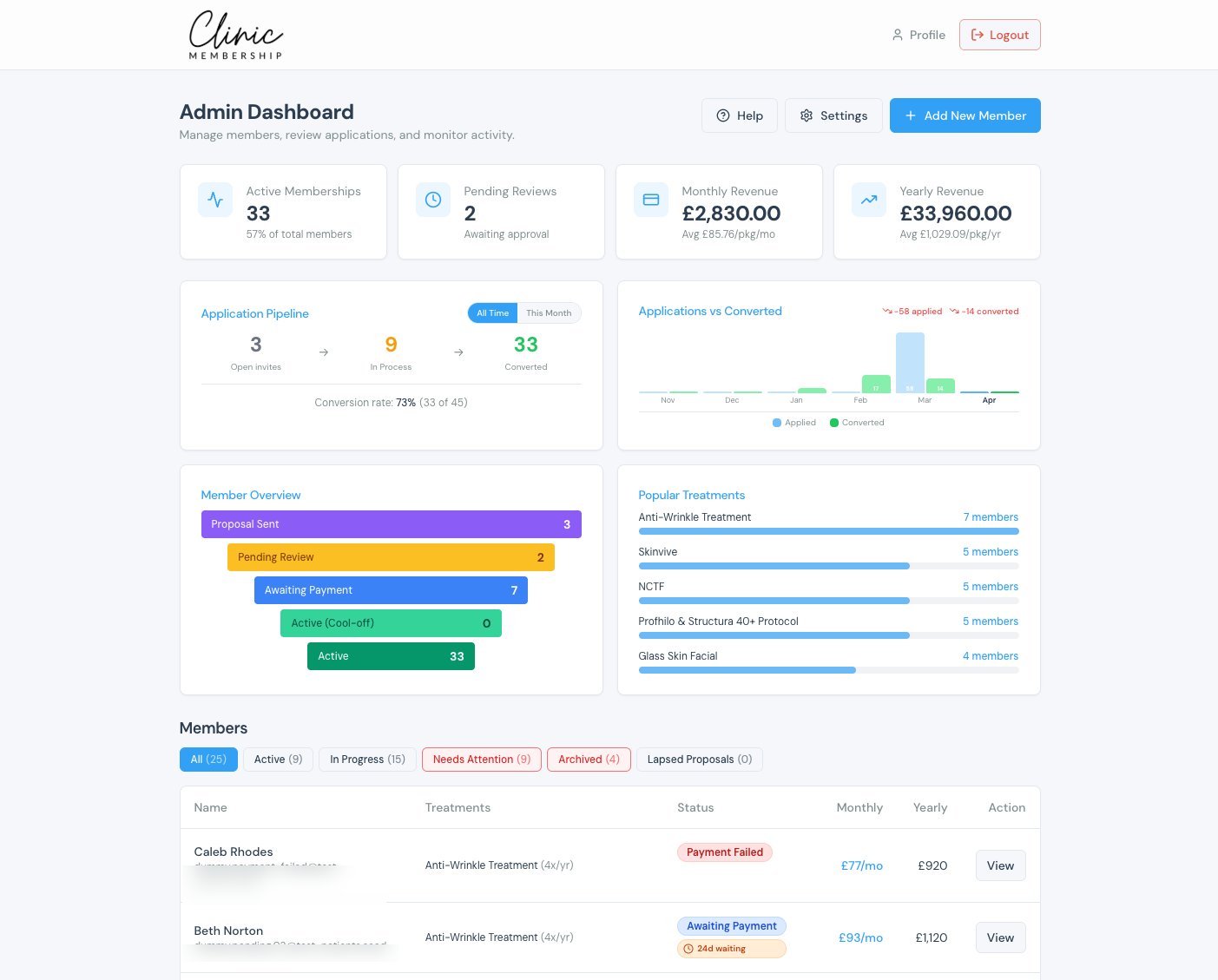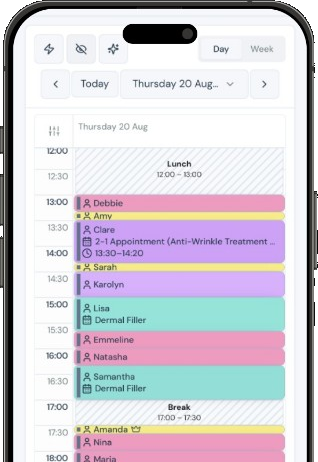


Clinic Membership can look at a regular patient's past visits and suggest a membership package that fits the way they already use your clinic. Most clinics have patients like this. They come back time after time, they know your team by name, and they book the same kinds of treatment again and again. Yet they have never joined a membership, often because nobody had the time to sit down and build one around them. Starting a plan from a blank page is slow, so it gets put off. Being able to suggest a membership package from visit history turns that blank page into a sensible first draft you can check in a minute.
This guide explains how smart packages work in Clinic Membership, where to find them on the patient card, how to review and edit a suggestion, and how to send the finished plan to the patient.
How smart packages work in Clinic Membership
A smart package is a membership suggestion built from a patient's own history. Instead of you choosing every treatment from scratch, Clinic Membership reads what the patient has already had at your clinic and proposes a package that reflects it.
The suggestion is only a starting point. Nothing is set up until you review it, change anything that needs changing and send it. You stay in control of what the membership includes, and the patient still chooses whether to join.
Because the suggestion is based on treatments the patient already comes in for, it often reads like a maintenance plan: the visits they make anyway, gathered into one membership. That makes it an easy conversation to have, because you are describing something the patient already recognises.
Finding smart packages on the patient card in Clinic Membership
Smart packages live where you already manage memberships, on the patient card.
- Open the patient's card.
- Go to Membership.
- Choose Suggest from history.
If you would rather build a plan yourself, Create membership is still there next to it. Smart packages simply give you a quicker route for patients who already have a visit history with you.
When Clinic Membership has a suggestion ready, a Suggestions banner appears. This is your cue that there is a draft package waiting to be reviewed.
Reviewing a suggested package in Clinic Membership
Before you apply anything, it helps to see why the package was suggested. Choose Show data to see the visit history behind the suggestion. This lets you check that the treatments in the package match what the patient really has, and spot anything that looks out of place, such as a one-off treatment they are unlikely to repeat.
When you are happy with the suggestion, choose Apply suggestion. Clinic Membership fills in the package for you, ready to be edited.
You can also choose Use a membership package if one of your existing packages is a better fit. This is useful when the suggestion lines up closely with a plan you already offer, because it keeps your memberships consistent across patients.
Editing and sending the plan to sign in Clinic Membership
A suggestion is a draft, so treat it like one. Read through what is included and adjust it so it matches what you would actually recommend for this patient. You might remove a treatment, add one they have asked about, or change how many visits the plan covers.
Decisions about what is suitable for each patient always stay with your practitioners. Smart packages save you the typing. They do not replace a conversation.
When the package is right, choose Send to Patient. The patient receives the membership to review and sign, so they can read exactly what is included before they agree. If you want to see how the signing side works, our guide to digital memberships walks through it.
Once the patient has signed and the membership is active, you can follow how they use it on the card. Our post on how Clinic Membership tracks package usage covers that part.
When there is not enough history in Clinic Membership
Not every patient will get a suggestion. A new patient, or someone who has only visited once or twice, may not have enough history for a useful package. In that case Clinic Membership shows a message saying there is not enough history to suggest a plan.
That is a feature, not a fault. A package built on one visit would be a guess, and nobody wants to send a patient a guess. For these patients, use Create membership or one of your existing packages instead, then try a suggestion again once they have a few more visits behind them.
Getting the most from smart packages in Clinic Membership
A few simple habits help your team turn regular patients into members without making it sound like a sales pitch.
- Start with your most loyal patients. People who already visit often are the easiest to talk to about a plan.
- Always check Show data. A quick look at the history keeps every suggestion grounded in real visits.
- Edit before you send. Remove anything the patient is unlikely to want and add anything they have asked about.
- Keep your existing packages tidy. If a suggestion keeps matching a plan you already offer, use that package to stay consistent.
- Talk first, send second. Mention the plan at the desk or in the treatment room, then send it so the patient can read it at home.
The full step-by-step setup is in our Help guide on smart membership packages.
From past visits to a plan with Clinic Membership
Your regular patients have already shown you what they value. Smart packages in Clinic Membership turn that visit history into a suggested membership you can review, edit and send to sign, so building a plan takes minutes instead of being put off for another week.
Clinic Membership brings your patients, calendar and memberships together in one place. Clinic Membership is not an EMR. Clinical records live in Documenti, the EMR that works alongside it. Free covers up to 10 patient records. See pricing for paid plans.