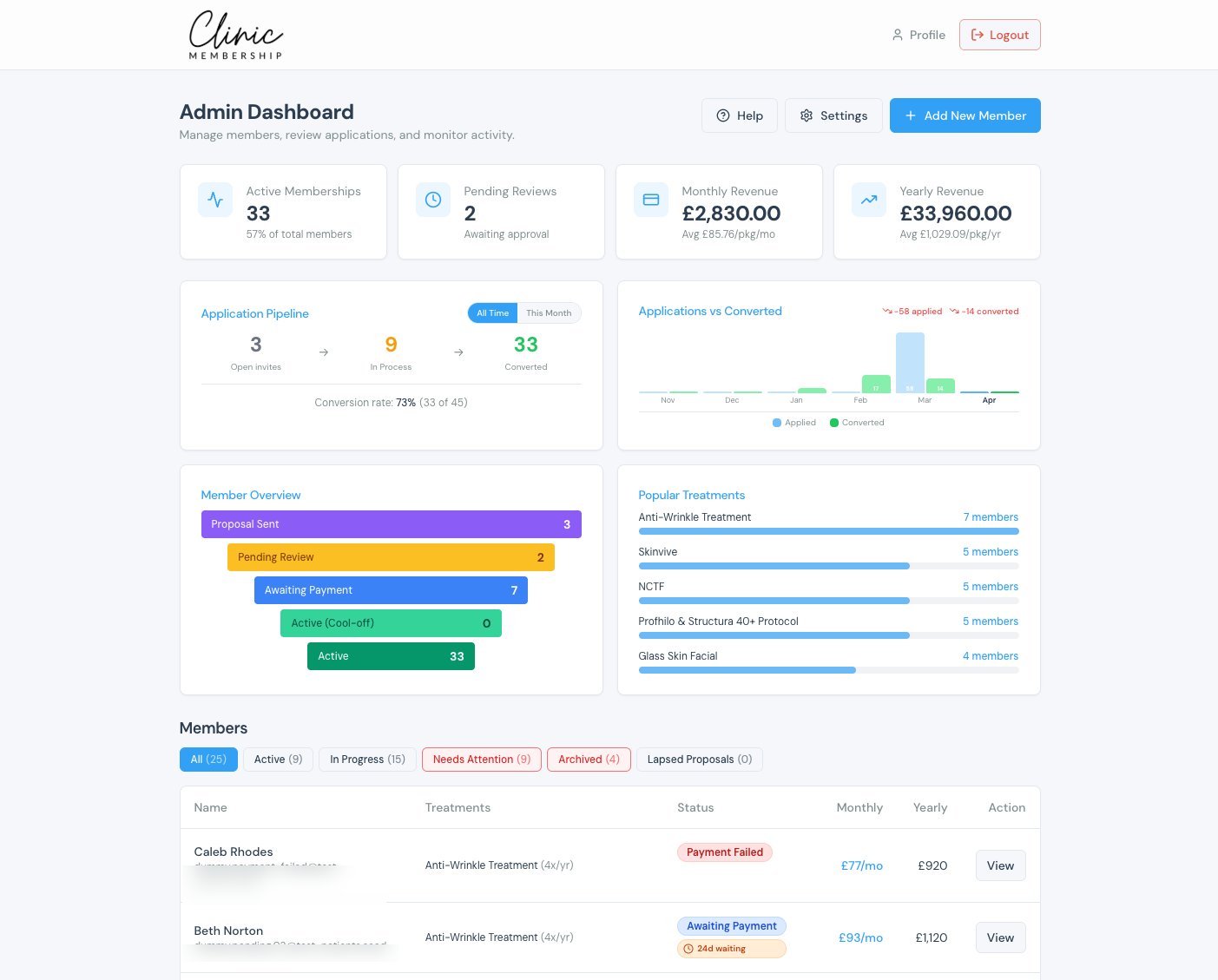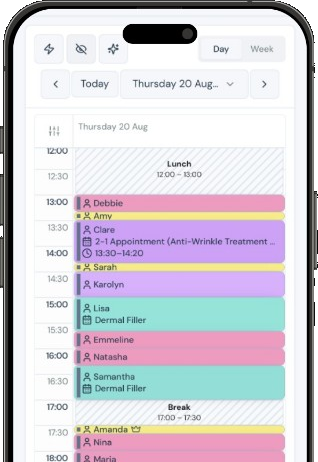


Clinic Membership shows used, booked and remaining treatments for the membership year on the patient card, so reception can book the next visit without guessing what is left in the package. That is how you track treatment packages in clinic software when mixed allowances used to live on sticky notes and workarounds.
Owners already know the pain. A membership includes more than one treatment. Perks sit beside them. Someone asks for a slot, and the desk has to dig through notes to see whether loading visits, maintenance visits, or a complimentary perk still apply. The patient card Membership panel is built for that moment. This guide walks the badges, the open path, and how staff use them at the desk. It does not turn loading or maintenance lines into clinical interval advice.
How usage shows on the patient card in Clinic Membership
When a patient has an active membership package, open their card and scroll to Membership. On an active package you will see This membership year. Under that heading each included treatment shows three badges.
- Used. Completed visits that counted against the allowance.
- Booked. Upcoming appointments that will use allowance when attended.
- Left. Allowance minus used and booked, or None left this year when nothing remains.
Reception reads Left before offering a date. Booked already reserves the visits that are still ahead, so the number left is not a surprise after the next confirmation. Used keeps the year honest for completed visits. Together the three badges replace the mixed-package workaround pile.
The written steps sit beside the screen in the Help Centre article Membership usage on the patient card.
Opening the Membership panel at the desk
The open path is short.
- Go to Admin, then Patients and open the member's card, or use Search patient in the top bar.
- Scroll to Membership.
- On an active package, find This membership year.
That is enough for a handover note. New reception staff do not need a second spreadsheet. They open the card, read Used, Booked and Left, then book. If Documenti is connected for clinical notes, Clinic Membership stays the membership layer. Documenti remains the clinical record when those files are in play.
Loading and maintenance lines, without clinical advice
Some treatments are configured with a loading phase and then maintenance visits. On the patient card those appear under that treatment as separate Loading and Maintenance lines. Treatments without a loading course show a single used / booked / left row.
Bookings use the right allowance so loading sessions are not mixed up with maintenance. That is an operational split on the card. It is not a clinical protocol, and this guide does not tell you how often a treatment should be given. Clinic policy and the clinician decide intervals. Clinic Membership only shows how the package allowance is carved when those lines exist.
Keep that distinction at the desk. When a patient asks what is left, answer from the badges. When they ask when they should return clinically, that is a clinician conversation, not a usage badge.
Membership perks on the same card
When the package includes perks, for example a complimentary treatment or a retail discount tier, the same used / booked / left badges show under Membership perks. Staff and the member portal stay aligned because both sides read the same counters for the membership year.
Reception can confirm a perk visit the same way as an included treatment: check Left, book if allowance remains, and let Booked hold the upcoming slot. You do not need a separate perk spreadsheet beside the till.
Members can also see remaining treatments in their portal and plan visits. The Membership treatment planner is the member-facing companion when they want to map what is left before they call the desk. Mention it once in a handover so staff know members may already have looked.
Booking the next visit without guessing
The desk habit is simple.
- Open the patient card and scroll to Membership.
- Read Used, Booked and Left for the treatment (and Loading / Maintenance lines when they appear).
- Check Membership perks if the visit is a perk.
- Offer a date only when Left supports it, or explain None left this year clearly.
- After the booking lands, Booked updates so the next person sees the reserved allowance.
That habit stops the "I thought they still had one" conversation after the calendar is full. It also stops over-promising when None left this year is already on the card. For clinics that already run digital memberships, this is the day-to-day layer that makes those packages usable at reception without a second system of notes.
What this usage view is not
A few limits are worth stating plainly.
This view is not a product comparison, and it is not a price or payment guide. It does not invent clinical intervals from Loading and Maintenance lines. Those lines exist so bookings hit the right allowance. Clinical timing stays with the clinician.
It is also not a full plan-setup tour. Plan configuration, perks setup and loading options live in the Help Centre guide to setting up membership plans. This guide stays on the patient card: how reception sees what is left for the membership year.
First week habits for reception
A short shared habit beats a long policy document.
- Pin the Help article for Membership usage on the patient card in the reception chat.
- Open Membership on every member booking before you confirm a date.
- Say Left out loud once, so the patient hears the same number the card shows.
- Name None left this year clearly when that badge appears, then offer the clinic's next step (a new package conversation with the owner, or a pay-as-you-go visit if that is your policy).
- Show one perk example in the first team huddle so staff know Membership perks use the same badges.
After a few days the card becomes the single source at the desk. Mixed packages stop needing workarounds. The patient hears one number. The diary matches the allowance.
Usage you can read before you book
When you need to track treatment packages in clinic software for a busy UK aesthetics desk, the patient card Membership panel is the place to look. Clinic Membership shows Used, Booked and Left for This membership year, with Loading and Maintenance lines when a treatment is set up that way, and the same badges under Membership perks when perks are configured. Open Admin, then Patients, find the member, scroll to Membership, and book from what the card shows.
Clinic Membership brings your patients, calendar, memberships and payments together in one place, so usage sits on the card beside the booking you are about to make. Free covers up to 10 patient records. See pricing for paid plans.