

New patients are anyone with no completed visit yet. That includes a guest booking with an email you have not seen before. You choose what they can book under Settings → Calendar → New patients. Existing patients keep the full online menu.
Set new patient onboarding
- Go to Settings → Calendar.
- Scroll to New patients → New patient onboarding.
- Choose one option.
- If you choose Consultation only first, Consultation plus services, or Waitlist, pick the New patient consultation service.
- Click Save settings.
The four options
- Can book like existing patients: they see the same online treatments as everyone else.
- Consultation only first: until they have a completed visit, they can only book your consultation service.
- Consultation plus services: they choose an allowed treatment, and the consultation is added in front of it. It is one visit, not two.
- Waitlist: they join a queue instead of booking online. See Set up the waitlist.
Set up Consultation plus services
Use this when a first visit should include the consultation and a treatment, without two separate appointments.
- Create the consultation as a normal service, with its duration and price.
- Leave Don't show on Public booking calendar unticked on that service. New patients need it on the public calendar to book the consultation on its own, and to drop a treatment later and keep the consultation.
- If you charge the consultation up front, turn on Service fee due at booking on that service.
- In Settings → Calendar → New patients, choose Consultation plus services.
- Select that service as the New patient consultation service.
- Under Treatments that can be booked with this consultation, every online treatment starts ticked. Untick any a new patient should not book yet.
- Save settings.
What the patient sees
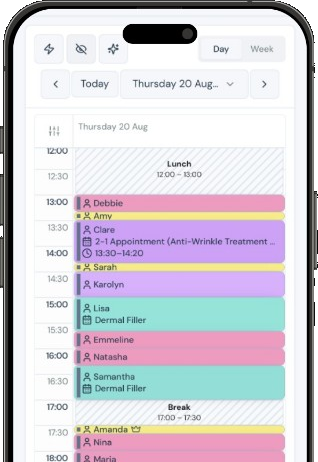
When they pick a treatment, the booking page says the visit starts with the consultation, then the treatment, and shows the total time. The diary, the confirmation, and the calendar invite use the same combined name, for example New patient consultation plus Anti-wrinkle. A 2-in-1 is one consultation in front of the bundle.
If the consultation has a service fee due at booking, that amount is added to whatever the treatment already charges. A prepaid treatment still replaces the clinic deposit. A treatment that is not prepaid keeps the booking deposit, with the consultation fee on top. They pay once. In your books the consultation is a paid invoice, and the deposit stays a deposit. If the consultation has no fee due at booking, only the extra time is added.
If they pick the consultation itself, and other treatments can be added, they are asked: Are you looking to add a treatment at this consultation as well? Yes takes them into the treatment list. The consultation stays first. No books the consultation on its own, with no second fee.
Note
The clinician must be bookable for the treatment. If the consultation has its own clinician list, only people who can do both are offered. If the consultation is tied to a different location from the treatment, that combination cannot be booked.
If they already have a visit
A new patient with an upcoming visit does not get a second appointment. Booked, confirmed, rescheduled, and arrived visits count. Signed-in patients edit that visit. Guests are asked to log in. They can change the treatment, or drop it and keep the consultation. They cannot remove the consultation while a treatment is still on the visit. The consultation fee is not taken again. Moving the time keeps the consultation and the current treatment.
Staff can still book any treatment from the admin calendar. Phone booking follows the same new-patient rule as the booking page. Slot alerts stay off until they have a completed visit.
After the first completed visit
The consultation is no longer added, and they book from the full online menu. If you treat lapsed patients as new patients, they follow this same rule until they complete another visit.
What happens next
Set up the waitlist
Queue new patients instead of letting them book online.
Set online booking rules per service
Charge the consultation up front, or hide other services from the public calendar.
Set up online booking deposits
Take a booking deposit as well as a prepaid consultation.
Get your online booking link
Share the booking page once the option is saved.