


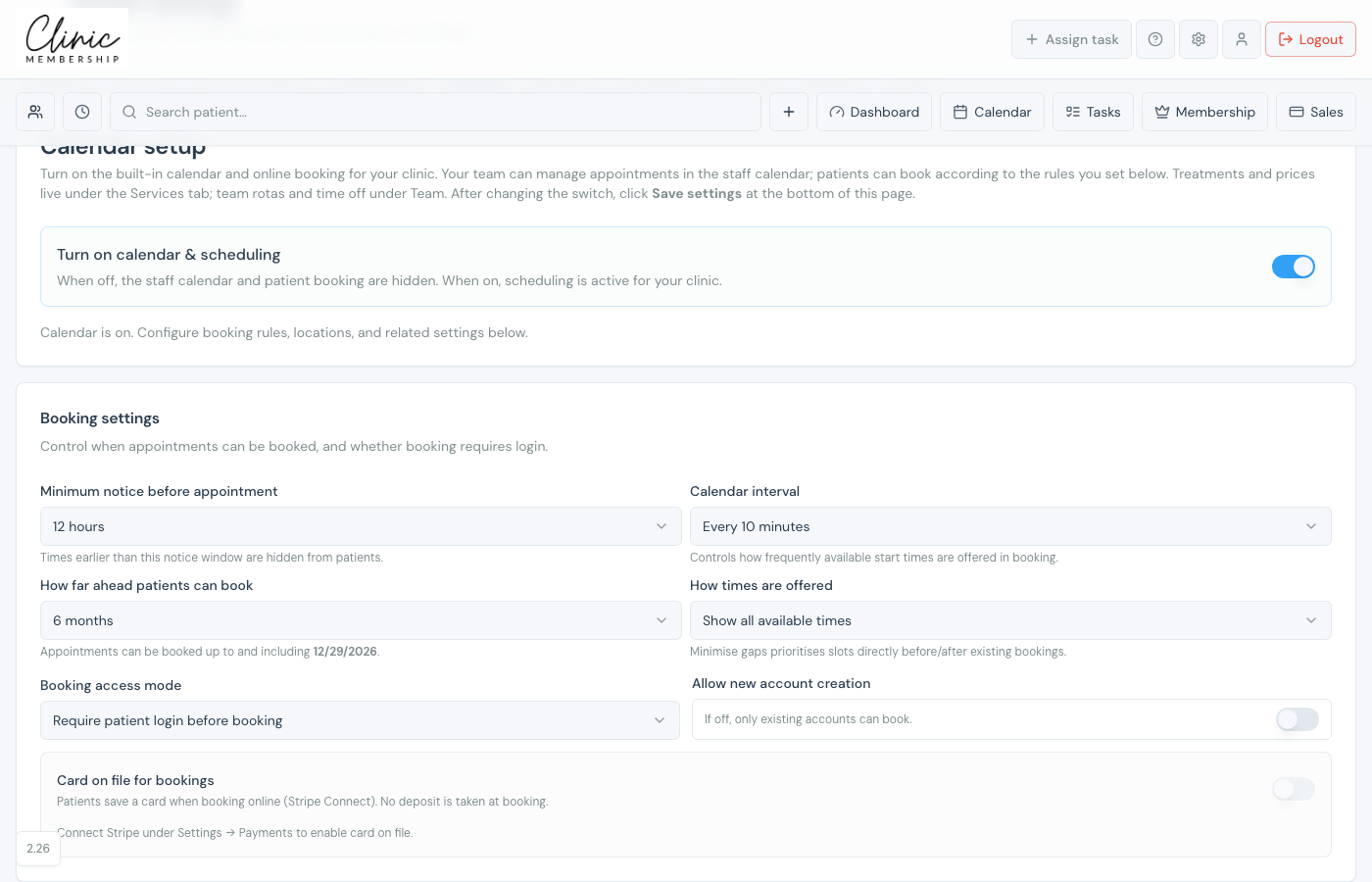
Card on file lets patients save a payment method at online booking. You can then charge a fee if they cancel or move an appointment inside your notice window, and staff can email payment links for prepaid treatments. Connect Stripe first. See Connect Stripe for patient payments.
Turn on card on file
- Go to Settings → Calendar (scheduling tab).
- Scroll to Booking settings.
- Switch on Card on file for bookings.
- Leave Hold card selected if you only want to save the card (no charge at booking).
- Set Notice required (hours): how far before the appointment your rules apply.
- Set Fee inside that notice (£): the amount charged for late cancel or move.
- Optional: set Prepaid booking reminder (hours) for staff-booked prepayments.
- Click Save settings at the bottom of the page.
Note
Hold card does not charge at booking. To take the fee amount as a deposit when patients book online, choose Take deposit on online booking instead. See Set up online booking deposits.
What happens next
Set up online booking deposits
Take a deposit at online booking instead of holding the card only.
Patient cancel and reschedule rules
Show patients your cancellation policy at booking.
Charge no-show fees
Charge a fee when someone does not attend.
Connect Stripe for patient payments
Connect Stripe if card on file is disabled.
