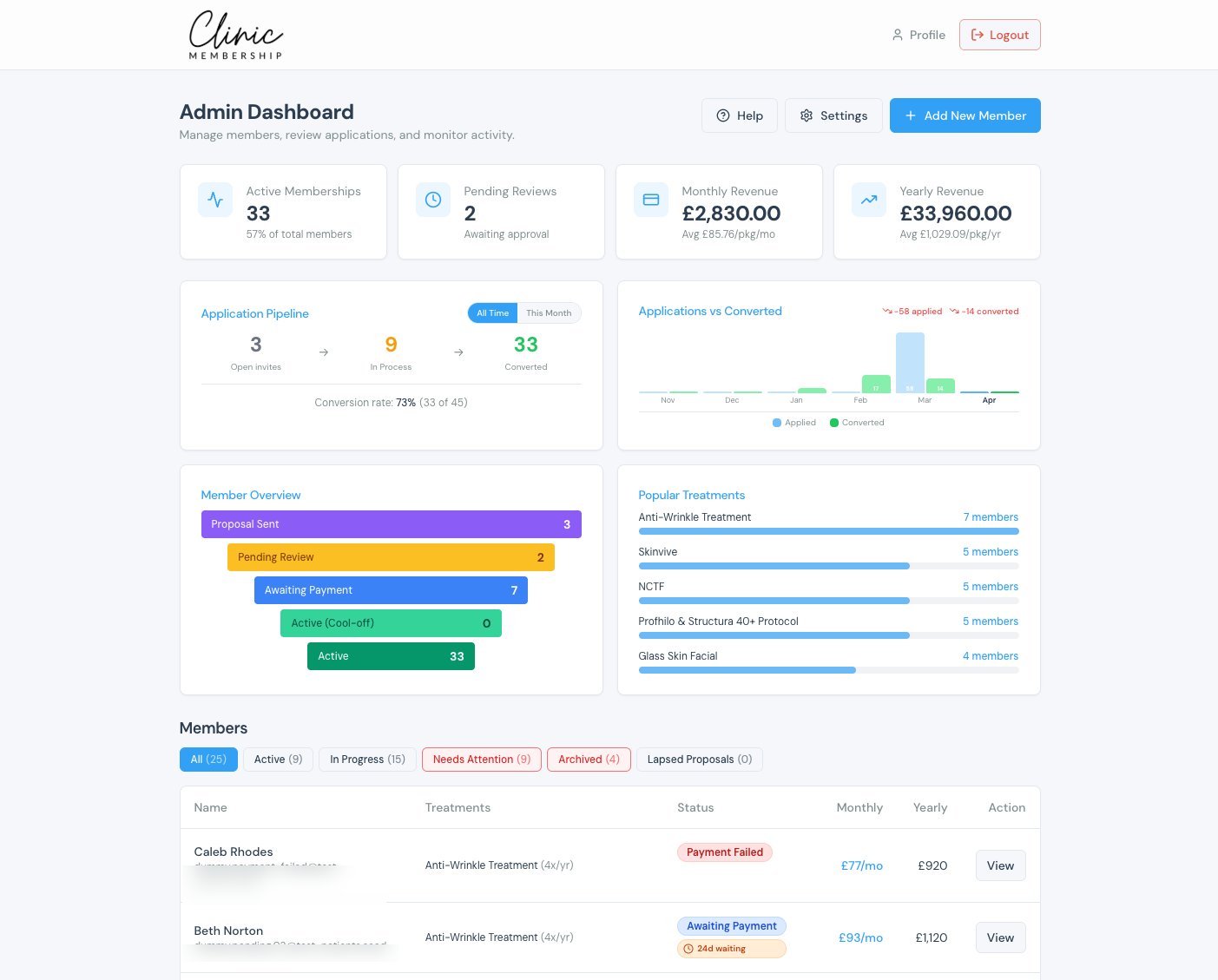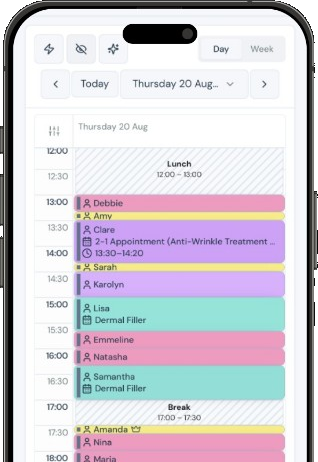


Clinic Membership puts your clinic software reports dashboard in one place under Dashboard & reports, with a plain-English reports assistant, saved shortcuts, and a way to request a report when nothing quite fits. The answer is often already in the system. The hard part is getting to it without scrolling past every chart.
Owners know the feeling. You need one number before a meeting. The dashboard is full of useful widgets, yet the specific view you want is not on the first screen. You open Manual report, scroll the list, try a name that almost matches, and still end up unsure. Reception asks the same question an hour later, and someone starts the search again.
That is not a failure of effort. It is what happens when finding a report is slower than asking a colleague. Clinic Membership is built so you can ask in plain English, pin what you use, and send a clear request when the library does not cover it yet.
How Clinic Membership finds the report you need
On Dashboard & reports you have three practical routes.
- Find the best fit. Open the Report builder panel on the right. In Reports assistant, type what you want to understand in ordinary language, then click Get suggestion. When a report matches, a preview loads with the same numbers as your live dashboard widgets. From that preview you can add the widget to your dashboard or open Manual report to export CSV or PDF.
- Create a report. When you know the data source, use Manual report to Create report. Clinic Membership saves a named shortcut so you can run that report again without rebuilding it.
- Request one. If nothing fits yet, use Suggest report to send your idea to the Clinic Membership team. Those requests help improve the report library. You are not stuck guessing which built-in name is closest.
Saved shortcuts sit next to those routes. Once a report is worth repeating, you pin it and stop hunting.
How the reports assistant works in Clinic Membership
The reports assistant lives in the right-hand panel on Dashboard & reports. You describe what you need. It replies with a suggestion and, when possible, loads a preview.
A sensible ask sounds like the question you would put to a practice manager: unpaid invoices this month, membership applications this week, or a sales view for a date range you care about. Click Get suggestion, read the reply, and check the preview before you export or pin anything.
The assistant is there to shorten the search. It does not replace your judgement about which number matters for the conversation you are about to have. It gets you to a candidate faster than scrolling a long list by memory.
Help Centre articles walk through finding a report with the reports assistant and the wider reports and dashboards for owners view.
Saved shortcuts and the Manual report list in Clinic Membership
When you Create report in Manual report, Clinic Membership saves a named shortcut. Saved reports also appear in the Saved reports card. To run one again, open the Manual report dropdown, choose your saved report under Saved shortcuts, and click Run report.
The same dropdown lists built-in reports grouped by area: membership, sales, patients, appointments, and more. Those do not need saving first. Pick one and run it. The Help article on saved reports and report shortcuts covers both the shortcuts you create and the built-in groups.
That is the difference between a dashboard you rearrange once and a report you can trust to open the same way every Monday. The shortcut holds the shape. Run report refreshes the numbers.
If you already use the older built-in reporting head for a wider overview, keep that piece for context: aesthetic clinic software with built-in reporting. This post is about finding and saving the right report when you already know the answer lives in the system.
Who can open Dashboard & reports in Clinic Membership
Admins always have access. For staff logins, switch on Can access Dashboard & reports under Settings, then Team, when you add or edit a team member. Without that permission, the desk cannot open the same views the owner uses.
Open Dashboard & reports from the staff navigation, or go to Admin, then Reports. On desktop you can drag tiles to reorder your layout. Membership-specific charts also appear on the Membership dashboard under Admin, then Membership. Use both when you want the day-to-day membership picture next to the owner overview.
Staff who can see the dashboard still need a clear habit: ask the assistant when the view is not obvious, save a shortcut when a report will be reused, and Suggest report when the library has a gap.
What changes at the desk with Clinic Membership
Day to day, the shift is mostly what stops happening.
- Fewer dead-end scrolls. Plain English in the reports assistant beats guessing the right built-in name.
- Fewer rebuilt reports. Saved shortcuts mean the Monday view opens the same way each week.
- A clear path when nothing matches. Suggest report sends the request instead of leaving the question hanging.
- Clearer handovers. Staff with Can access Dashboard & reports can open the same shortcuts the owner uses.
None of this replaces the conversation you have about what the number means. It shortens the path from "I know it is in here" to the report on screen.
When reports are part of spotting members who may leave, it is worth reading how to read Clinic Membership reports for churn warning signs once you have the right view open.
First steps with reports in Clinic Membership
You do not need a long project to make this usable.
- Open Admin, then Dashboard & reports (or Dashboard & reports in the staff navigation).
- Ask the reports assistant one real question in plain English, then click Get suggestion and check the preview.
- Create report for a view you will reuse, so it lands under Saved shortcuts.
- Run a built-in Manual report from the grouped list when you already know the area.
- Use Suggest report if nothing fits, so the request reaches the Clinic Membership team.
- Switch on Can access Dashboard & reports for the staff who need the same views.
After that, the dashboard stays the place you rearrange. Shortcuts stay the place you re-run.
Find the report, then keep it in Clinic Membership
Clinic reports should not mean a scavenger hunt before every meeting. In Clinic Membership you can ask the reports assistant in plain English, create and save shortcuts for the views you reuse, run built-in Manual reports by group, and request a report when the library does not cover it yet. Staff need Can access Dashboard & reports. The Help Centre articles on reports and dashboards, the reports assistant, and saved shortcuts keep the steps close to the product.
Clinic Membership brings your patients, calendar, memberships and payments together in one place, so the reports you pin stay next to the work they describe. Free covers up to 10 patient records. See pricing for paid plans.